
Overview
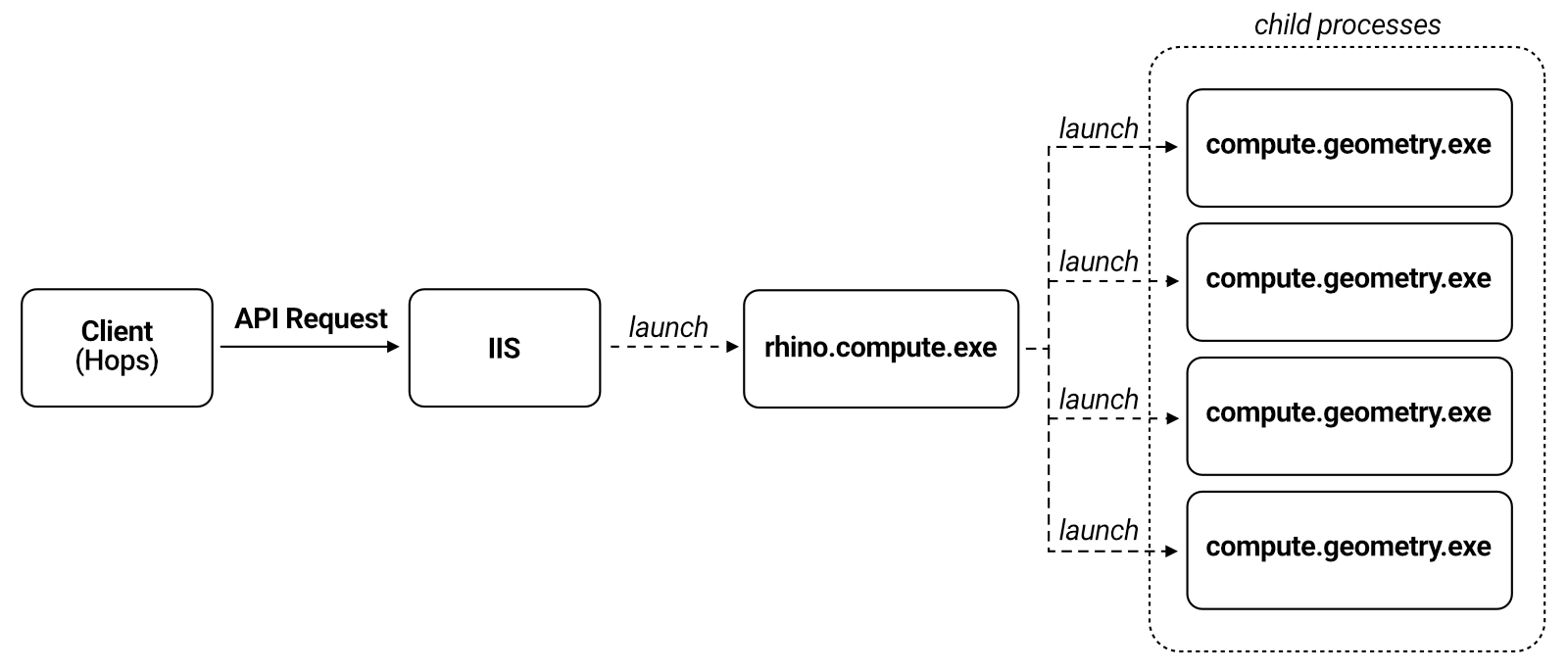
This guide will walk you through how to set up an instance of Rhino.Compute on a virtual machine running Internet Information Services (IIS). IIS is a flexible, general-purpose web server developed by Microsoft which can be configured to serve requested HTML pages or files. We can set up IIS to process incoming requests (either from Hops or some other client) and forward that request to the Rhino.Compute instance.
You may be asking yourself, “Why do I need IIS at all? Why can’t I simply launch the Rhino.Compute server and send API requests directly to that instance?”. Technically speaking, you don’t need IIS. However, you would need to figure out how to relaunch the compute server should it crash or malfunction. You would also need to configure Rhino.Compute to launch whenever the virtual machine is launched.
One of the main benefits of using IIS as a middleware is that it can automatically spin up an instance of the Rhino.Compute server whenever a request is received. With this configuration, you do not have to have compute running continuously. Instead, IIS can launch an instance of compute when it is needed which in turn will launch one or more child processes. These child processes are what perform the actual computation and also what require your license authorization.
When Rhino.Compute.exe does not receive requests to solve over a period of seconds (this is called the idlespan, and the default is 1 hour), child compute.geometry.exe processes will shut down and stop incurring core hour billing. At some date in the future when a new request is received, IIS will make sure that Rhino.Compute.exe is running which will then relaunch the child processes. Note, there may be some small delay in the response while the child processes are launching.
Prerequisites
Before running the bootstrap script on your server or virtual machine, you will need the following pieces of information.
RhinoVersion- Which version of Rhino the server should run:7,8or9. Rhino 8 is the default. Rhino 7 is out of support, and its Rhino.Compute runs on .NET 5, which no longer gets security fixes.EmailAddress- The script will use this email to download a copy of Rhino to install. This is similar to the Rhino download page behavior.ApiKey- The API key is a string of text that is secret to your compute server and your applications that are using the compute API e.g.b8f91f04-3782-4f1c-87ac-8682f865bf1b. It is basically how the compute server ensures that the API calls are coming from your apps only. You can enter any string that is unique and secret to you and your compute apps. Make sure to keep this in a safe place.RhinoToken– This is a long token that identifies your instance of Rhino Compute to the core-hour billing system. Go to the Licenses Portal to generate this unique id based on your license. See the “Core-Hour Billing” guide for more information.
Running Rhino.Compute locally uses your existing Rhino license and does not cost any additional money (other than your initial Rhino license investment). Running compute locally is the best option for development and testing and to find out more, read Running and Debugging Compute Locally.
However, when setting up a production environment you will need a server or virtual machine pre-installed with Windows Server 2019 or higher. Licensing works differently when running Rhino (i.e. via Compute) in a production environment (i.e. a server setting) and you will be charged at a rate of $0.10 per core per hour.
Follow the “Core-Hour Billing” guide to get set up. This is important so do not skip.
Create the VM
The first step in the process of deploying Rhino.Compute for production is to either set up a physical machine to act as a server or create a virtual machine (VM). For this guide, we will be using a virtual machine. There are several popular services which can be configured to set up a wide array of virtual machines depending on your resource needs. Two of the most prominent providers include Azure and AWS.
Depending on your preferences, we recommend starting with an Azure or AWS VM. Use the following guides to walk through that process.
Connect via RDP
Now that we’ve configured the virtual machine, we need to be able to log onto it so that we can set up IIS and the Rhino.Compute instance. We’ll do this by using a remote desktop protocol (RDP) which connects two computers over a network.
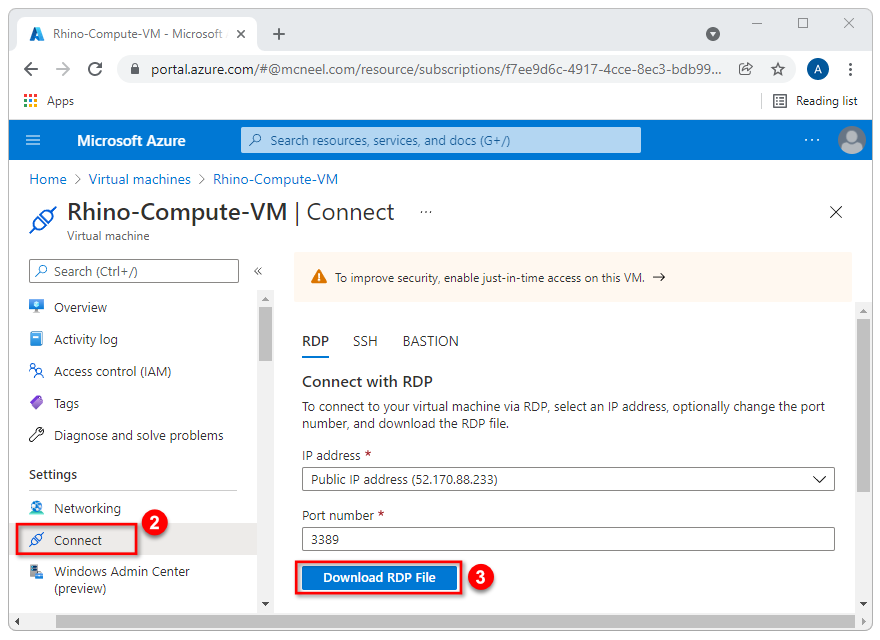
To start, let’s download the RDP file. We’ll use the Azure VM Portal but a similar process is used for AWS.
-
First, make sure the virtual machine is running. Click on the Overview tab in the left-hand menu. If the Status says Stopped (Deallocated), click on the Start button at the top to start the remote machine. After a few seconds, the status should say Running.
-
Click on the Connect menu item in the left-hand menu to pull out the connection settings blade.
-
Click on the Download RDP File button and save the file somewhere on your computer.
-
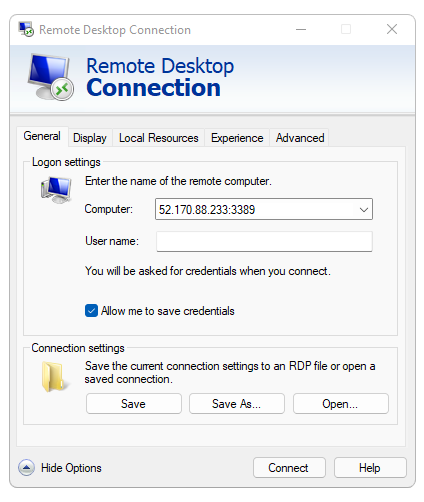
Click on the Windows Start menu and start typing remote desktop connection in the search bar. Click on the link to launch the app.
-
Click on the button at the bottom of the app to Show Options.
-
Under the Connection Settings area, select Open and navigate to the directory where you saved your RDP file. Choose that file and hit Open.
-
Select the checkbox to Allow me to save credentials.
-
Click Connect.
-
A security pop-up will be opened. Click the checkbox for Don’t ask me again for connections to this computer and then click Connect.
-
Enter the administrator credentials that you set when you created the virtual machine.
-
You may see another security pop-up. Again, select Don’t ask me again for connections to this computer and click Yes.
Congratulations. You should now have access to the desktop of the remote machine running Windows Server 2019 or higher.
Running the Bootstrap script
Assuming that you are now logged into the virtual machine (using RDP), follow the steps below to install Rhino.Compute behind IIS. Note: These steps assume that this is an installation on a new virtual machine or server (meaning Rhino.Compute has not been previously installed on this machine). If you have already set up Rhino.Compute and IIS on this machine and simply need to update Rhino and/or Rhino.Compute on this VM, please proceed to the section on Updating the Deployment.
Installation
-
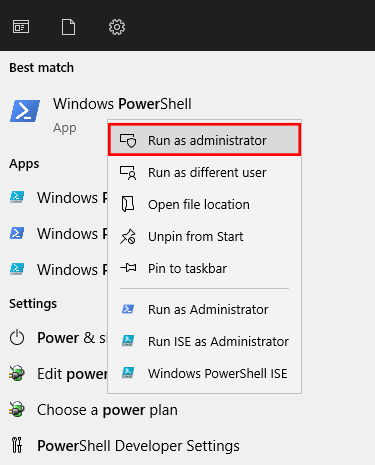
Click on the Windows Start menu and type in “PowerShell”. In the menu that appears, right-click on the Windows PowerShell app and choose Run As Administrator.
-
Copy and paste the command below into the PowerShell prompt and hit Enter. This command downloads the latest bootstrap script and installs Rhino, IIS and Rhino.Compute on your VM.
iwr -useb https://get.compute.rhino3d.com/bootstrap.ps1 -OutFile "$env:TEMP\bootstrap.ps1"; & "$env:TEMP\bootstrap.ps1" -
The script first asks which version of Rhino the server should run. Type
7,8or9, or press Enter for Rhino 8. It then asks for your Email Address, API Key and Rhino Token, so please have that information handy. -
At the end of the bootstrap script, you should see the message Congratulations! Rhino.Compute is set up for Rhino 8. (or the version you chose). This is followed by instructions for installing 3rd party plugins so that they work with Rhino.Compute. Please take note of the User Name and Password, which you’ll need to log back in as
RhinoComputeUserto install plugins. They’re also saved inC:\Rhino-Compute-Installation\RhinoComputeUser.txt, which only Administrators can read.
If a step fails, the script stops and says which step failed and why. Fix the problem and run the same command again; it picks up where it stopped. Everything the script does is logged in C:\Rhino-Compute-Installation\bootstrap_log.txt, without your API key, Rhino token or password.
Running without questions
To set up a server from your own script, pass the answers as parameters:
iwr -useb https://get.compute.rhino3d.com/bootstrap.ps1 -OutFile "$env:TEMP\bootstrap.ps1"; & "$env:TEMP\bootstrap.ps1" -RhinoVersion 8 -EmailAddress "you@example.com" -ApiKey "YOUR_API_KEY" -RhinoToken "YOUR_RHINO_TOKEN"
-RhinoVersion-7,8or9.-EmailAddress,-ApiKey,-RhinoToken- The values from the Prerequisites section.-SkipHopsInstall- Sets up the server without installing Hops forRhinoComputeUser.
The script asks for anything you leave out. PowerShell saves commands typed at its prompt in its history, so when you set up a server by hand, let the script ask for the API key and Rhino token instead.
Testing the app
At this point, IIS should be configured to launch the Rhino.Compute instance when an API request is made. Let’s try getting Hops to send a definition to our virtual machine’s URL.
-
Launch Rhino on your local machine.
-
If you have not already installed Hops on this machine, please do so by searching for it in the Rhino Package Manager.
-
Start Grasshopper by typing the word Grasshopper into the command prompt and hitting enter.
-
Go to File and then Preferences to open the preferences dialog.
-
Click on the Solver tab in the left-hand menu.
-
In the Hops preferences section, click on the checkbox to Use a remote server. Next, type in the web address of your virtual machine into the URL input. Start by typing in
http://followed by the IP address of the virtual machine followed by a:and the port number80. So, the full address would look something like this:http://52.168.38.105:80/ -
In the API Key input, enter the API Key that you saved in the Prerequisites section.
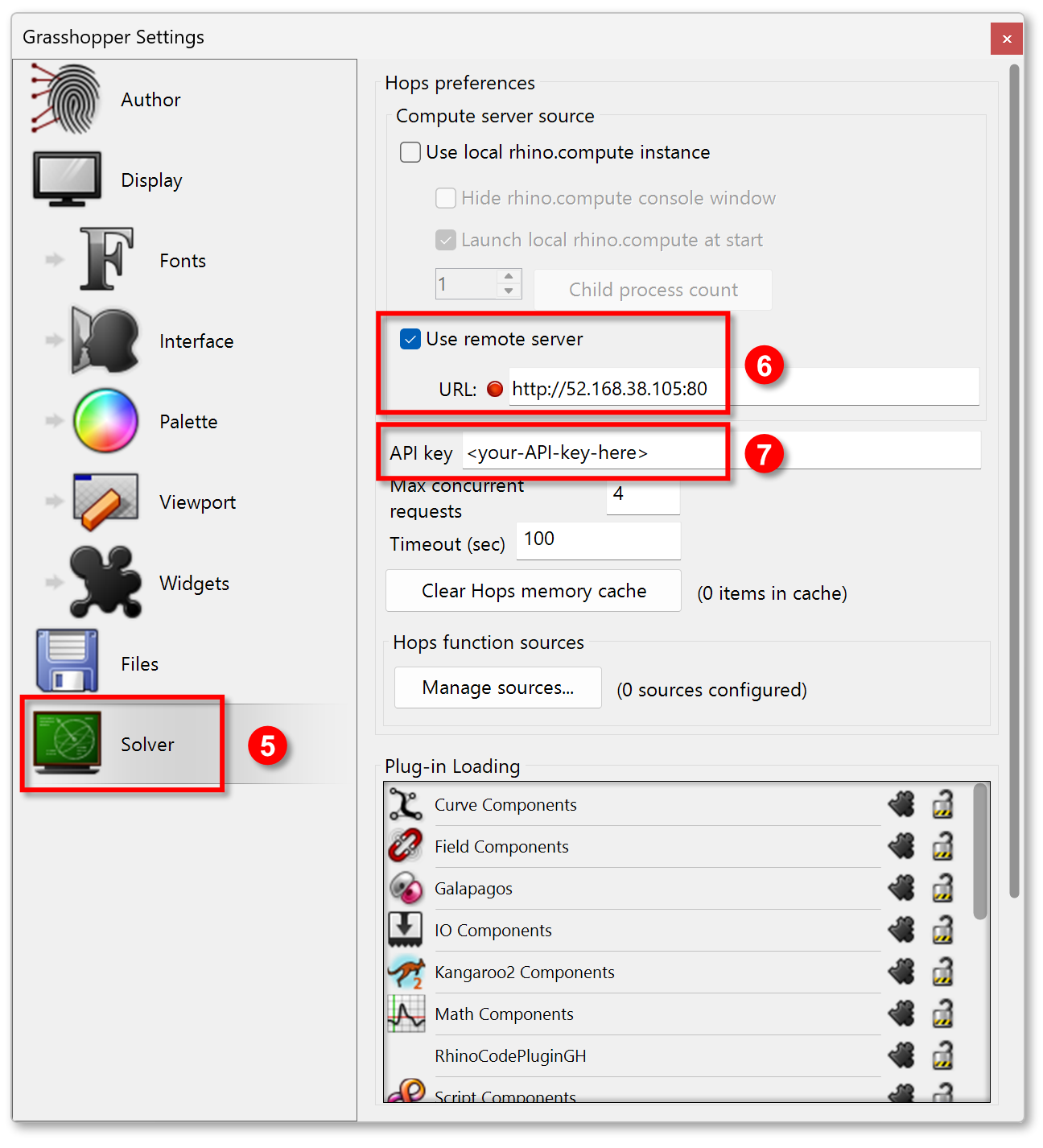
-
Add a Hops component to the Grasshopper canvas (Params/Util)
-
Right-click on the Hops component and set the Path to a valid Hops/Grasshopper definition. To learn more about setting up a Grasshopper definition that will work properly with Hops, follow this guide.
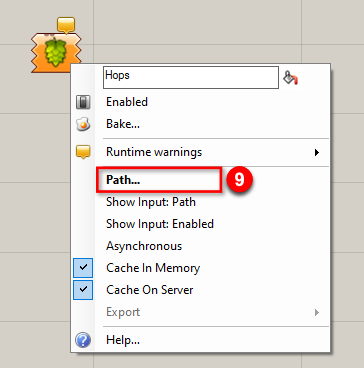
Once the path is set, the Hops component creates the appropriate API request and sends it to the URL that we specified in step 6 (the Rhino.Compute server running on IIS). The compute server processes the request and sends a response back to Hops, which returns the result.
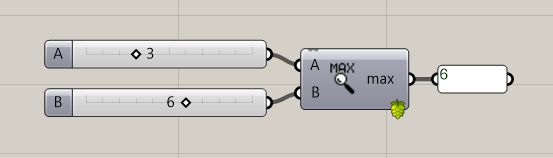
Congratulations! You have successfully set up an instance of Rhino.Compute running behind IIS on a virtual machine.
Modifying Compute Parameters After Deployment
There are a number of command line arguments that can be used to modify how Rhino.Compute behaves. This section covers how to change those parameters after Rhino.Compute has been deployed.
-
Log into your VM (via RDP). See the section Connect via RDP for more details.
-
On the Start menu, click in the search area and type Internet Information Services (IIS) Manager. Click to launch the app.
-
In the IIS Manager, click on the web server node in the Connections panel on the left. Note, this web server name should be the same name you used when setting up the name of your virtual machine.
-
In the Actions pane on the right, click Stop to stop the web server.
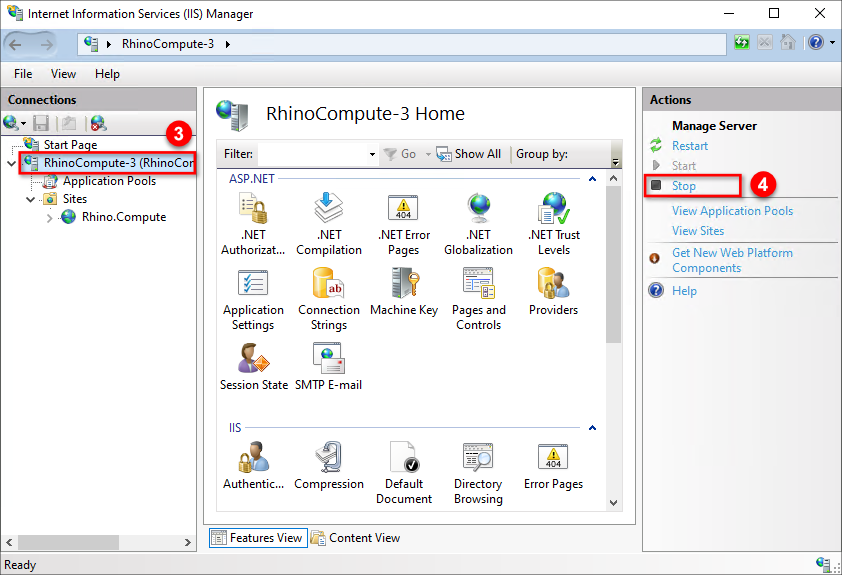
Now that the IIS web server has been stopped, we need to go and modify the web.config file for Rhino.Compute. The web.config file is a file that is read by IIS and the ASP.NET Core module to configure an app which is hosted by IIS.
- Open a File Explorer window and navigate to C:\inetpub\wwwroot\aspnet_client\system_web\4_0_30319\rhino.compute. At the end of this directory, you should see a file labeled web.config. Note, you may need to click on the View tab and click the checkbox to turn on file name extensions. Open the web.config file with Notepad or any other text editor you prefer.
The full web.config file should look like this:
<?xml version="1.0" encoding="utf-8"?>
<configuration>
  <system.webServer>
    <handlers>
      <add name="aspNetCore" path="*" verb="*" modules="AspNetCoreModuleV2" resourceType="Unspecified"/>
    </handlers>
    <aspNetCore processPath=".\rhino.compute.exe" arguments="--port 80 --block-private-urls" stdoutLogEnabled="true" stdoutLogFile="..\..\..\..\..\logs\LogFiles\W3SVC1\" forwardWindowsAuthToken="true" hostingModel="InProcess"/>
  </system.webServer>
</configuration>
The line we are most interested in modifying is the one which starts with the <aspNetCore> tag. You can see the second parameter on this line is called arguments. This is the section that you would edit to add other command line arguments to modify Rhino.Compute. The update script keeps your web.config when it updates Rhino.Compute, so your changes stay in place.
Below is a description of each command line argument which can be modified. Rhino 7’s Rhino.Compute only has port, childcount, childof, spawn-on-startup and idlespan.
-
port - This is the port number to run Rhino.Compute on. Port number 80 is typically reserved for HTTP communication, while port number 443 is used for the HTTPS protocol. Rhino.Compute is set up to be bound to port 80 in the bootstrap script, so do not modify this value unless you know what you are doing.
--port 80 //bind the process to port 80 -
urls - This is used specifically in ASP.NET Core applications to define the server URL(s) and port(s) that the web server (Kestrel) should bind to at startup. Adding this option will override any default settings. Multiple URLs can be separated by a semicolon.
--urls "http://localhost:5000" //bind the process to the url http://localhost/ and port 5000 -
childcount - This parameter controls the number of child compute.geometry processes to manage. The default value is
4which means that Rhino.Compute will spawn four child processes each of which can handle incoming requests.--childcount 8 //launch eight child processes -
childof - This is the process handle of the parent process. Compute watches for the existence of this handle and will shut down when this process has exited. Since we are relying on IIS starting and stopping Rhino.Compute, you do not need this parameter when running in a production environment.
-
spawn-on-startup - This flag determines whether to launch a child compute.geometry process when Rhino.Compute gets started. The default value is
false. This parameter is a flag which means that if it is not included in the argument list, the value will be false. If you include this parameter, then its value will be true. For production environments, this value should remain false.--spawn-on-startup //automatically start the child processes when Rhino.Compute is launched -
idlespan - This is the number of seconds that child compute.geometry processes should remain open between requests. The default value is 1 hour. When Rhino.Compute.exe does not receive requests to solve over a period of
idlespanseconds, child compute.geometry.exe processes will shut down and stop incurring core hour billing. At some date in the future when a new request is received, the child processes will be relaunched which will cause a small delay on requests while the child processes are launching.--idlespan 1800 //shut down child processes after 30 mins of inactivity (30 mins x 60 secs/min = 1800)If you change the
idlespanvalue in the command line arguments for Rhino.Compute, you will also need to make a modification to the IIS configuration. This is because IIS also contains a setting to shut down Rhino.Compute if no new requests are received after a period of time. When Rhino.Compute gets shut down, it will in turn shut down any child processes.For instance, let’s say you change the
idlespanvalue to 7,200 (2 hours). The bootstrap script sets the IISIdleTimeoutvalue to 65 minutes (slightly longer than the defaultidlespanvalue). After 65 minutes, IIS would shut down Rhino.Compute, which would then shut down all of its child processes much earlier than the expected 2 hour time limit. So, if you change theidlespanvalue, it is recommended that you also change theIdleTimeoutvalue in the IIS settings.-
To do this, go back to the IIS Manager and click on the Application Pools item in the Connections pane on the left.
-
In the center window click on the RhinoComputeAppPool.
-
In the Actions pane on the right, click Advanced Settings.
-
Find the Idle Time-out row under the Process Model section and change the time out value to be slightly longer than the
idlespanvalue you set in the command line arguments. Note: theidlespanvalue is in seconds while theIdle Timeoutvalue is in minutes.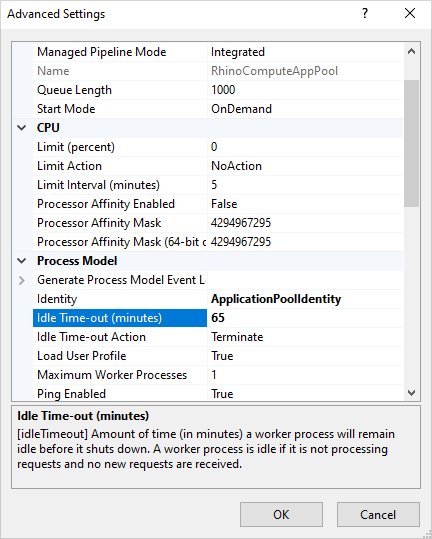
-
-
load-grasshopper - This parameter determines whether the Grasshopper plugin is loaded when Rhino.Compute starts. By default, it’s set to
truefor backward compatibility—so if you don’t specify a value, Grasshopper will load automatically. Setting it tofalsecan make startup faster, but you won’t be able to solve Grasshopper definitions using Rhino.Compute. You’ll still be able to use standard SDK functions and any custom endpoints you’ve added through Rhino plugins (click here to learn more about extending Rhino.Compute with custom endpoints).--load-grasshopper false //skip loading the Grasshopper plugin during startup -
max-request-size | <bytes> - This parameter sets the maximum allowable payload for any incoming request. The default value is
52428800 byteswhich is 50 MB.--max-request-size 104857600 //would allow requests up to 100 MB (100 MB = 104857600 bytes) -
apikey - This parameter allows you to set an API key to be used for authentication. Normally, this is set as an environment variable, but this parameter will override that setting for a given session.
--apikey "MyCustomAPIKey" //defines an API key to be used for authentication -
timeout - This parameter lets you specify a timespan (in seconds) to wait before a request times out. The default value is
100 seconds.--timeout 300 //wait 5 mins before a request times out (5 mins * 60 sec/min = 300 seconds) -
create-headless-doc - This parameter defines whether or not you want to create a new headless Rhino document upon receiving a new request. Each time a request is received, it checks whether this value is
true. If it is, a new headless document is instantiated with tolerances and units determined by the input object. This feature is useful for third party plugins which may make calls to the Rhino Document to retrieve certain properties.--create-headless-doc true //create a new headless Rhino document on each request -
block-private-urls - When this flag is set, Rhino.Compute refuses to fetch URLs (for example, a definition passed by URL) whose host name points to a private, loopback or link-local address. This protects cloud servers from requests that try to reach internal services, such as the cloud provider’s metadata endpoint. The web.config installed by the bootstrap script sets it. Remove it only if your definitions need to be fetched from hosts on your internal network.
--block-private-urls //refuse to fetch URLs on private networks -
load-children-sequentially - When this flag is set, the child compute.geometry processes start one at a time, each finishing loading before the next starts. By default they start together, which is faster. Use this on servers with little memory, where loading several copies of Rhino and Grasshopper at once can run out of RAM.
--load-children-sequentially //start the child processes one at a time
Once you have modified the web.config file, save it and close the file. You can then go back to the IIS Manager and start the web server by clicking on the web server node in the Connections panel on the left and clicking start in the Actions pane on the right.
Updating The Deployment
If you already have Rhino.Compute set up on this machine, you should periodically update Rhino, Rhino.Compute and Hops to their latest versions, for example after a Rhino service release. The update script checks all three and updates whichever you choose.
-
Click on the Windows Start menu and type in “PowerShell”. In the menu that appears, right-click on the Windows PowerShell app and choose Run As Administrator.
-
Copy and paste the command below into the PowerShell prompt and hit Enter.
iwr -useb https://get.compute.rhino3d.com/update.ps1 -OutFile "$env:TEMP\update.ps1"; & "$env:TEMP\update.ps1" -
The script shows what’s installed, then asks three questions. Press Enter to answer yes to each:
- Update Rhino 8 (recommended)?
- Update Rhino.Compute and its .NET hosting bundle (recommended)?
- Update Hops (recommended)?
The script downloads and checks everything first, while Rhino.Compute keeps answering requests. Then it stops IIS once, installs the updates and starts IIS again. Requests sent while it installs will fail, so pick a quiet time. If the new Rhino.Compute can’t be installed, the previous one is put back. At the end, the script shows the result for each part, and it logs every run in C:\Rhino-Compute-Installation\update_log.txt.
Servers set up with an older bootstrap script can use the same command. The first run asks for your email address if it updates Rhino, and records which version of Rhino the server runs for later updates.
Updating from a scheduled task
To update without questions, for example from a scheduled task, add one or more of these switches to the end of the command:
-All- Update Rhino, Rhino.Compute and Hops.-SkipRhino,-SkipCompute,-SkipHops- Update everything except that part.-Force- Reinstall Rhino.Compute and Hops even when they’re already current.
The script’s exit code is 0 when everything was updated or already current, 1 when something failed and was left as it was, and 2 when something needs attention, such as a restart.
Moving To A Newer Version Of Rhino
The update script keeps a server on the version of Rhino it was set up for: it installs Rhino 8 service releases on a Rhino 8 server, but it won’t move that server to Rhino 9. To move to a newer version of Rhino:
-
Set up a new server with the bootstrap script, choosing the new version of Rhino.
-
Install your plugins on the new server, logged in as
RhinoComputeUser. -
Test your definitions against the new server. They can behave differently in a new version of Rhino.
-
Point your apps at the new server, or move your DNS name or IP address to it, then shut down the old server.