
Prerequisites
It is presumed you already have the necessary tools installed and are ready to go. If you are not there yet, see Installing Tools (Windows)
Migrate the project
C++ plug-ins written for Rhino 8 for Windows will load and run in Rhino 9 for Windows.
However, if you want to migrate your C++ plug-in projects to Rhino 9, so you can use the Rhino 9 C/C++ SDK, following these steps:
-
Launch Visual Studio and click File > Open > Project/Solution….
-
Navigate to your project’s folder and open either your plugin project (.vcxproj) or solution (.sln)
-
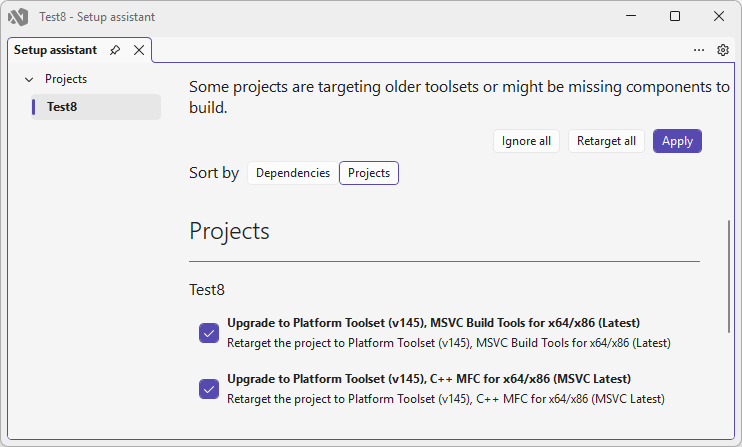
When your plugin project opens, Visual Studio may display the Setup Assistant tab. Upgrading to the Platform Toolset (v145) is recommended but not required.
Replace property sheets
The Rhino C/C++ SDK includes Visual Studio Property Sheets that provide a convenient way to synchronize or share common settings among other plugin projects. You will need to remove references to Rhino 8 C/C++ SDK property sheets and replace them with references to Rhino 9 C/C++ SDK property sheets.
-
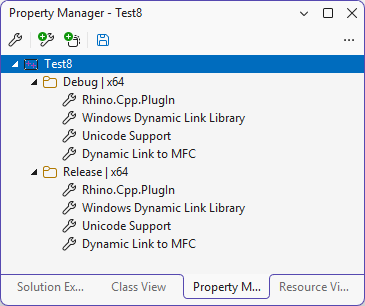
From Visual Studio, click View > Property Manager.
-
Right-click on the Rhino.Cpp.PlugIn property sheets in both Debug | x64 and Release | x64 configurations and click Remove.
-
Right-click on the Debug | x64 configuration and click Add Existing Property Sheet.
-
Navigate to the following location: C:\Program Files\Rhino 9.0 SDK\PropertySheets
-
Select Rhino.Cpp.PlugIn.props and click OK.
-
Repeat the above steps for the the Release | x64 configuration.
-
Save the changes to your solution.
Your plugin project should now be ready to build with the Rhino 9 C/C++ SDK.

