
Explorer Panel
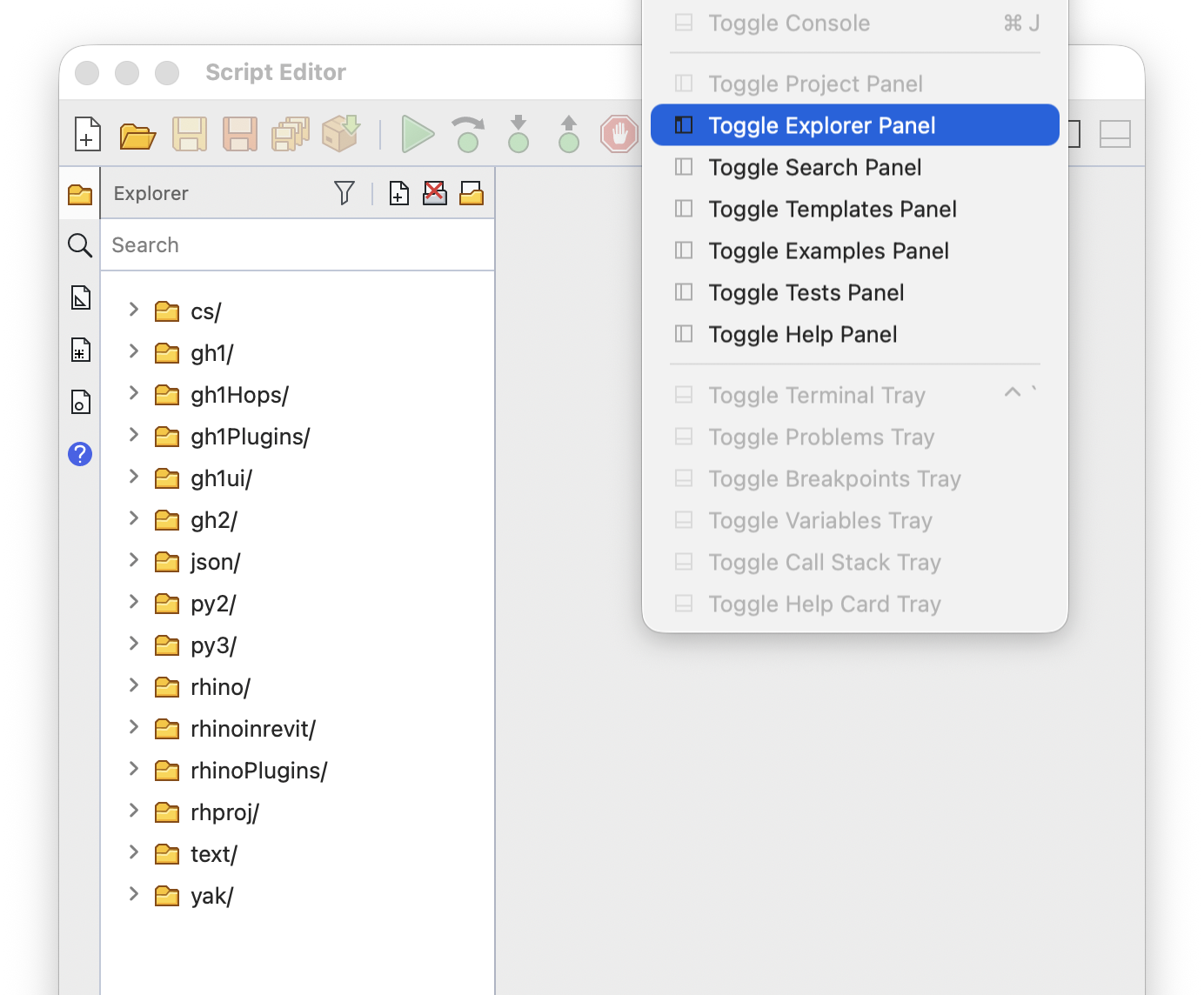
The Explorer panel browses a directory of scripts on your machine. Choose Window > Toggle Explorer Panel to show or hide it.
Use Open Directory on the panel header to choose a directory, and Clear Explorer to empty the panel. Click the > in front of a folder to expand it. Folders are read as you expand them, so large directories stay responsive:
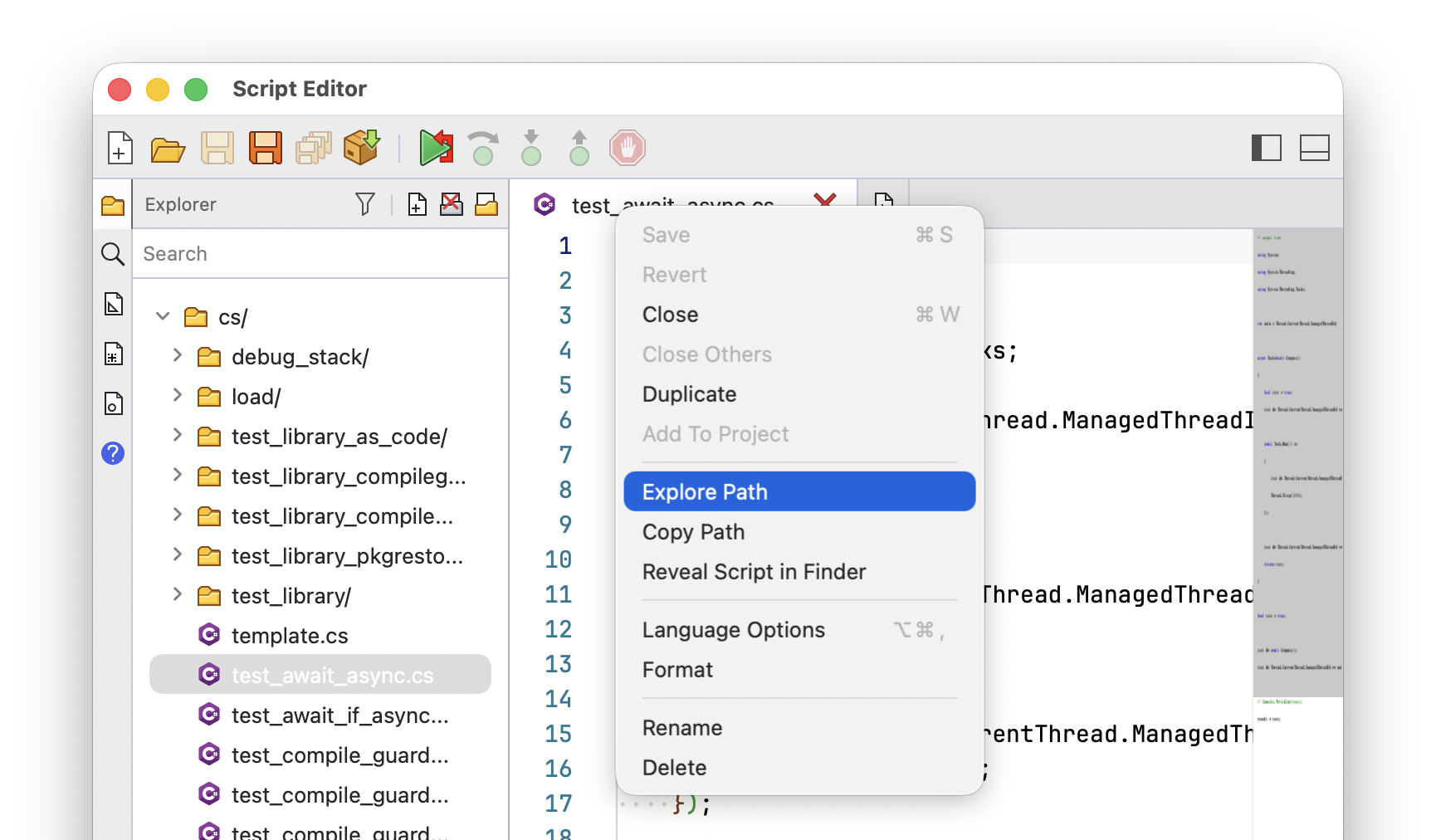
To browse the directory of a script that is already open, right-click the script tab at the top of the editor window and choose Explore Path:
Opening Scripts
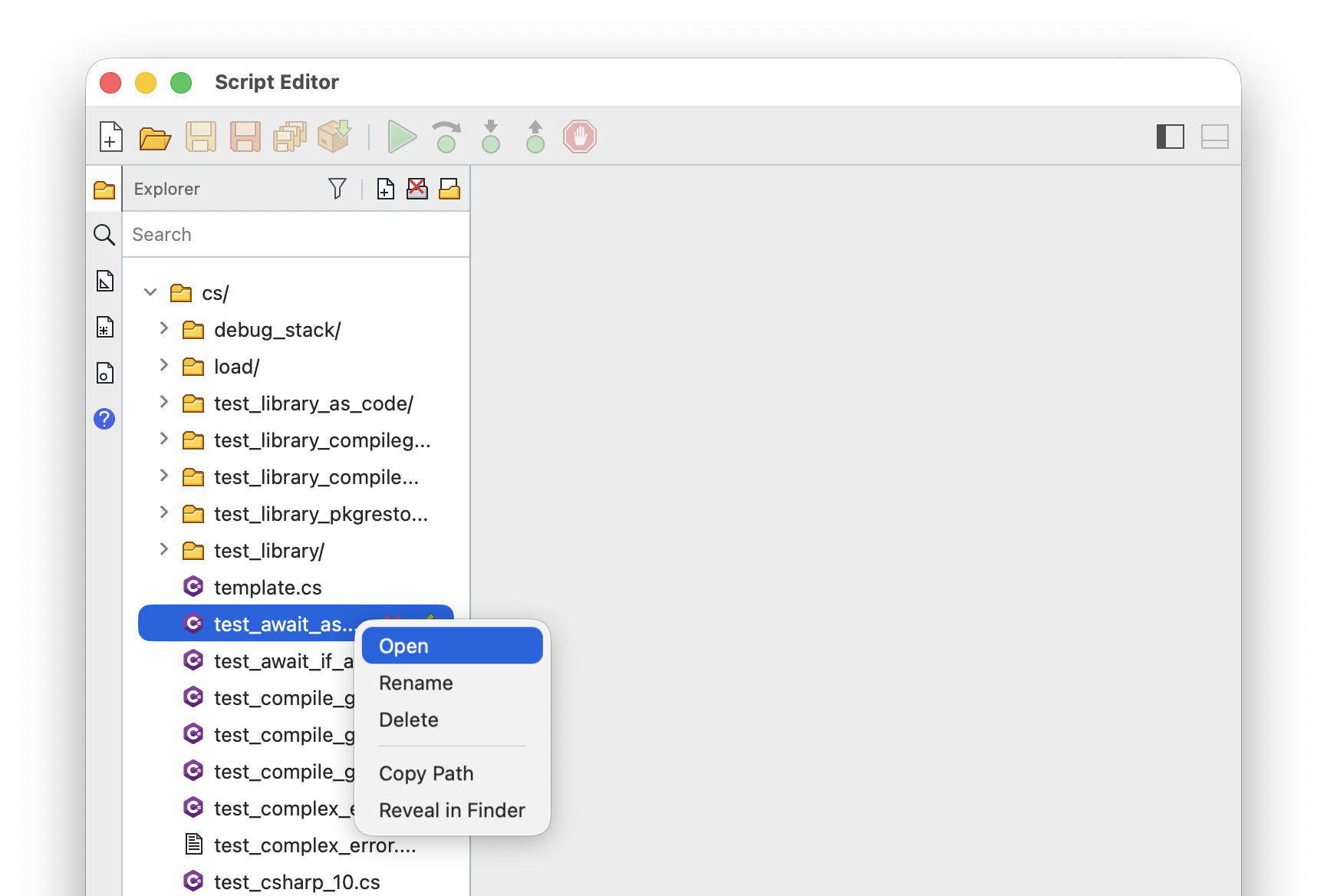
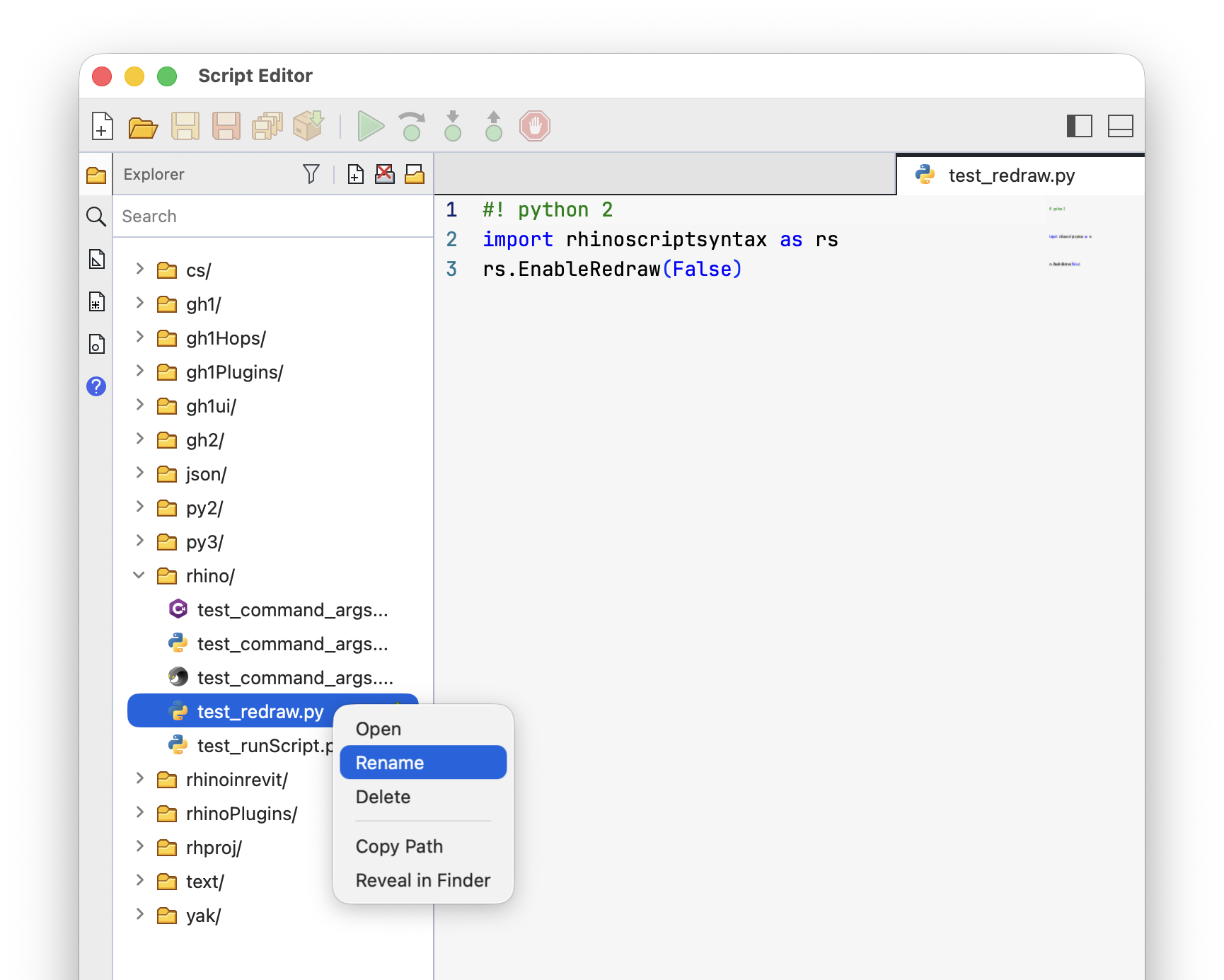
Double-click a script to open it in the editor. You can also right-click and choose Open:
Searching and Filtering
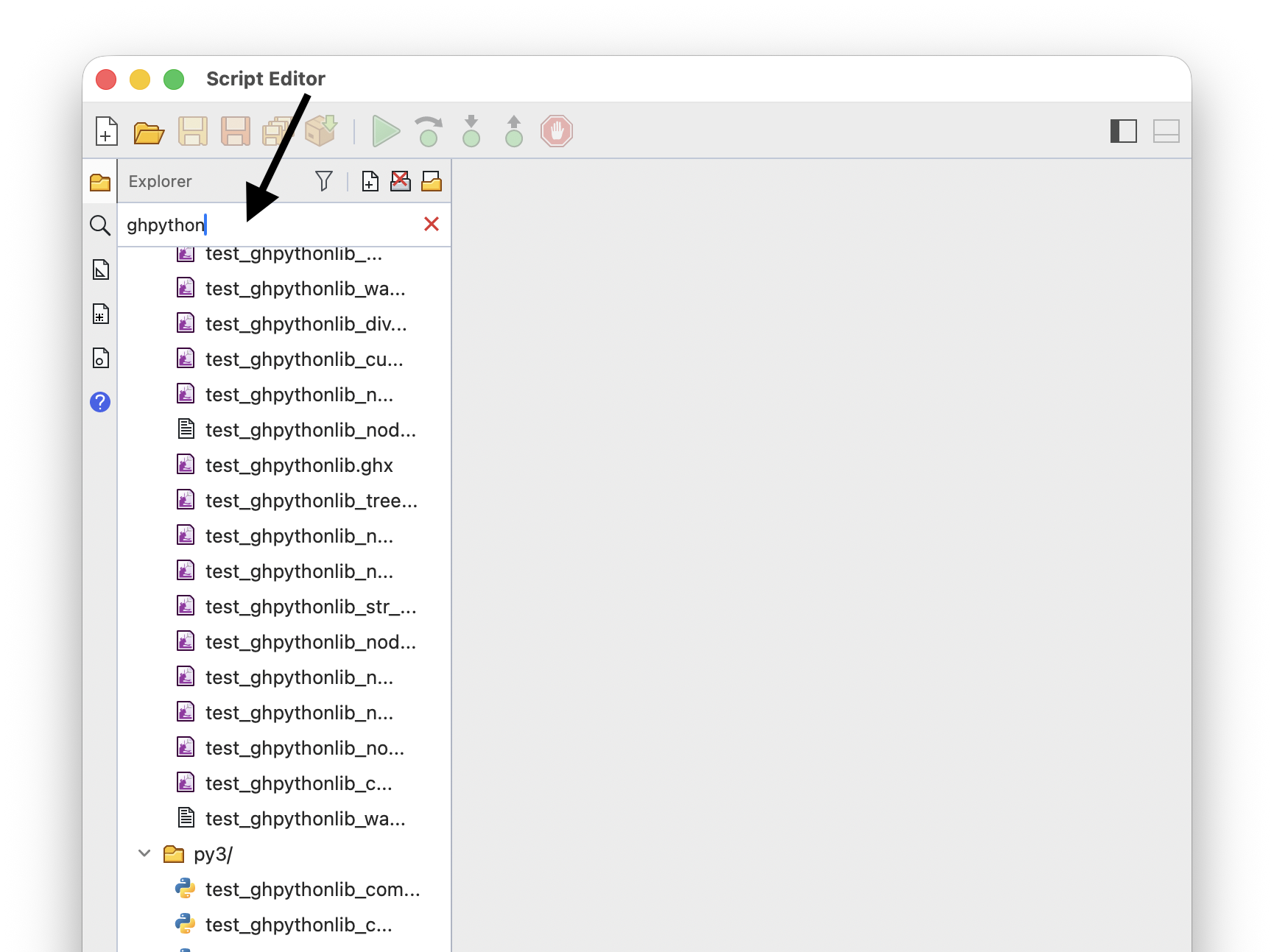
Type in the search box to list only the scripts with matching names. Use Filter on the panel header to list scripts of one language only. Include Projects controls whether scripts inside script projects are listed:
Adding, Renaming, and Deleting
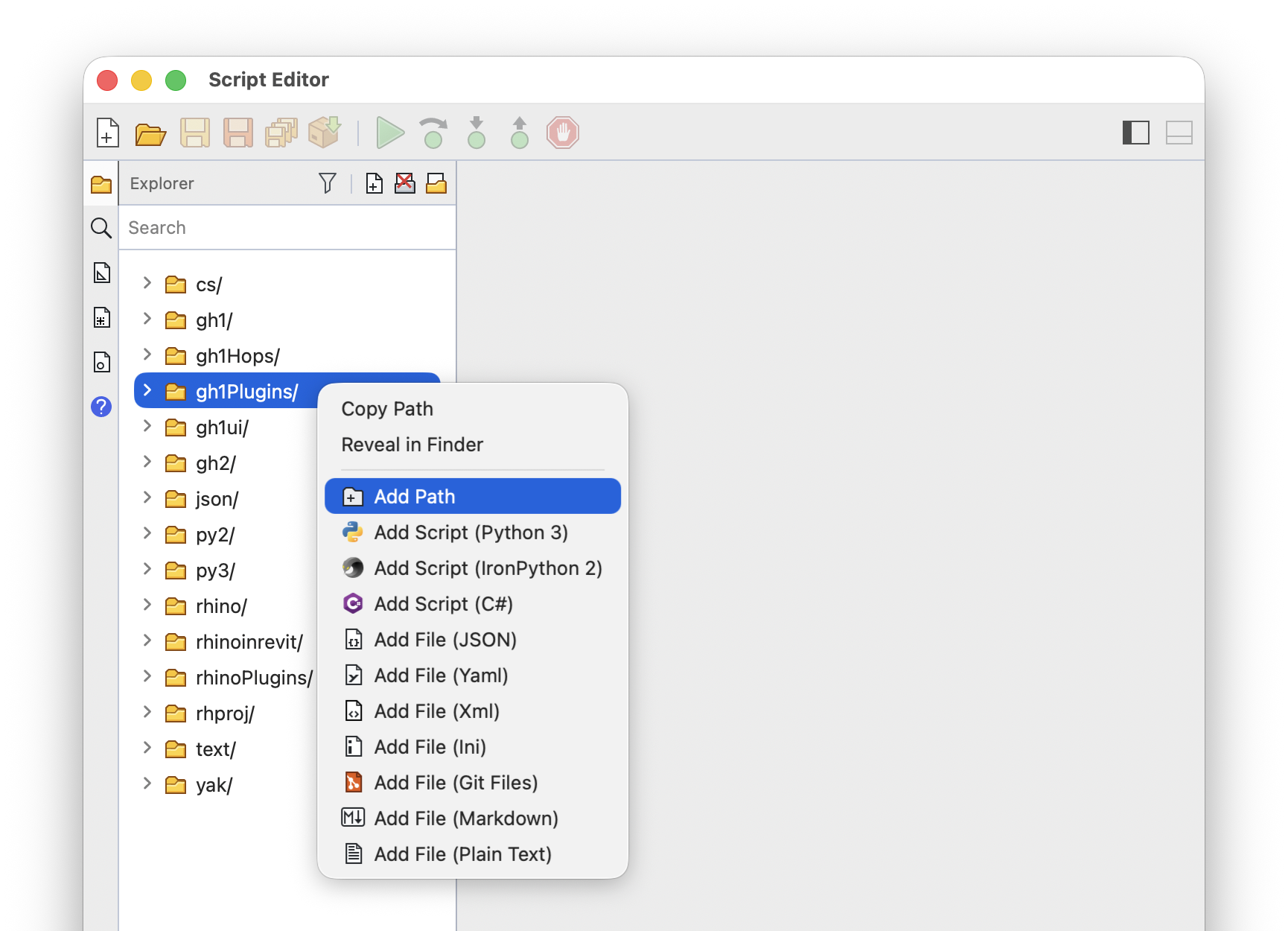
Right-click a folder and choose Add Path for a new folder, or Add Script for a new script of that language. Right-click a script to Rename or Delete it. Both menus also offer Copy Path and Reveal in Finder (Reveal in File Explorer on Windows):
These commands are only available when the directory can be modified.