Creating a Python Script
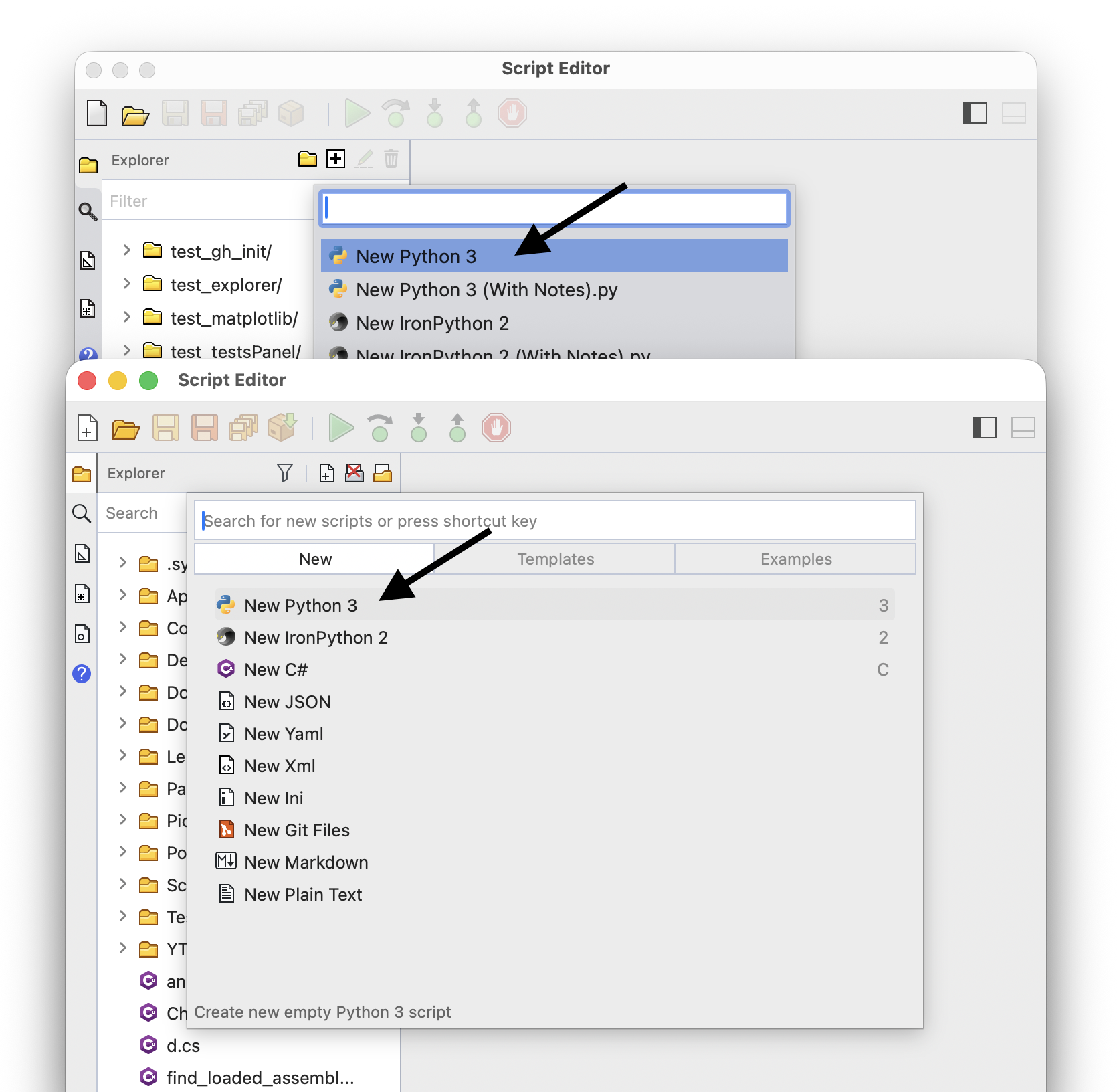
Run the ScriptEditor command to open the script editor. Choose File > New and pick Python 3 from the list of languages:
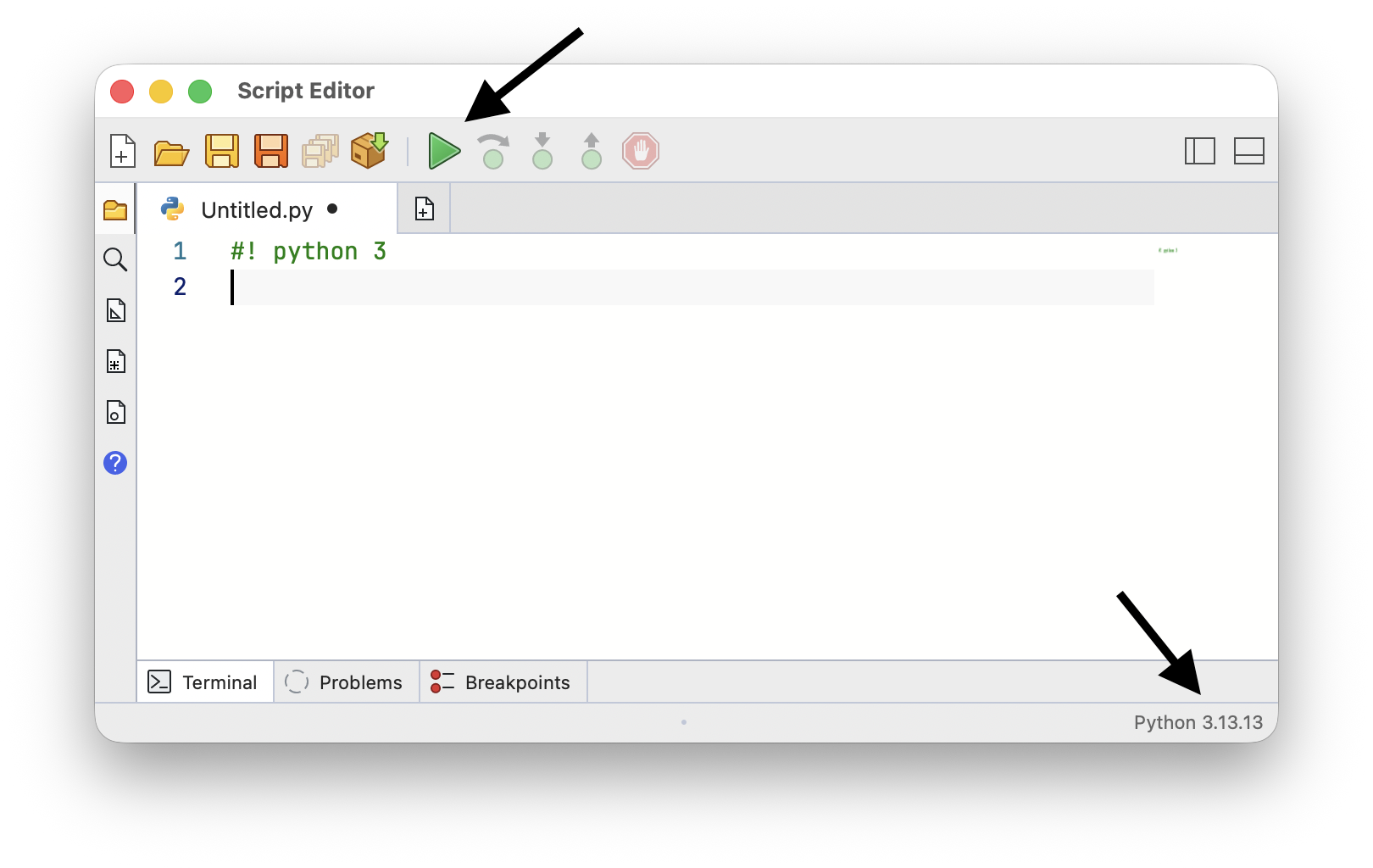
Write your script and choose Run > Run to run it. The status bar shows the language and version of the script you are editing:
Scripts are saved as .py files. File > New From Template starts a new script from one of your templates.
Python 3 and Python 2
Rhino embeds two Python runtimes. They are separate implementations rather than two versions of the same thing, and each has its own strengths and its own quirks:
- Python 3 is CPython. It installs and uses packages from PyPI, so libraries like
numpyare available to your scripts. It reaches .NET, and therefore RhinoCommon, through Python.NET - Python 2 is IronPython, which runs on .NET itself. Pure RhinoCommon calls are faster since nothing sits in between, and it has real .NET multithreading
Python 3 is the better starting point for most scripts, if only for the packages. A script that spends its time calling RhinoCommon, or that needs threads, can do better in Python 2.
Both are listed as separate languages when you create a script, and the editor shows which one the current script uses. A script that starts with #! python 3 or #! python 2, or is saved as .py3 or .py2, is specific to that runtime, while a plain .py file is opened with the runtime the script asks for.
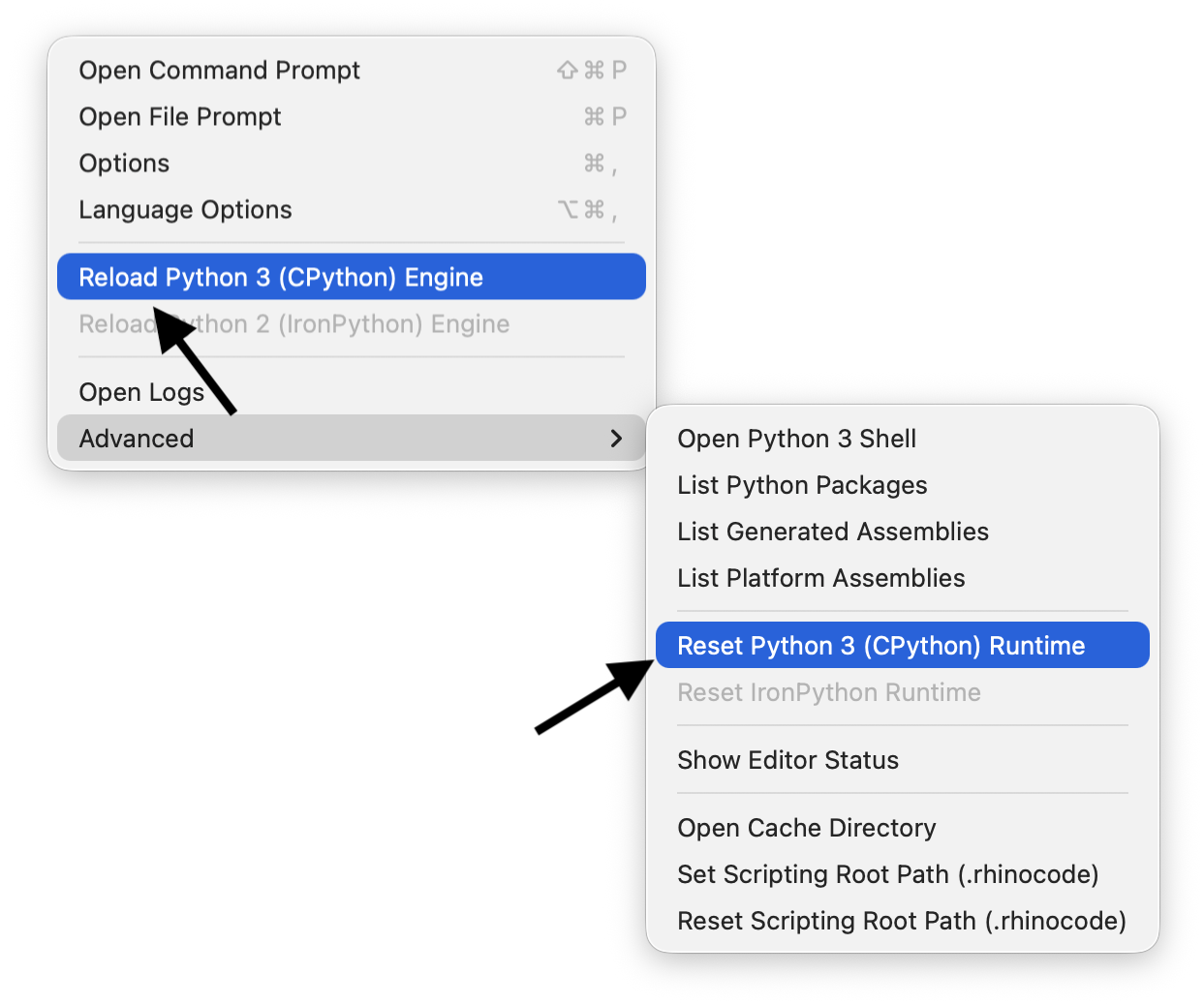
Choose Tools > Reload Python 3 (CPython) Engine or Tools > Reload Python 2 (IronPython) Engine to restart an engine without restarting Rhino. This is useful after installing packages or changing modules your script imports:
Scripts That Run on Both
For a script that has to work under either runtime, rhinocompat carries the differences:
import Rhino
import rhinocompat as compat
from rhinocompat import PY3, RANGE

for i in RANGE(10):
    pass

value = compat.ENUM_NONE(Rhino.Geometry.Mesh.MeshType)

if PY3:
    pass
It also has STRING_TYPE, IS_STRING_INSTANCE(), and ITERATOR2LIST() for strings and iterators, which differ between the two runtimes.
Running Scripts From Rhino
Scripts do not have to be run from the editor. The ScriptEditor command can run a script file from the Rhino prompt, a macro, a toolbar button, or an alias:
_-ScriptEditor _R "C:\path\to\script.py"
A script written straight into a macro needs a language specifier so Rhino knows which engine to run it with:
_-ScriptEditor _R (
    #! python 3
    print("Hello Rhino")
)
See ScriptEditor Command in Macros for the rest of the command options.
Debugging
Click the gutter to the left of a line to add a breakpoint, then choose Run > Debug to run the script and stop there:
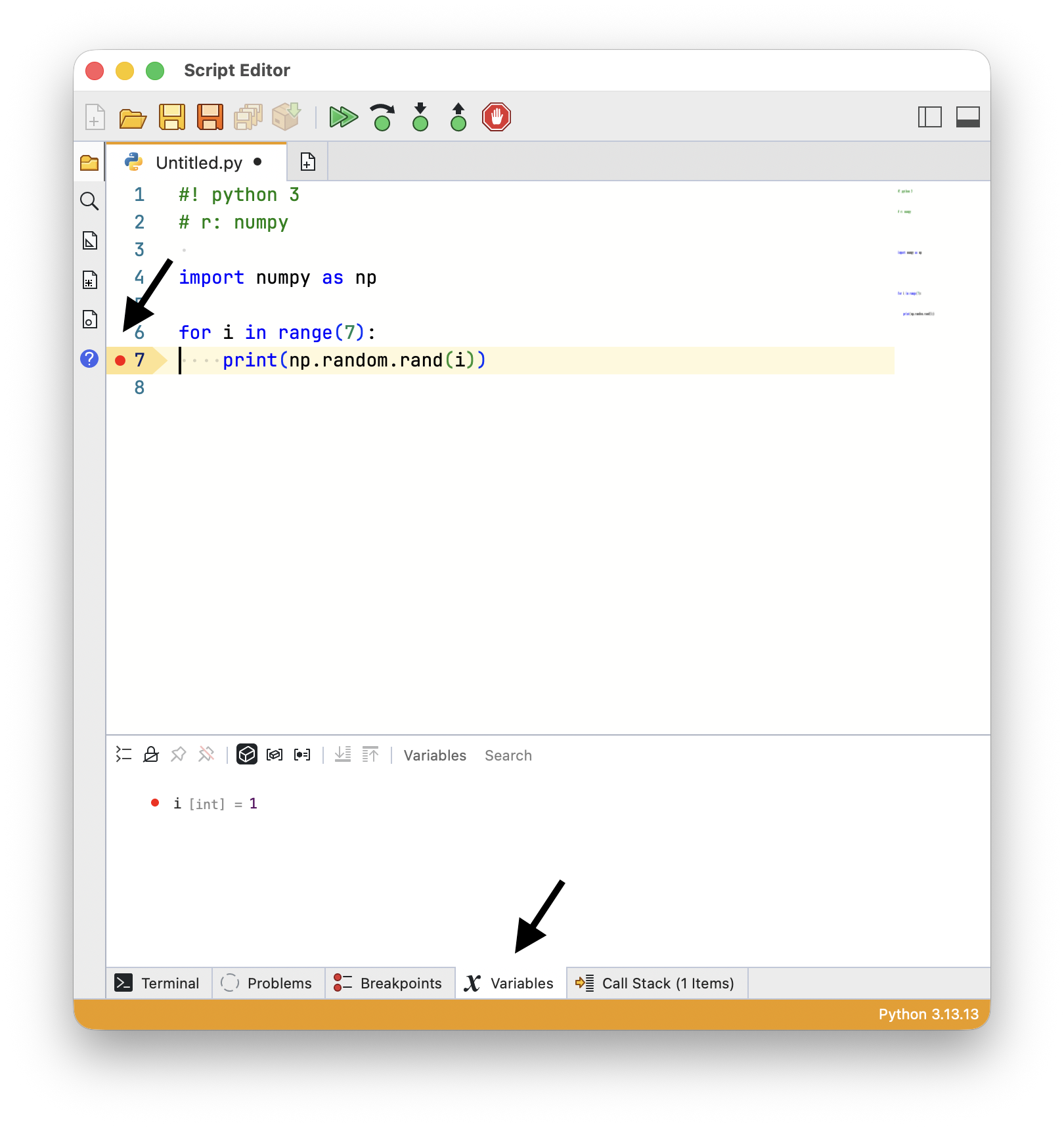
Debug is only available when the script has a breakpoint. While the script is paused you can step through it and inspect your variables in the debugging panels. See Debugging Your Scripts.
PyPI Packages
Your scripts can use packages published on PyPI. Choose Install Package on the editor dashboard, then search for the package or type its name and version:
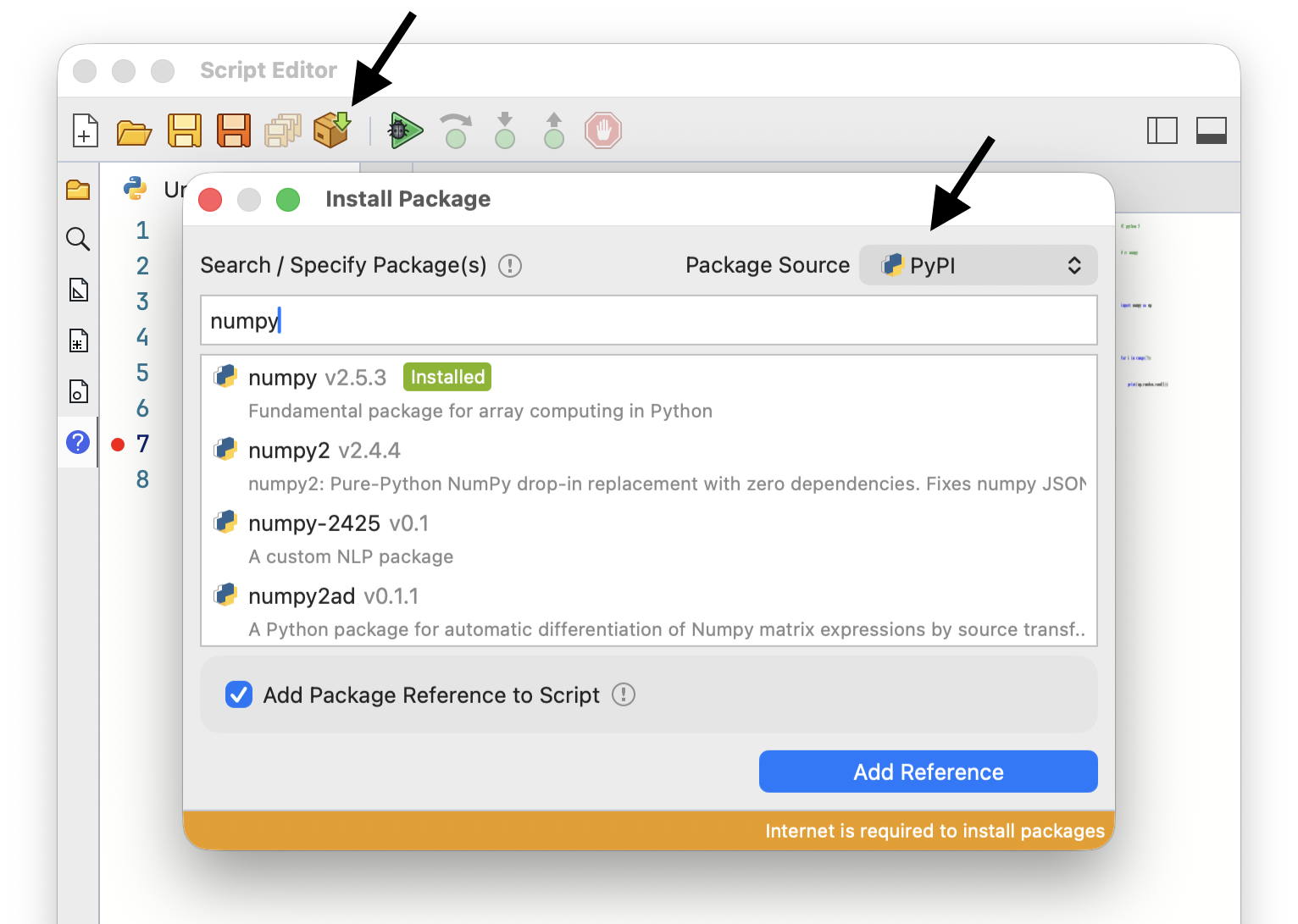
Leave Add Package Reference to Script checked to write the package into the script text. The script then carries the list of packages it needs, and can install them when someone else opens it:
#r: numpy

import numpy as np

print(np.random.rand(7))
#r: and #requirements: are the same thing, and both take more than one package:
#requirements: numpy, requests
Packages can also be declared in a PEP 723 block, which other Python tools understand too:
# /// script
# dependencies = ["numpy", "requests"]
# ///

import numpy as np
See Script Package References for the full set of package directives, including editable installs of your own libraries, git repositories, alternate package indexes, and PEP 723 blocks.
For packages that clash with each other, or with what Rhino already loads, see Python Package Environments.
.NET Packages and Assemblies
Python scripts can reach .NET as well. Python 3 does this through Python.NET, while Python 2 runs on .NET already. Either way, import the namespaces you need:
import System
import Rhino
Packages and assemblies are referenced with the same #r directive:
#r "pip: numpy" |
A package from PyPI |
#r "nuget: Newtonsoft.Json, 13.0.3" |
A package from NuGet |
#r "yak: LunchBox, 2025.5.5" |
A Rhino package from the package server |
#r "/path/to/module.dll" |
An assembly file on disk |
Sharing Code Between Scripts
Put code you use in more than one script into a module and import it:
import myhelpers

myhelpers.do_the_thing()
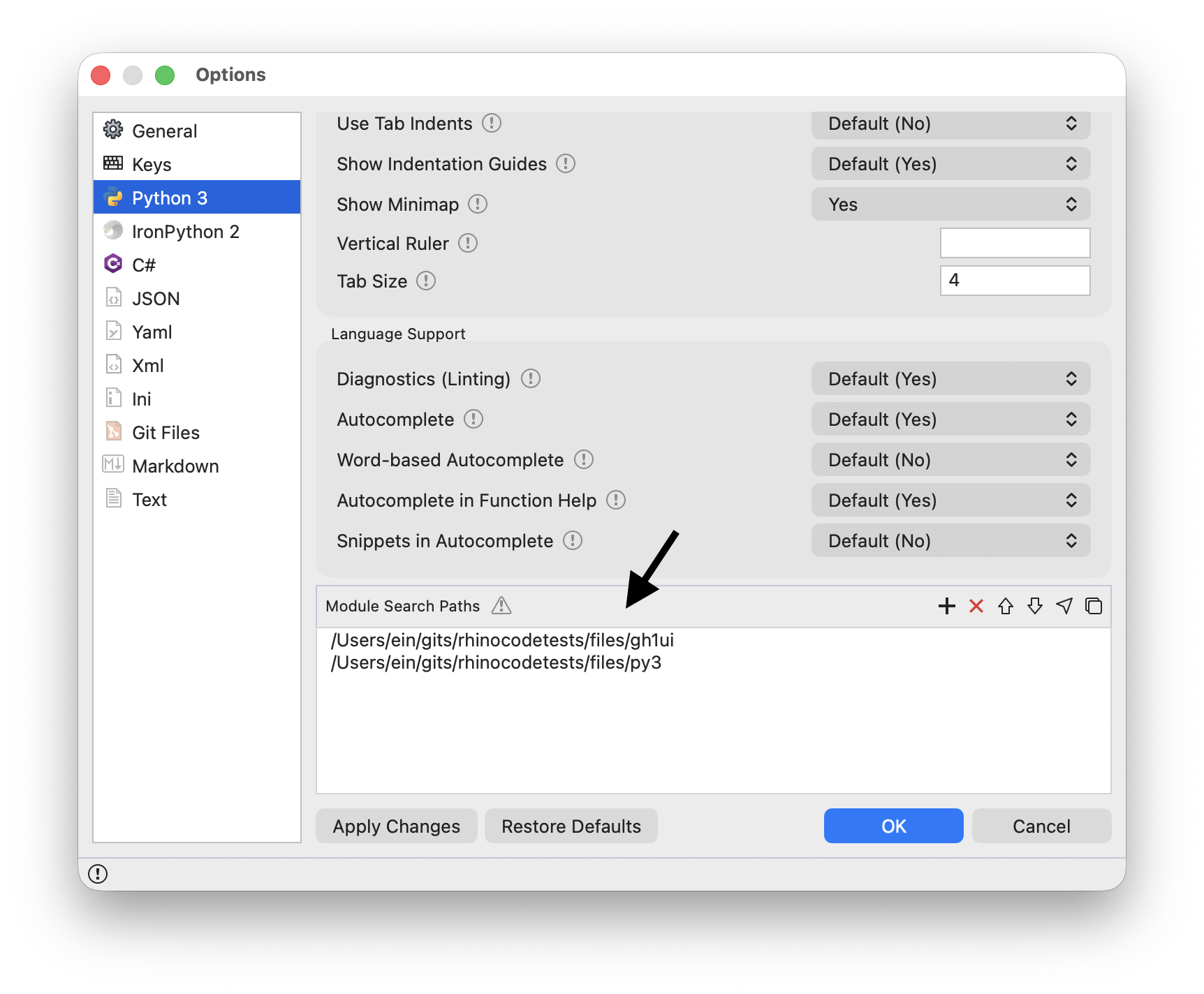
For Rhino to find the module, its folder has to be on the module search path. Module Search Paths in Options lists the folders that are searched, in order. See Python Path Files for adding paths with a .pth file instead.
Language Options
Editing features like line numbers, indentation guides, autocomplete, and tab size can be set for Python alone. Choose Tools > Language Options while editing a Python script, or right-click the script tab and choose Language Options:
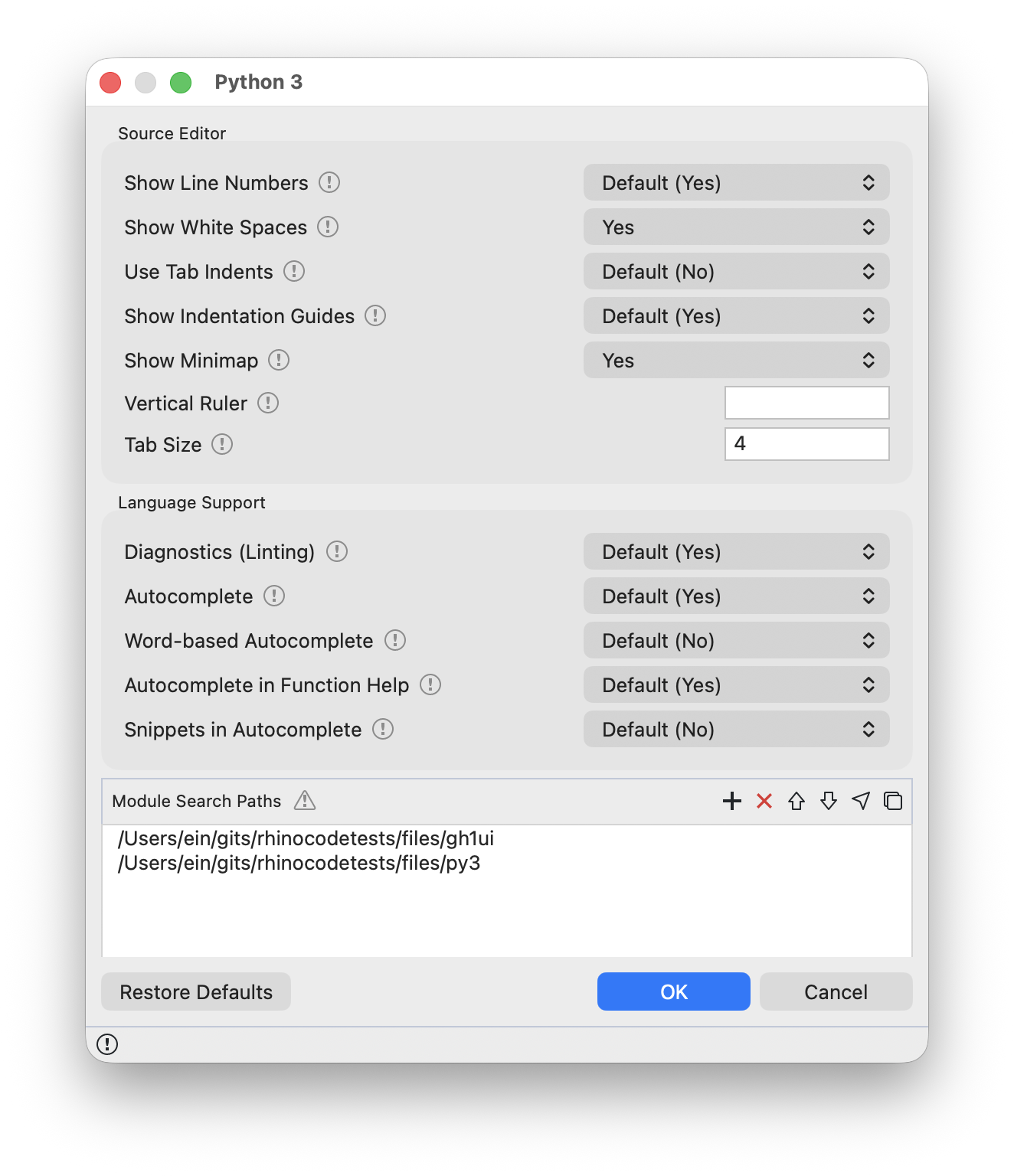
Each option can follow the editor-wide setting or be set for Python only. The editor-wide values are in Options.