Overview
Rhino 9 adds an SDK for in-viewport user interface objects - widgets that draw inside a viewport and respond to the mouse. Instead of pushing the user out to a command line or panel, you can put the control next to the thing it controls.
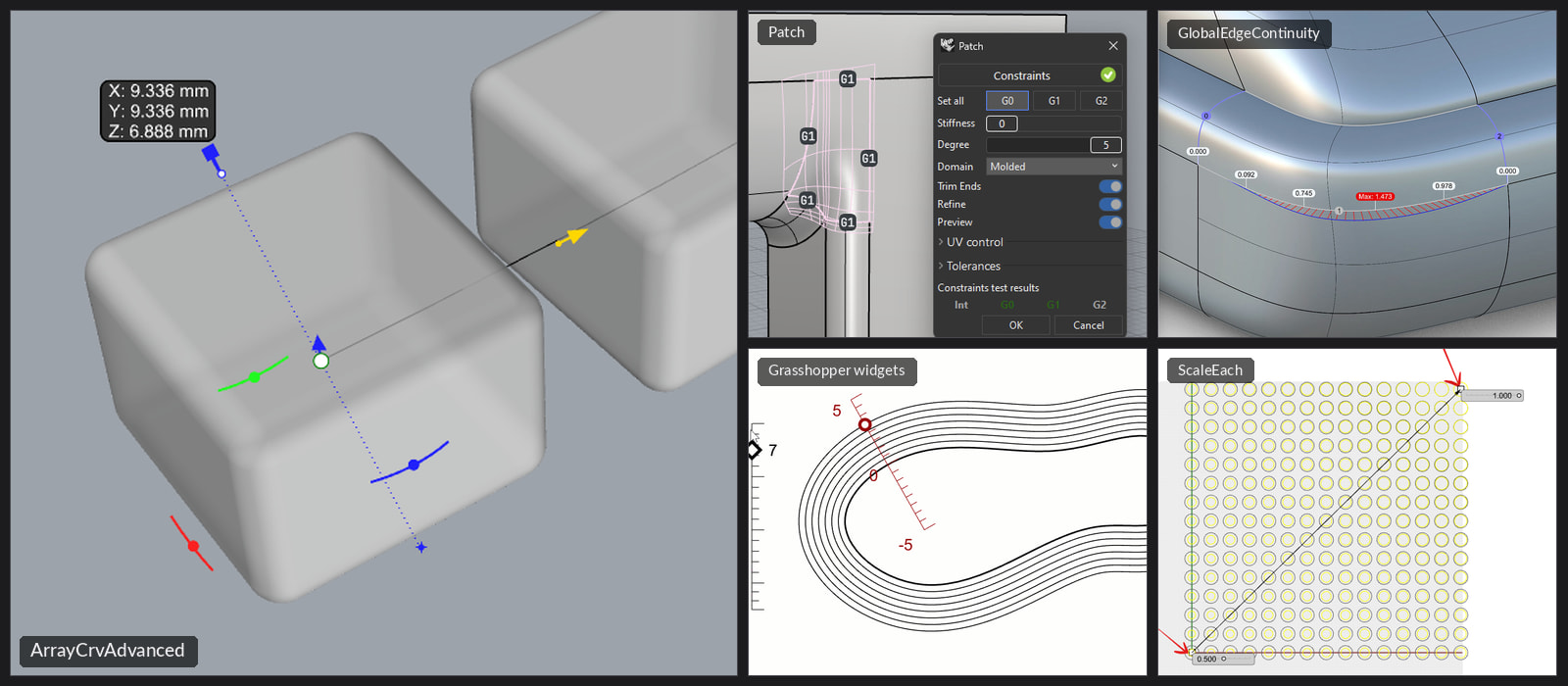
If you have run Rhino 9 you may have already used them. ArrayCrvAdvanced uses on-curve span grips and rotation handles; Patch puts a clickable continuity badge on each constraint curve; ScaleEach and RotateEach use in-viewport sliders; GlobalEdgeContinuity drops a numbered dot at each evaluated edge; Markup is built as a floating HUD; and Grasshopper’s Curve Widget and Angular Widget components are the same machinery.
The API is available in both RhinoCommon (the widget classes are in Rhino.UI; the doc.ViewUserInterface table is in Rhino.DocObjects.Tables) and the C/C++ SDK (rhinoSdkUserInterfaceObject.h).
Two Kinds of UI Object
World-space objects live at a 3d point in the model. They pan and zoom with the scene, and they are depth-sorted against each other. The grip classes can additionally be dragged in 3d, constrained to a curve or circle, and osnapped. Use these when the control is a location: a base point, a direction, a rotation.
Screen-space controls are 2d widgets aligned to the viewport, at a fixed pixel size regardless of zoom. They can optionally “stick” to a 3d point so they follow an object around the screen while staying screen-aligned.
Everything derives from a common base - UserInterfaceObjectBase in RhinoCommon, CRhinoUserInterfaceObject in C++ - which is where the mouse events and visibility live.
Adding and Removing Objects
UI objects belong to a document, and are added with a group id. The group id is how you find and remove them later, so a convenient convention is to use your command’s id.
doc.ViewUserInterface.Add(new MyGrip(Point3d.Origin), this.Id);
doc.AddUserInterfaceObject(new CMyGrip(ON_3dPoint::Origin), CommandUUID());
Removing is done by the same group id, and returns the number of objects removed. This gives you a natural toggle - a command that adds its widgets the first time it is run and clears them the next time:
public override string EnglishName => "SampleGrip";

protected override Result RunCommand(RhinoDoc doc, RunMode mode)
{
  // If the grip is already there, take it away. Otherwise, add one.
  bool gripExisted = doc.ViewUserInterface.RemoveByGroupId(this.Id) > 0;
  if (!gripExisted)
    doc.ViewUserInterface.Add(new MyGrip(new Point3d(0, 0, 0)), this.Id);

  doc.Views.Redraw();
  return Result.Success;
}
Note that the command returns immediately. The grip stays live in the viewport after the command has ended - it is owned by the document, not by the command that created it. This is the fundamental difference from a getter or a display conduit, and it is the reason these widgets feel like part of the model rather than part of a modal operation.
Redraws are not automatic when you add or remove objects. Call doc.Views.Redraw() (CRhinoDoc::Redraw() in C++) after changing what should be on screen.
A World-Space Grip
Derive from the grip class and override OnDrag to be told where the user has moved it.
using Rhino;
using Rhino.Commands;
using Rhino.Geometry;
using Rhino.UI;

class MyGrip : GripUserInterfaceObject
{
  public MyGrip(Point3d location) : base(location)
  {
    GripFillColor = System.Drawing.Color.Orange;
  }

  protected override void OnDrag(Point3d newLocation, MouseState mouse)
  {
    base.OnDrag(newLocation, mouse);
    RhinoApp.WriteLine($"grip is at {GripLocation}");
  }
}
The same thing in C++:
class CMyGrip : public CRhinoGripUserInterfaceObject
{
public:
  CMyGrip(const ON_3dPoint& location)
    : CRhinoGripUserInterfaceObject(location)
  {
    SetGripFillColor(ON_Color(255, 165, 0));
  }

  void OnDrag(const ON_3dPoint& point, const CRhinoMouseEventArgs& mouse) override
  {
    CRhinoGripUserInterfaceObject::OnDrag(point, mouse);
    const ON_3dPoint pt = GripLocation();
    RhinoApp().Print(L"grip is at %g,%g,%g\n", pt.x, pt.y, pt.z);
  }
};
Calling the base implementation matters: the default OnDrag is what actually moves the grip. If you skip it, you take responsibility for setting the location yourself - the GripLocation property in RhinoCommon, SetGripLocation in C++. That is occasionally what you want, if you are snapping the value to something of your own.
Grips can be styled (GripShape, GripRadius, GripColor, GripFillColor, GripStrokeWidth) and constrained. Constrain accepts a curve, circle, line or arc, and restricts dragging to that geometry.
Grips can also snap. SetSnapPoints gives a grip a list of points to snap to, and ObjectSnapPermitted lets it use the user’s object snaps while it is being dragged.
Other World-Space Objects
The grip class has two specialized forms for the most common kinds of handle, and there is a text dot for labels and markers. All three live at a point in the model, just like GripUserInterfaceObject.
| RhinoCommon | C++ | Use it for |
|---|---|---|
GripUserInterfaceObject |
CRhinoGripUserInterfaceObject |
A point the user drags freely |
DirectionGripUserInterfaceObject |
CRhinoDirectionGripUserInterfaceObject |
A point that slides along a line, drawn with arrows. Good for a distance, height or offset |
RotationGripUserInterfaceObject |
CRhinoRotationGripUserInterfaceObject |
A point that travels around an arc. Good for an angle |
TextDotUserInterfaceObject |
CRhinoTextDotUserInterfaceObject |
A text dot that can be hovered and clicked |
Direction Grips
A direction grip is constructed with a location and a direction, and is constrained to the line through that location along that direction. Set OneWay to draw a single arrow instead of a pair.
class HeightGrip : DirectionGripUserInterfaceObject
{
  public HeightGrip(Point3d location)
    : base(location, Vector3d.ZAxis)
  {
    OneWay = true;            // a single arrow, pointing up
    DirectionLineLength = 40; // logical pixels
  }

  protected override void OnDrag(Point3d newLocation, MouseState mouse)
  {
    base.OnDrag(newLocation, mouse);
    RhinoApp.WriteLine($"height is {GripLocation.Z}");
  }
}
The arrows are not drawn when the direction points straight at the camera. ArrowsVisibleInViewport tells you whether that is the case in a given viewport, which helps if you want to offer something else there.
Rotation Grips
A rotation grip is constructed with a plane and a radius. The plane’s origin is the center of rotation, its z-axis is the axis of rotation, and the grip sits along its x-axis. The radius is in logical pixels, so the arc stays the same size on screen as the user zooms.
Override OnRotationDrag rather than OnDrag. It is given the signed angle, in radians, that the grip moved since the last call.
class AngleGrip : RotationGripUserInterfaceObject
{
  double _totalAngle;

  public AngleGrip(Plane plane)
    : base(plane, 40)
  {
  }

  protected override void OnRotationDrag(double angle, MouseState mouse)
  {
    base.OnRotationDrag(angle, mouse); // the default rotates the grip around the arc
    _totalAngle += angle;
    RhinoApp.WriteLine($"rotated {RhinoMath.ToDegrees(_totalAngle):F1} degrees");
  }
}
In C++, override OnRotationDrag the same way. Plane() returns the current plane, rotated by the drags so far.
Text Dots
A text dot is a label at a point. It is not draggable, but it gets the same mouse events as everything else, so it works well as a clickable marker. MouseOverTextHeight makes the dot grow while the cursor is over it, which tells the user it can be clicked.
class EdgeDot : TextDotUserInterfaceObject
{
  public EdgeDot(Point3d location, int number)
    : base(location, number.ToString())
  {
    DotBackgroundColor = System.Drawing.Color.SteelBlue;
    MouseOverTextHeight = 18;
  }

  protected override void OnMouseClick(MouseState mouse)
  {
    RhinoApp.WriteLine($"clicked dot {Text}");
  }
}
Screen-Space Controls
Controls are positioned with a location in logical pixels plus an alignment, which together determine where they land in any given view. Alignment is relative to the viewport, so a Left/Bottom control with a location of (10, 100) sits 10 pixels in from the left edge and 100 up from the bottom, in every view, at every zoom level.
var btn = new UserInterfaceButton
{
  Text = "Bake",
  Location = new System.Drawing.PointF(10, 100),
  HorizontalAlignment = ControlHorizontalAlignment.Left,
  VerticalAlignment = ControlVerticalAlignment.Bottom
};
btn.Click += (s, e) => RhinoApp.WriteLine("clicked");
doc.ViewUserInterface.Add(btn, Id);

var slider = new UserInterfaceSlider
{
  Location = new System.Drawing.PointF(10, 140),
  HorizontalAlignment = ControlHorizontalAlignment.Left,
  VerticalAlignment = ControlVerticalAlignment.Bottom,
  Range = new Interval(0, 10),
  Value = 5,
  DigitPrecision = 0        // 0 == integers only
};
slider.ValueChanged += (s, e) => RhinoApp.WriteLine($"{slider.Value}");
doc.ViewUserInterface.Add(slider, Id);
Every control derives from UserInterfaceControl (CRhinoUserInterfaceControl in C++), so they are all positioned and styled the same way. The full set:
| RhinoCommon | C++ | Notes |
|---|---|---|
UserInterfaceButton |
CRhinoUserInterfaceButton |
Raises Click |
UserInterfaceSlider |
CRhinoUserInterfaceSlider |
Range, Value, DigitPrecision. Raises ValueChanged |
UserInterfaceCheckBox |
CRhinoUserInterfaceCheckBox |
Checked, or CheckState for an indeterminate state. Raises CheckedChanged |
UserInterfaceRadioButton |
CRhinoUserInterfaceRadioButton |
Buttons with the same Group number turn each other off. Raises CheckedChanged |
UserInterfaceTextBox |
CRhinoUserInterfaceTextBox |
Takes keyboard focus when clicked. Raises TextChanged per keystroke, TextCommitted on Enter and EditCanceled on Escape |
UserInterfaceLabel |
CRhinoUserInterfaceLabel |
Text only. Does not respond to the mouse |
UserInterfaceIcon |
CRhinoUserInterfaceIcon |
An image, set with SetSvg |
UserInterfaceGrid |
CRhinoUserInterfaceGrid |
Lays out other controls in rows and columns. See below |
Setting Checked on a check box or radio button from code does not raise CheckedChanged. That event is for changes the user makes.
While a text box has keyboard focus, typing goes to the box instead of the command line. Enter or Escape gives the focus back. If you need to do it yourself, UserInterfaceObjectBase.ClearKeyboardFocus(doc) does the same thing.
Any object can show a tooltip when the mouse rests on it. Set its Tooltip property.
Laying Out Controls in a Grid
Placing each control at its own pixel location gets tedious beyond two or three of them. A grid arranges its children in rows and columns and sizes itself to fit. Children fill the grid one row at a time, so a two-column grid built by adding label, control, label, control reads the way it looks, much like the object properties panel.
var grid = new UserInterfaceGrid(2)
{
  Location = new System.Drawing.PointF(6, 6),
  HorizontalAlignment = ControlHorizontalAlignment.Right,
  VerticalAlignment = ControlVerticalAlignment.Bottom,
  CornerRadius = 6,
  BackgroundColor = System.Drawing.Color.FromArgb(100, 240, 240, 240)
};
grid.SetPadding(6);
grid.SetColumnAutoWidth(0); // as wide as the longest label
grid.SetColumnAutoWidth(1);

grid.AddLabel("Count");
grid.AddChild(new UserInterfaceSlider { Range = new Interval(1, 20), Value = 5, DigitPrecision = 0 });
grid.AddLabel("Show preview");
grid.AddChild(new UserInterfaceCheckBox { Checked = true });

doc.ViewUserInterface.Add(grid, Id); // add the grid, not each child
Columns can also have a fixed width (SetColumnFixedWidth) or share whatever width is left over (SetColumnFlexibleWidth).
Instead of text, a control can display an image based on an SVG string - SetSvg in RhinoCommon, SetImageSVG in C++. This is the recommended way to get a crisp icon at every DPI.
Leave Size unset (zero) and the control computes its own size from its contents. Set it explicitly only when you need a fixed footprint.
To make a control follow an object around the screen, give it a tracking point:
control.TrackingPoint = someObject.Geometry.GetBoundingBox(true).Center;
The control stays screen-aligned and screen-sized, but its position now updates as the user orbits and zooms.
Modifying the Document from a Mouse Handler
Your mouse handler runs inside a mouse callback, not inside a command. Undo records and getters are not set up the way you would expect, so adding, deleting or transforming objects directly from OnDrag or a Click handler produces broken or missing undo.
Both SDKs have an explicit path for this. Call RunCommand(mouse) from your handler, and do the actual document work in the OnRunCommand override, which executes in proper command scope:
class MyGrip : GripUserInterfaceObject
{
  public MyGrip(Point3d location) : base(location)
  {
  }

  protected override void OnMouseUp(MouseState mouse)
  {
    base.OnMouseUp(mouse);
    // Defer the document edit into command scope
    RunCommand(mouse);
  }

  protected override Result OnRunCommand(RhinoDoc doc, RunMode mode, MouseState mouse)
  {
    // Safe to modify the document here - this is inside a command,
    // so undo is recorded correctly.
    if (doc == null)
      return Result.Failure;

    doc.Objects.AddPoint(GripLocation);
    doc.Views.Redraw();
    return Result.Success;
  }
}
The same thing in C++:
class CMyGrip : public CRhinoGripUserInterfaceObject
{
public:
  CMyGrip(const ON_3dPoint& location)
    : CRhinoGripUserInterfaceObject(location)
  {
  }

  void OnMouseUp(const CRhinoMouseEventArgs& mouse) override
  {
    CRhinoGripUserInterfaceObject::OnMouseUp(mouse);
    // Defer the document edit into command scope
    RunCommand(mouse);
  }

  CRhinoCommand::result OnRunCommand(const CRhinoCommandContext& context, const CRhinoMouseEventArgs& mouse) override
  {
    // Safe to modify the document here - this is inside a command,
    // so undo is recorded correctly.
    CRhinoDoc* doc = CRhinoDoc::FromRuntimeSerialNumber(context.m_rhino_doc_sn);
    if (nullptr == doc)
      return CRhinoCommand::failure;

    doc->AddPointObject(GripLocation());
    doc->Redraw();
    return CRhinoCommand::success;
  }
};
RunCommand works for every UI object, not just grips. A check box, for example, can call base.OnMouseClick(mouse) so it shows its new state right away, then RunCommand(mouse) to apply that state to the document.
Some changes do not come from the mouse. A text box commits when the user presses Enter, so there is no mouse state to hand to RunCommand. In that case, wrap the change in a RhinoDocUndoRecord yourself so it lands on the undo stack as one step.
// In a UserInterfaceTextBox subclass that holds the id of the object it names
protected override void OnTextCommitted()
{
  base.OnTextCommitted();
  RhinoDoc doc = RhinoDoc.ActiveDoc;
  RhinoObject obj = doc?.Objects.FindId(_objectId);
  if (obj == null)
    return;

  using (new RhinoDocUndoRecord(doc, "Name object"))
  {
    ObjectAttributes attributes = obj.Attributes.Duplicate();
    attributes.Name = Text;
    doc.Objects.ModifyAttributes(obj, attributes, false);
  }
  doc.Views.Redraw();
}
In C++ the equivalent is CRhinoDoc::BeginUndoRecordEx and CRhinoDoc::EndUndoRecord.
Caveats
Objects outlive the command that created them. Nothing cleans them up when your command ends. If you add widgets, you are responsible for removing them - on document close, on plugin unload, or on the next run of your command.
Sizes and locations are in logical pixels. Rhino handles the DPI scaling for you. Do not pre-multiply by a scale factor.
Redraw explicitly. Changing a property on a widget, or adding and removing widgets, does not by itself trigger a redraw.
Mouse handlers run on the UI thread and block the viewport. Keep them cheap. Anything expensive belongs behind RunCommand, or on a background thread with the result marshalled back.