
Tests Panel
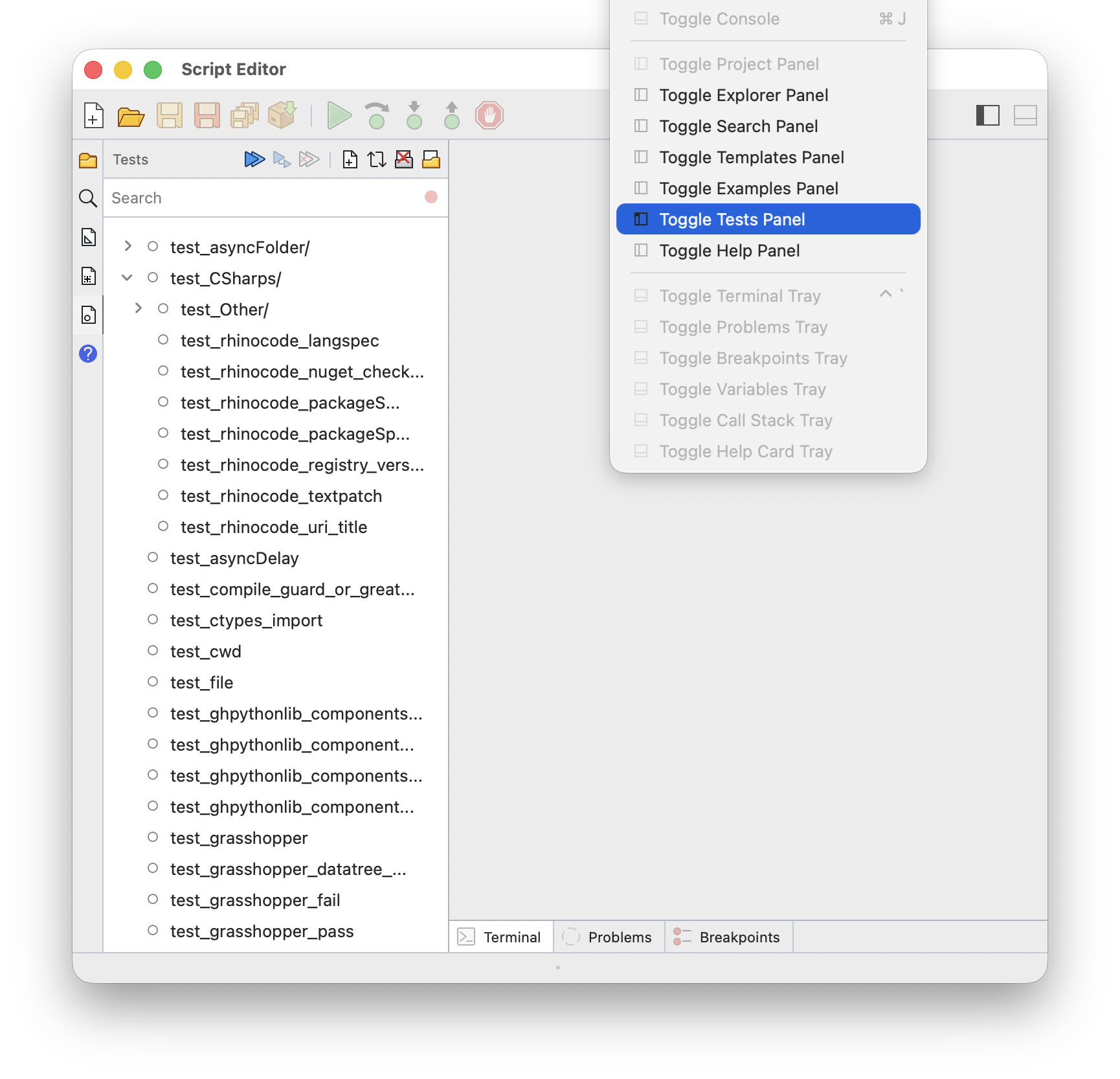
The Tests panel runs scripts as tests and shows whether they passed or failed. Choose Window > Toggle Tests Panel to show or hide it.
Use Open Tests Directory on the panel header to choose a directory of tests, Reload Tests to collect them again after changing files outside the editor, and Clear Tests Browser to empty the panel:
What Counts as a Test
Scripts and folders are collected as tests when their names start with test_. A script must also be runnable to be collected:
test_curves.pyis a test- A
test_geometryfolder is a group of tests curves.pyis not collected
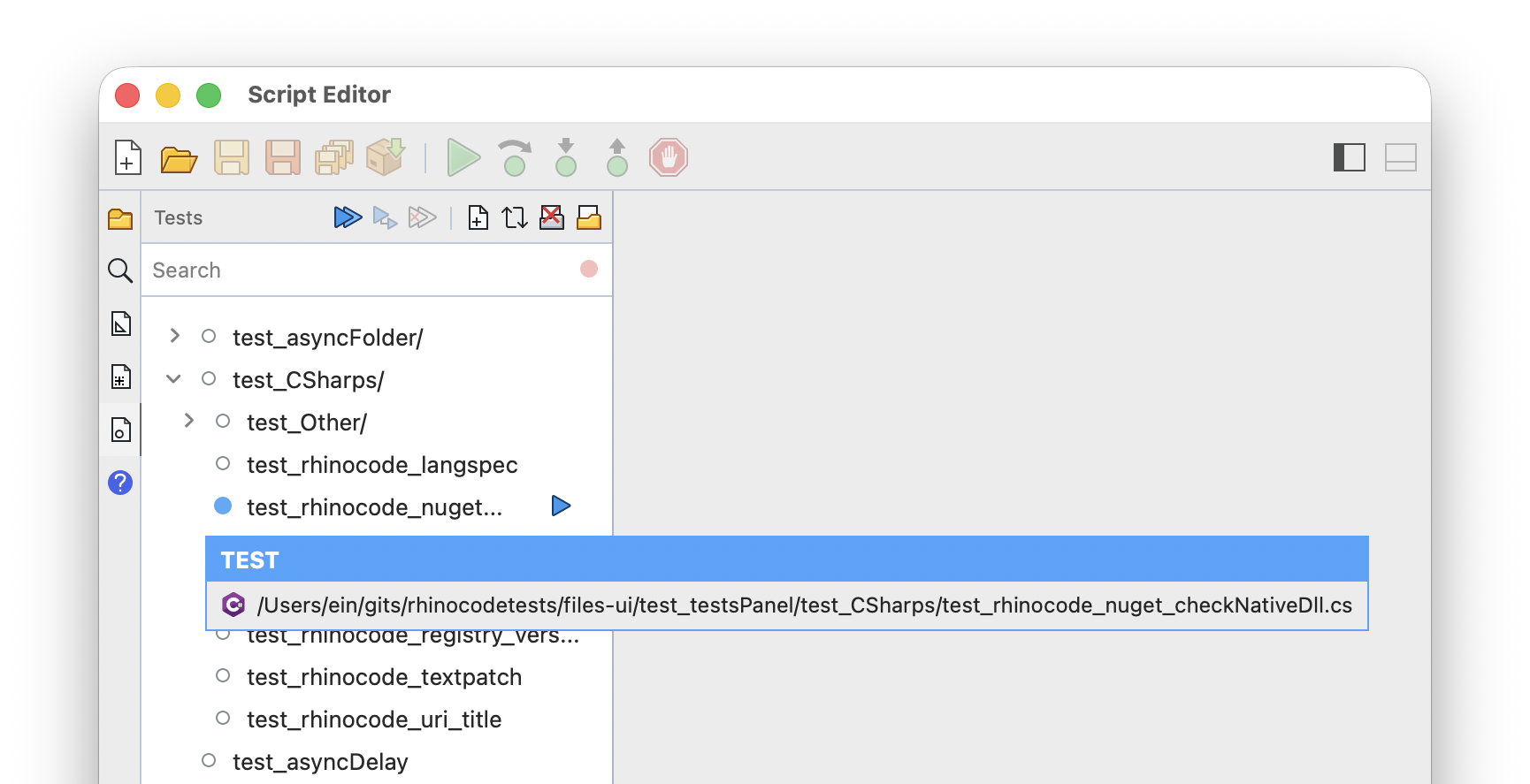
Each collected script is one test. Hover over the test icon to see the test language and file info:
Grasshopper Tests
Grasshopper definitions can be tests too. Name them with the test_ prefix and either extension:
test_curves.ghtest_curves.ghx
A Grasshopper test passes when the definition runs without errors, and fails when any component reports an error.
To check values, use the Assert True parameter. It is hidden, so type #Assert in the canvas search to find it. Wire boolean values into it and it shows PASS or FAIL on the canvas, or SKIP when disabled. Any false value fails the test:
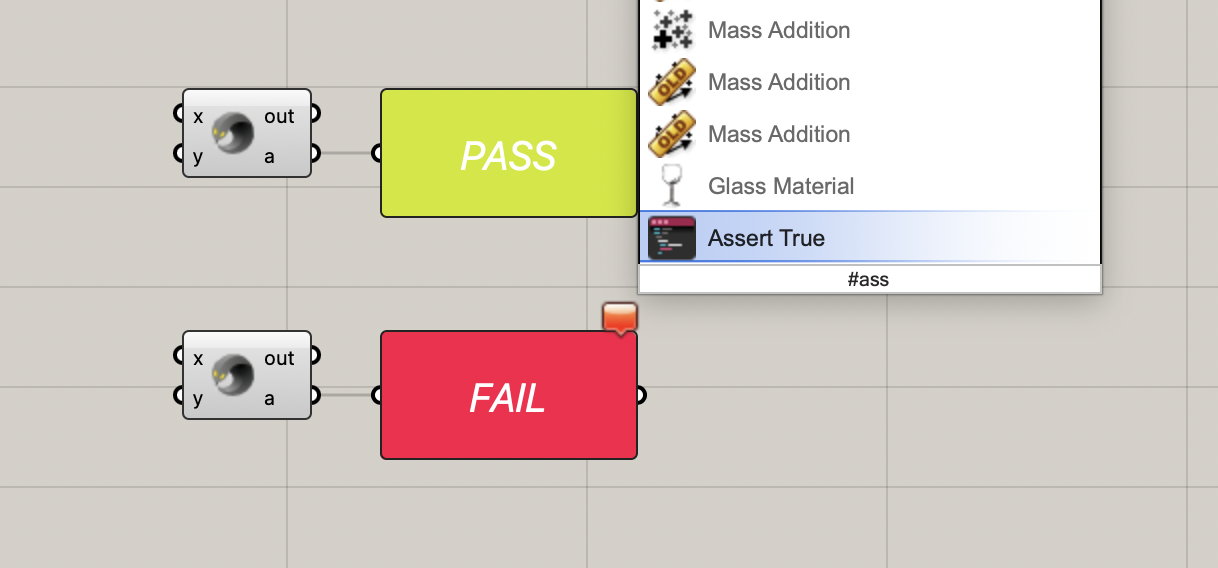
Rename the parameter to tell your asserts apart. The name is included in the failure message.
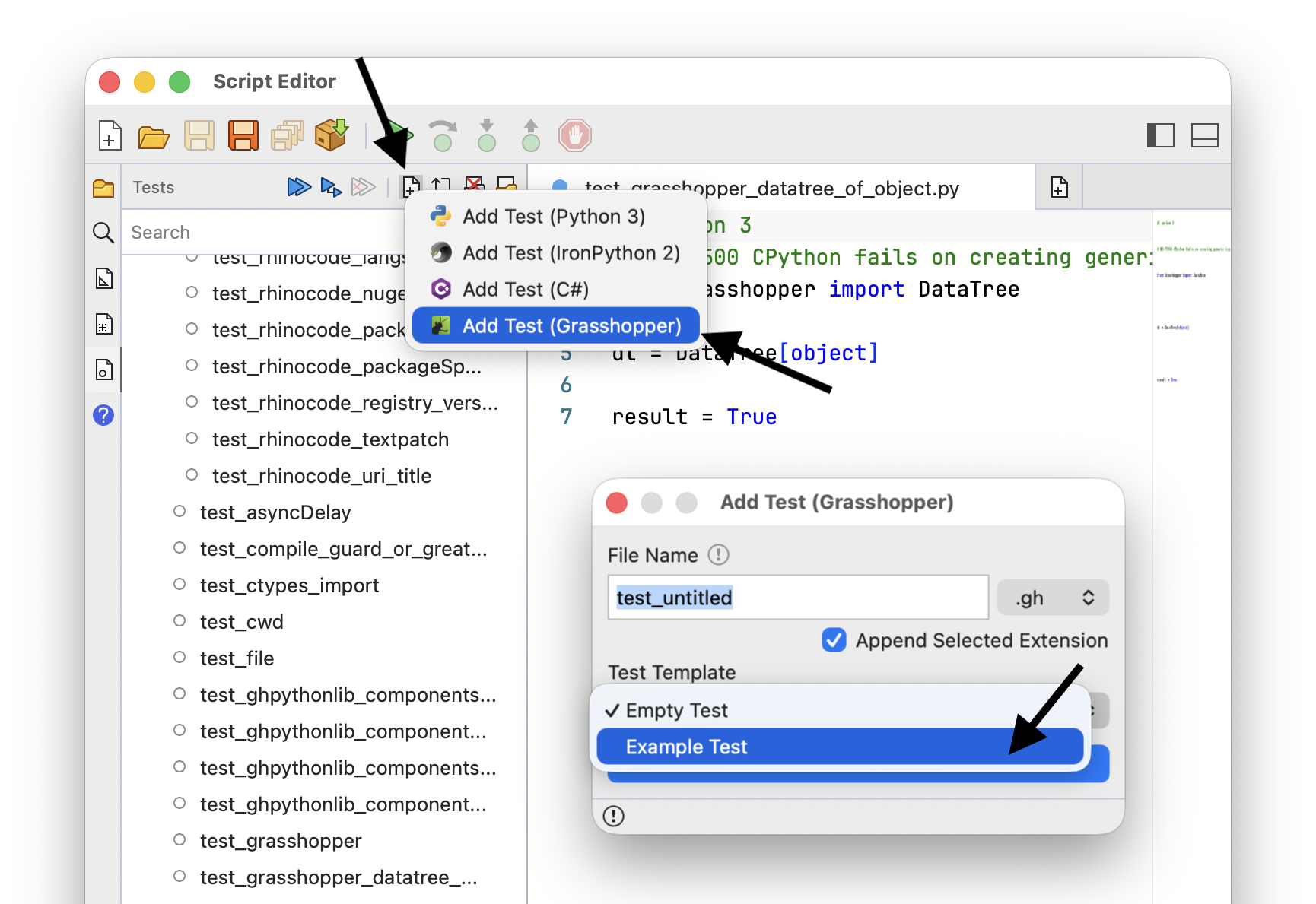
Add New Test offers Empty Test and Example Test templates for Grasshopper. The example test is wired up with asserts already:
Running Tests
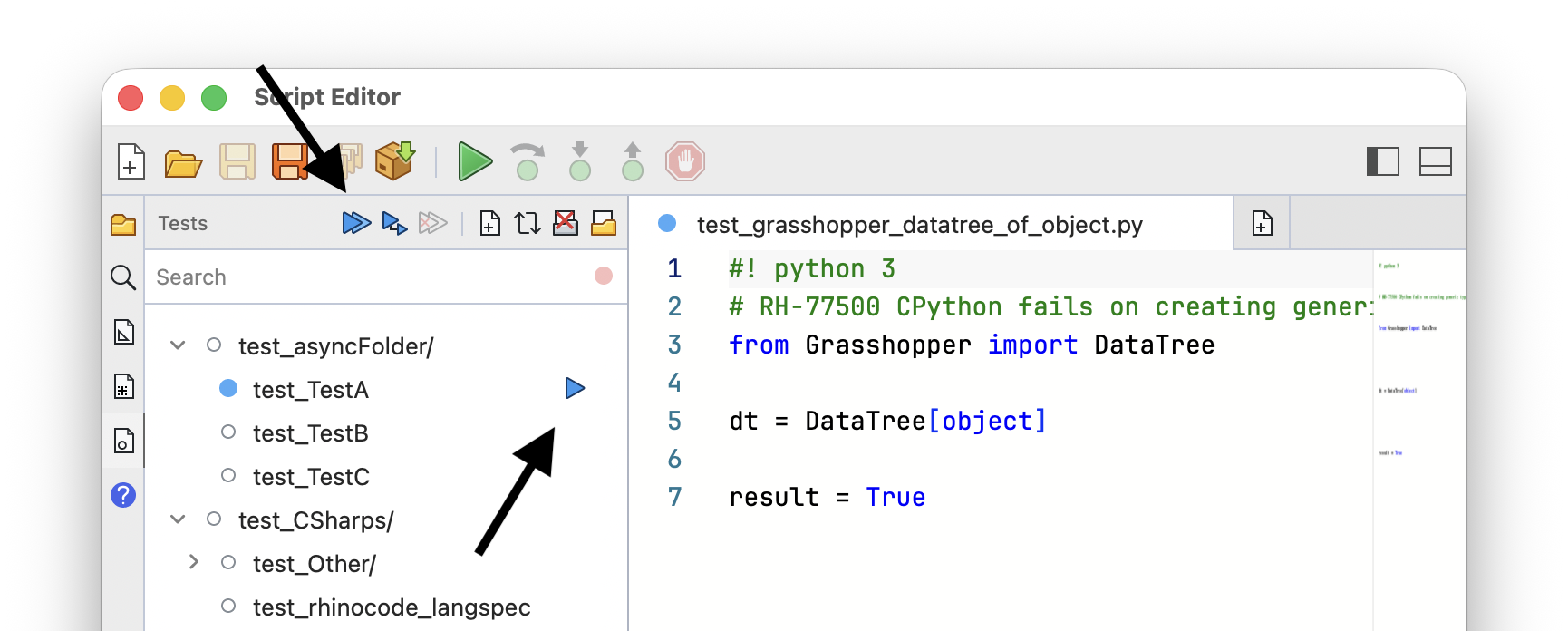
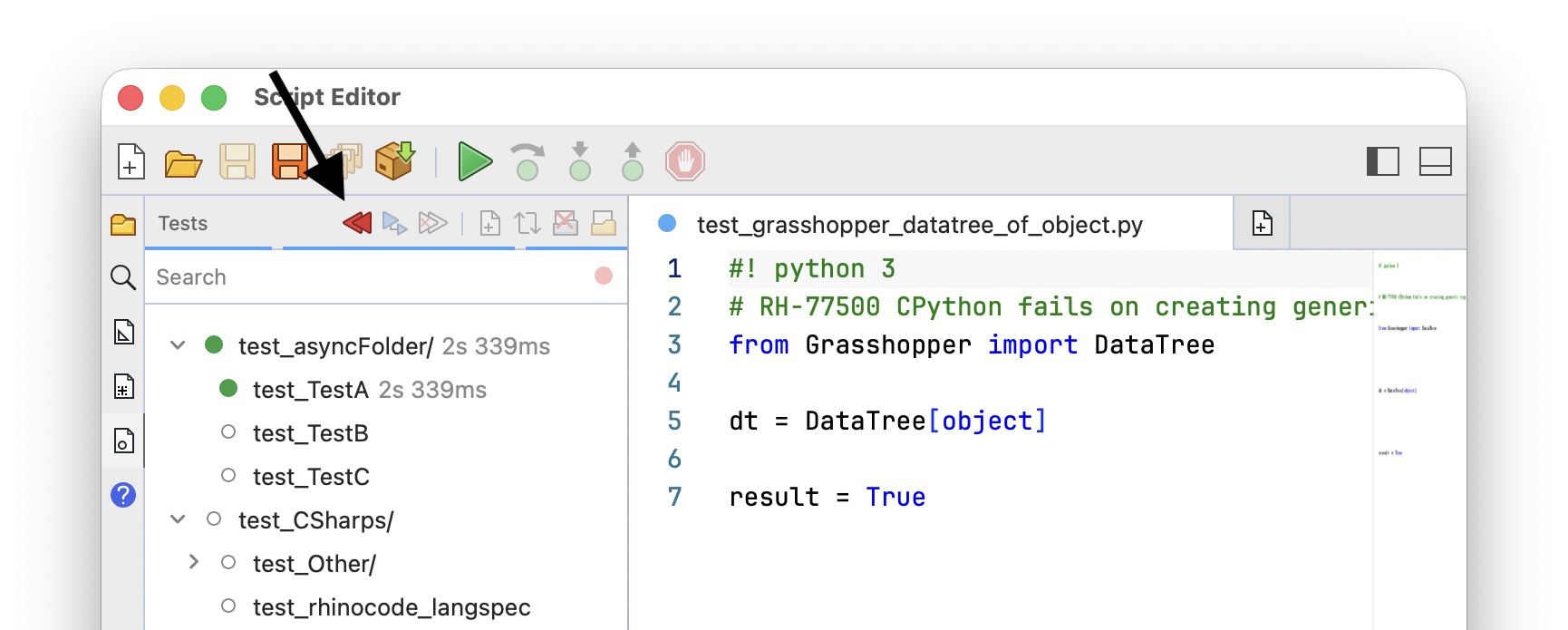
Use Run Tests on the panel header to run everything in the panel. While tests are running, the same button becomes Cancel Test Run.
Hover a test or a group and click the run button on its row to run only that test or group. To run a few of them, select them and use Run Selected Tests:
Results
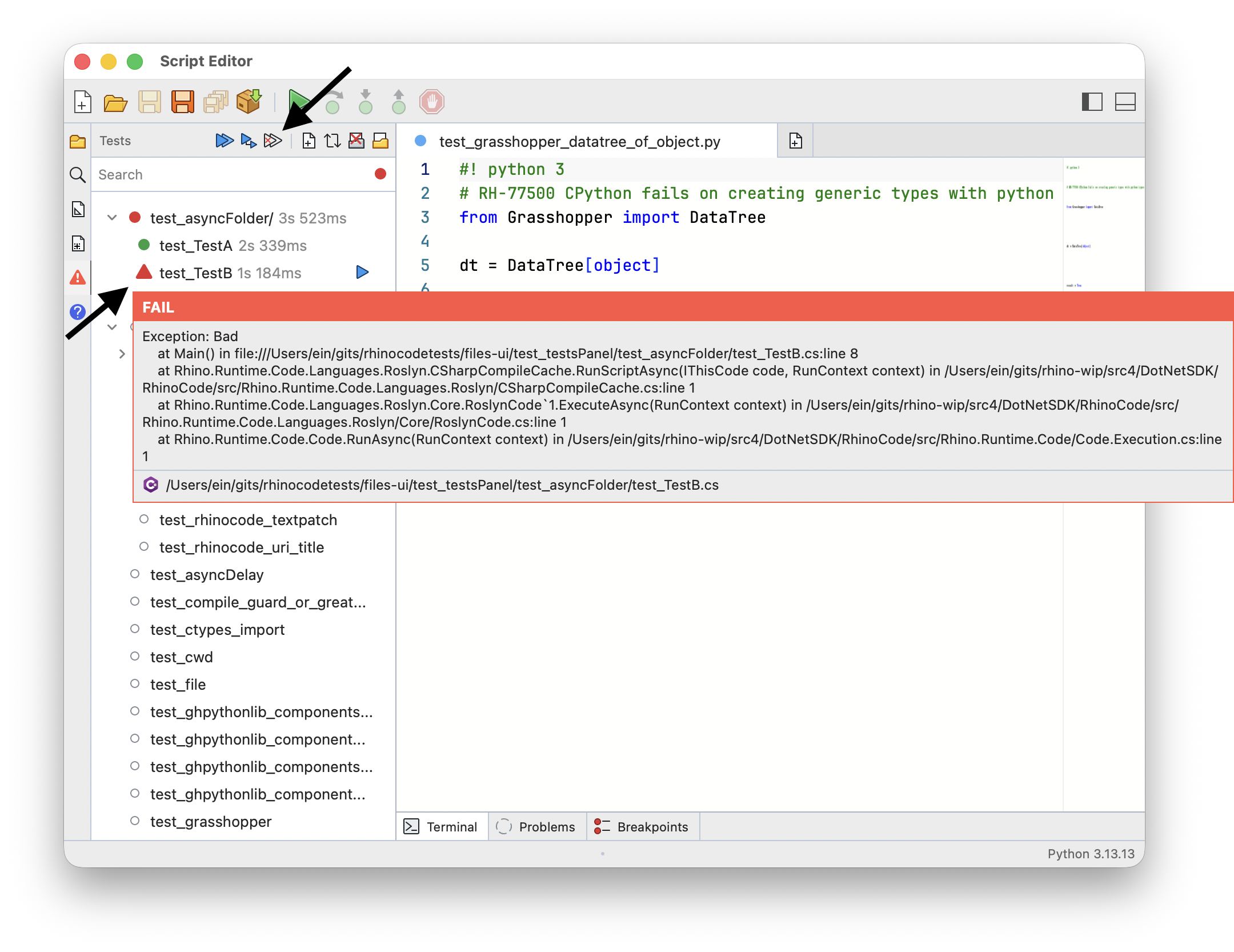
Each row shows a result icon and how long the test took. Failed tests are marked and their icon bounces to catch your eye. Use Clear Test Results to drop all results and start over. Hover the result icon of a test to see its result card. For a failed test, the card also shows the traceback:
Searching and Filtering
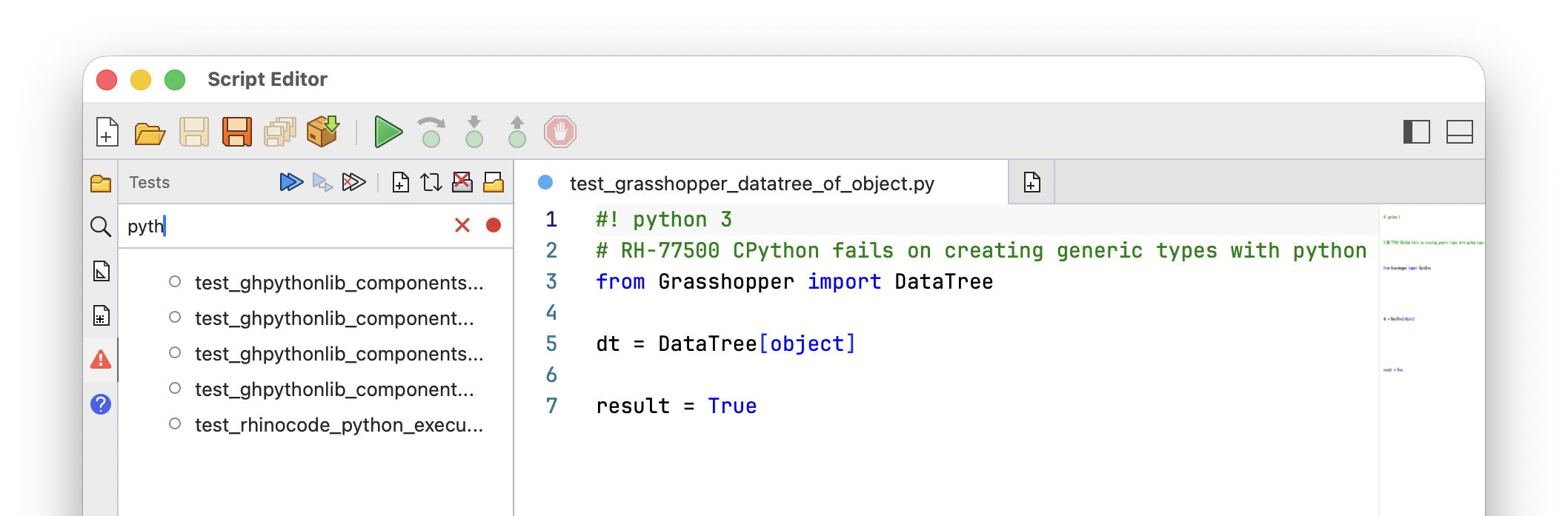
Type in the search box to list only the tests with matching names. Use Show Failed Tests Only on the panel header to hide everything that did not fail.
Filter Tests offers filtering by result:
- Show Passed Only
- Show Failed Only
- Show Untested Only
Adding, Renaming, and Deleting
Use Add New Test on the panel header, or right-click a folder and choose Add Test for the language you want. New tests are created from a test template, so the script starts with the structure a test needs:
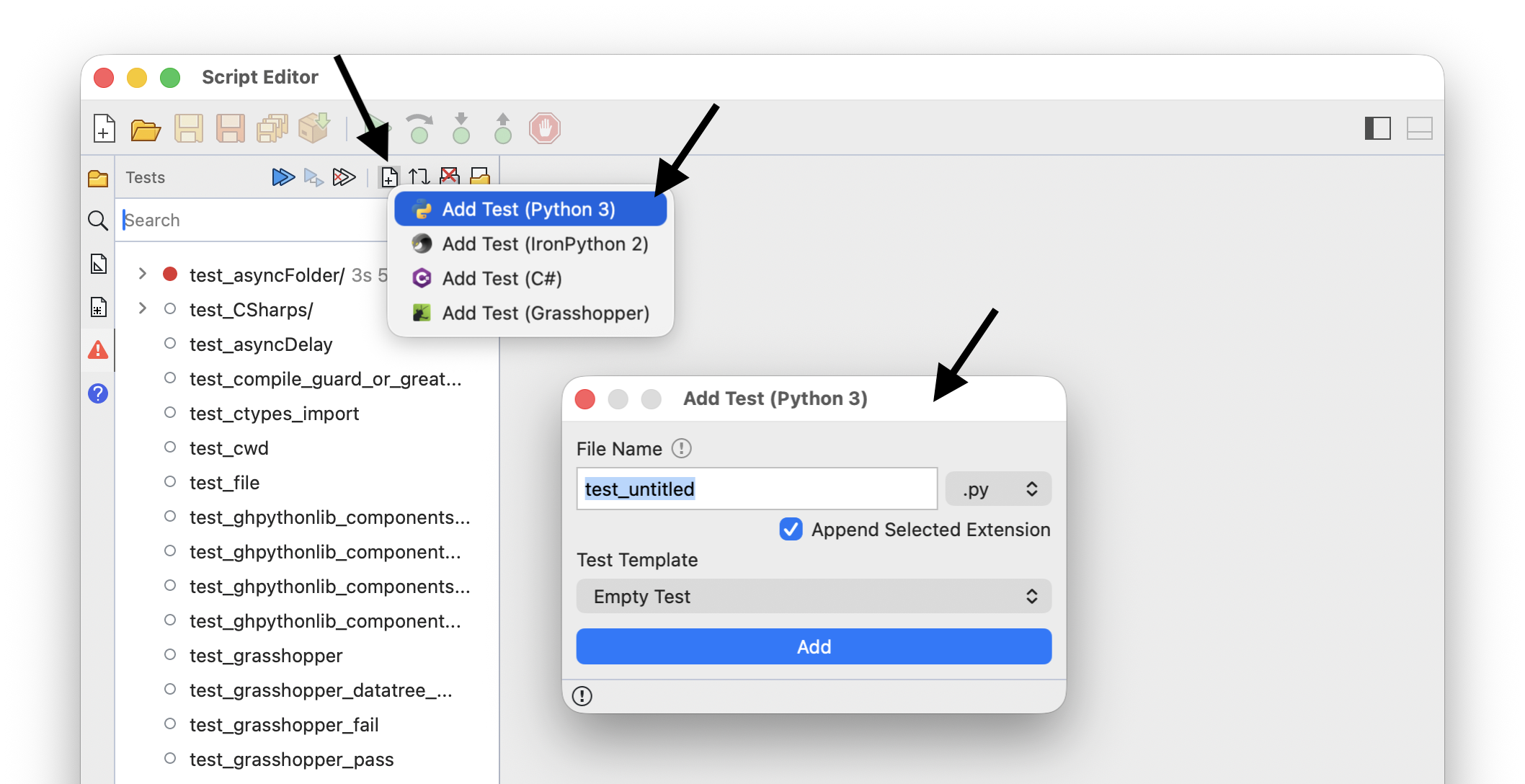
Right-click a test to Rename or Delete it. Test menus also offer Copy Path and Reveal in Finder (Reveal in File Explorer on Windows).
These commands are only available when the directory can be modified.