
Creating a C# Script
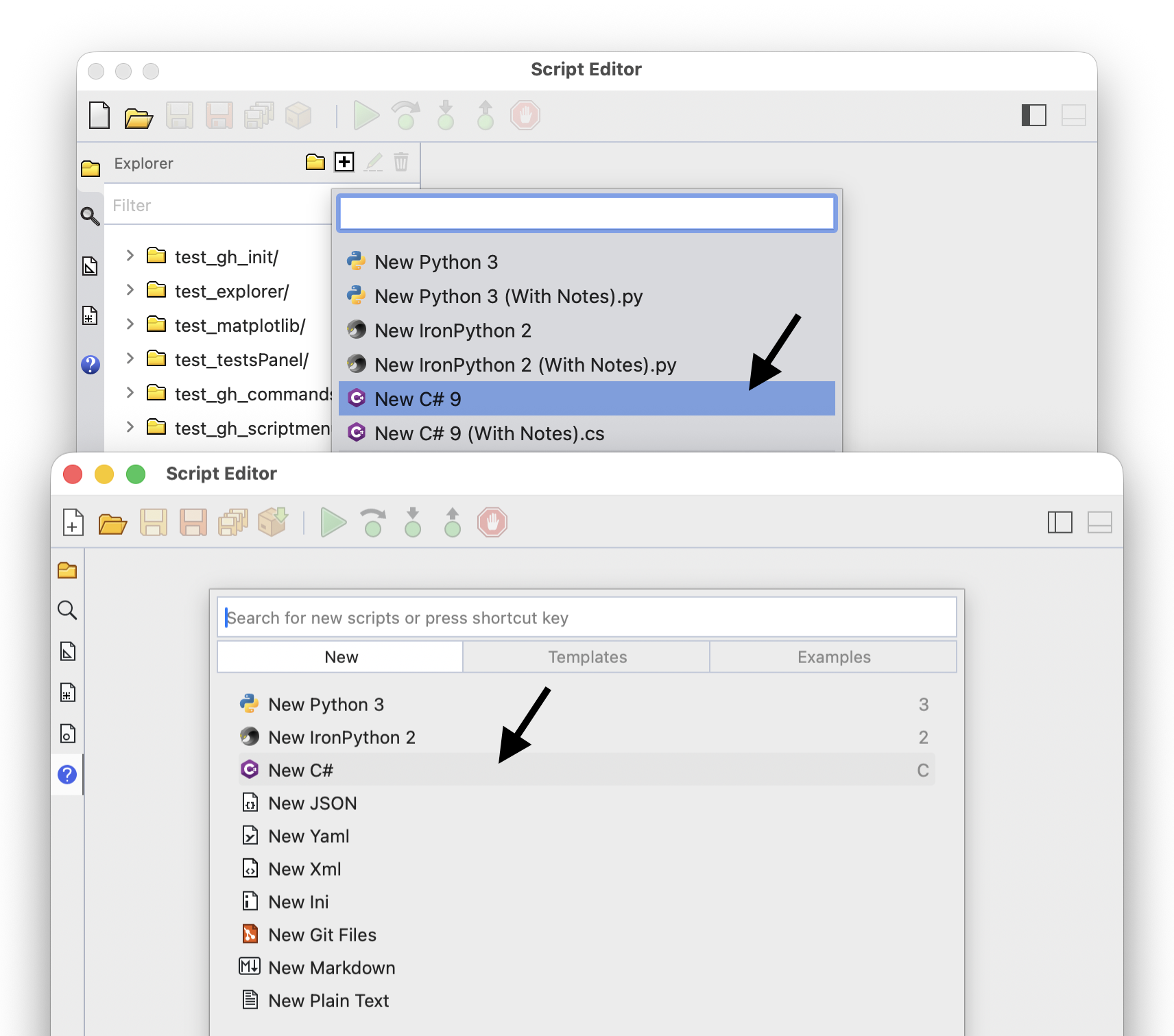
Run the ScriptEditor command to open the script editor. Choose File > New and pick C# from the list of languages:
Write your script and choose Run > Run to run it. The status bar shows the language and version of the script you are editing:
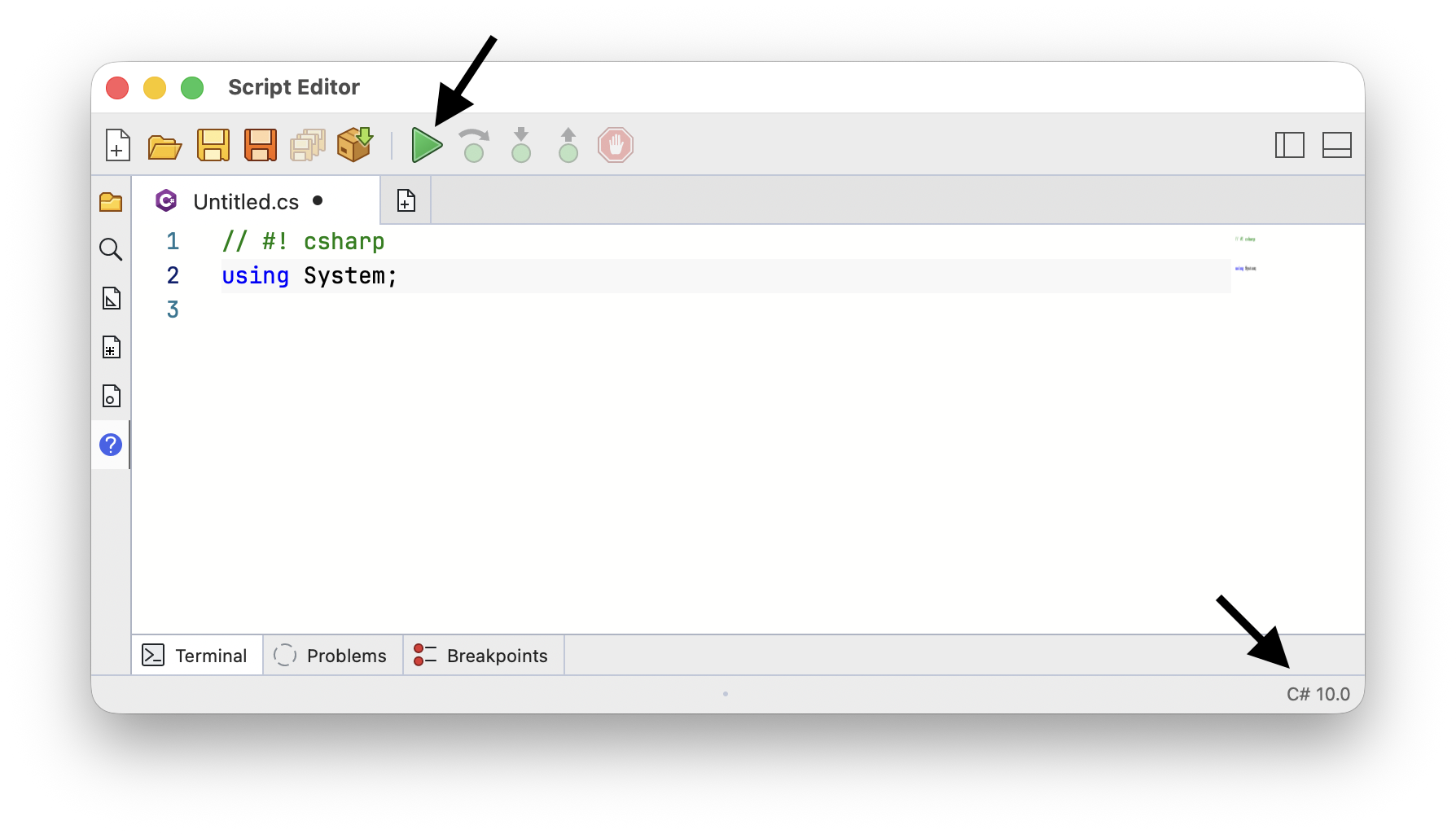
Scripts are saved as .cs or .csx files. File > New From Template starts a new script from one of your templates.
Running Scripts From Rhino
Scripts do not have to be run from the editor. The ScriptEditor command can run a script file from the Rhino prompt, a macro, a toolbar button, or an alias:
_-ScriptEditor _R "C:\path\to\script.cs"
A script written straight into a macro needs a language specifier so Rhino knows to run it as C#:
_-ScriptEditor _R (
    // #! csharp
    Console.WriteLine("Hello Rhino");
)
See ScriptEditor Command in Macros for the rest of the command options.
Debugging
Click the gutter to the left of a line to add a breakpoint, then choose Run > Debug to run the script and stop there:
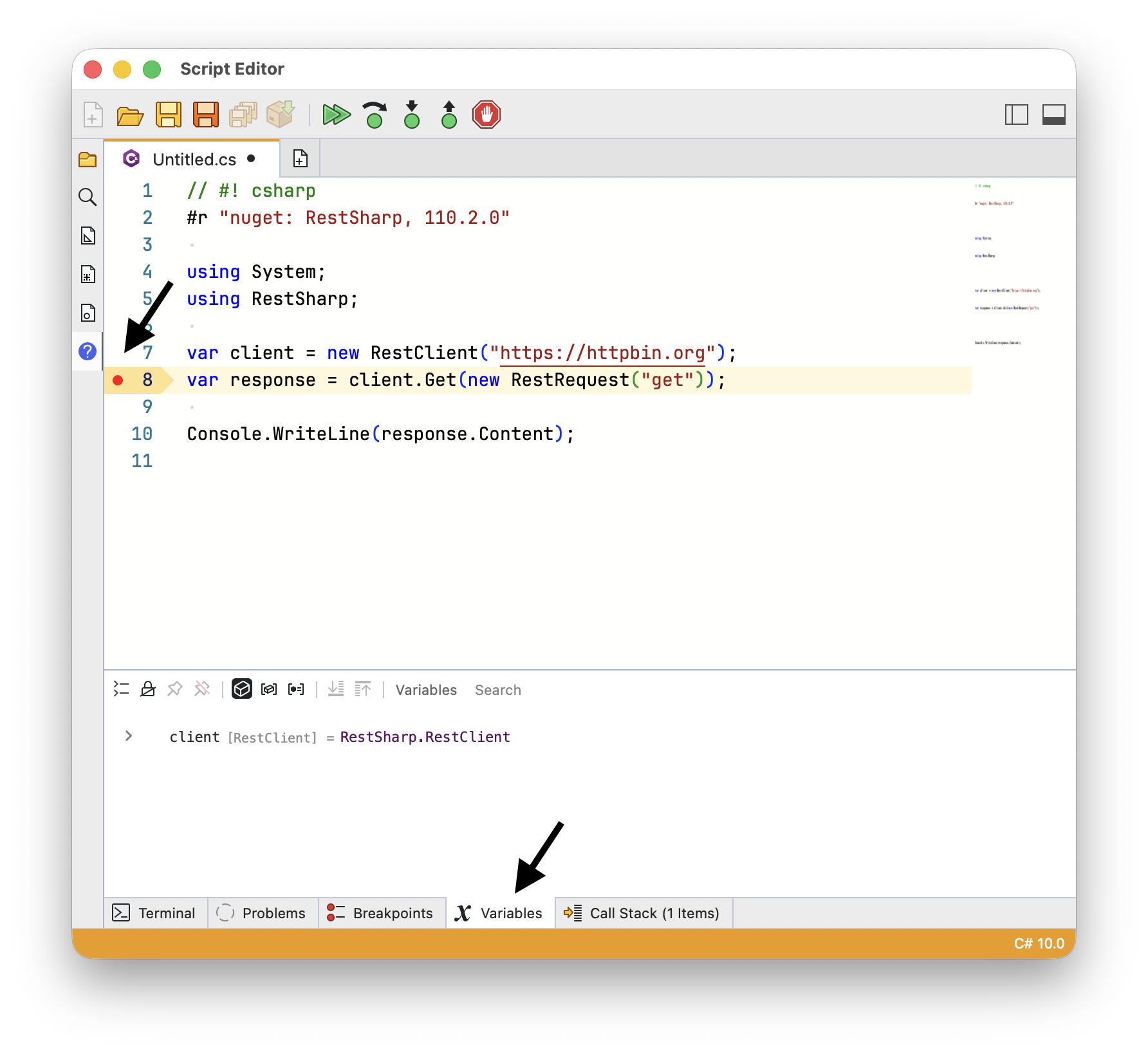
Debug is only available when the script has a breakpoint. While the script is paused you can step through it and inspect your variables in the debugging panels. See Debugging Your Scripts.
NuGet Packages
Your scripts can use third-party packages published on NuGet. Choose Install Package on the editor dashboard, then search for the package or type its name and version:
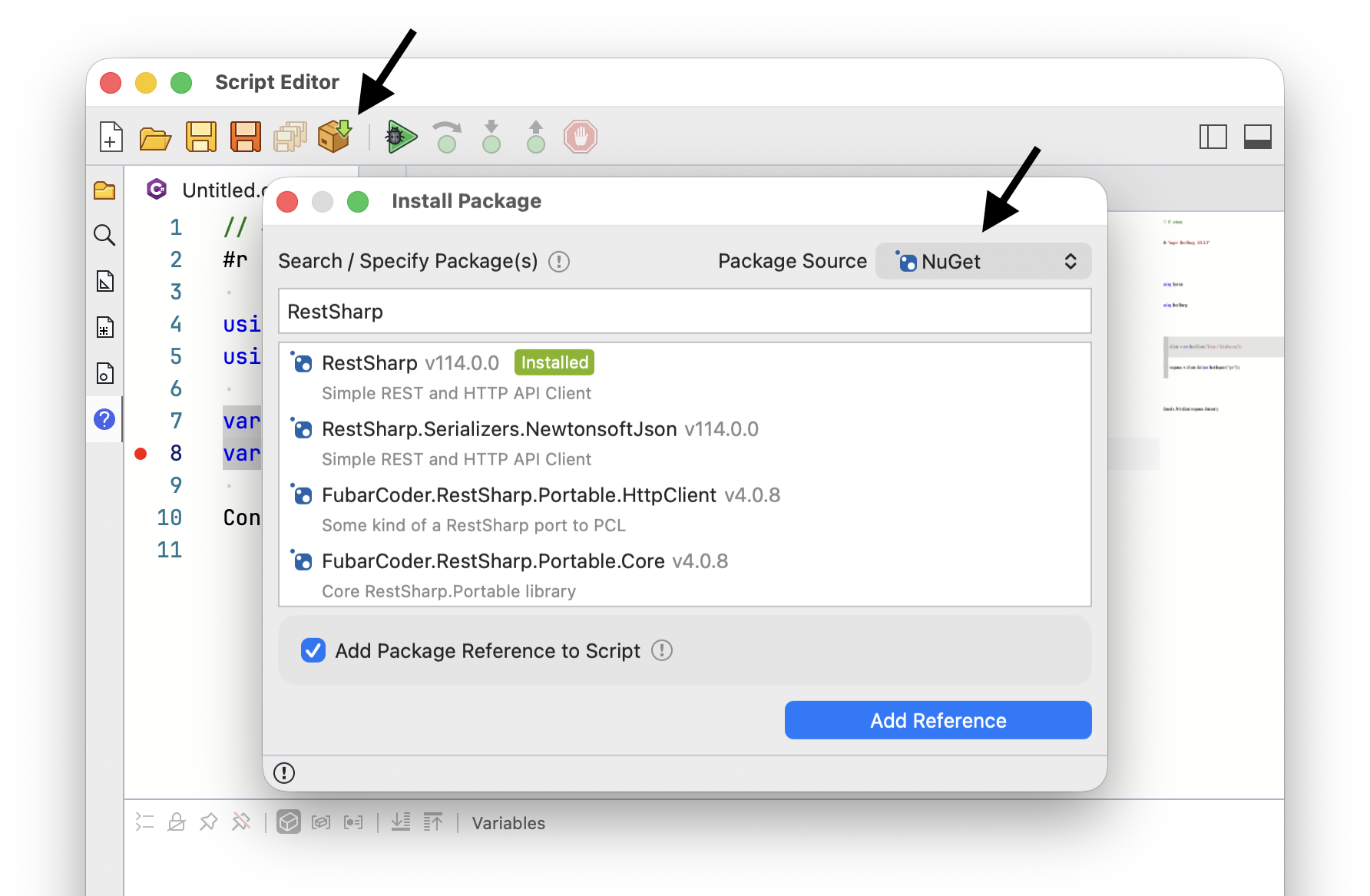
Leave Add Package Reference to Script checked to add the package to the script text. The script then knows which packages it needs, and can install them when someone else opens it:
#r "nuget: RestSharp, 110.2.0"

using System;
using RestSharp;

var client = new RestClient("https://httpbin.org");
var response = client.Get(new RestRequest("get"));

Console.WriteLine(response.Content);
Yak References
Scripts can reference .NET assemblies from Yak packages directly. Change Package Source to Yak in the Install Package dialog:
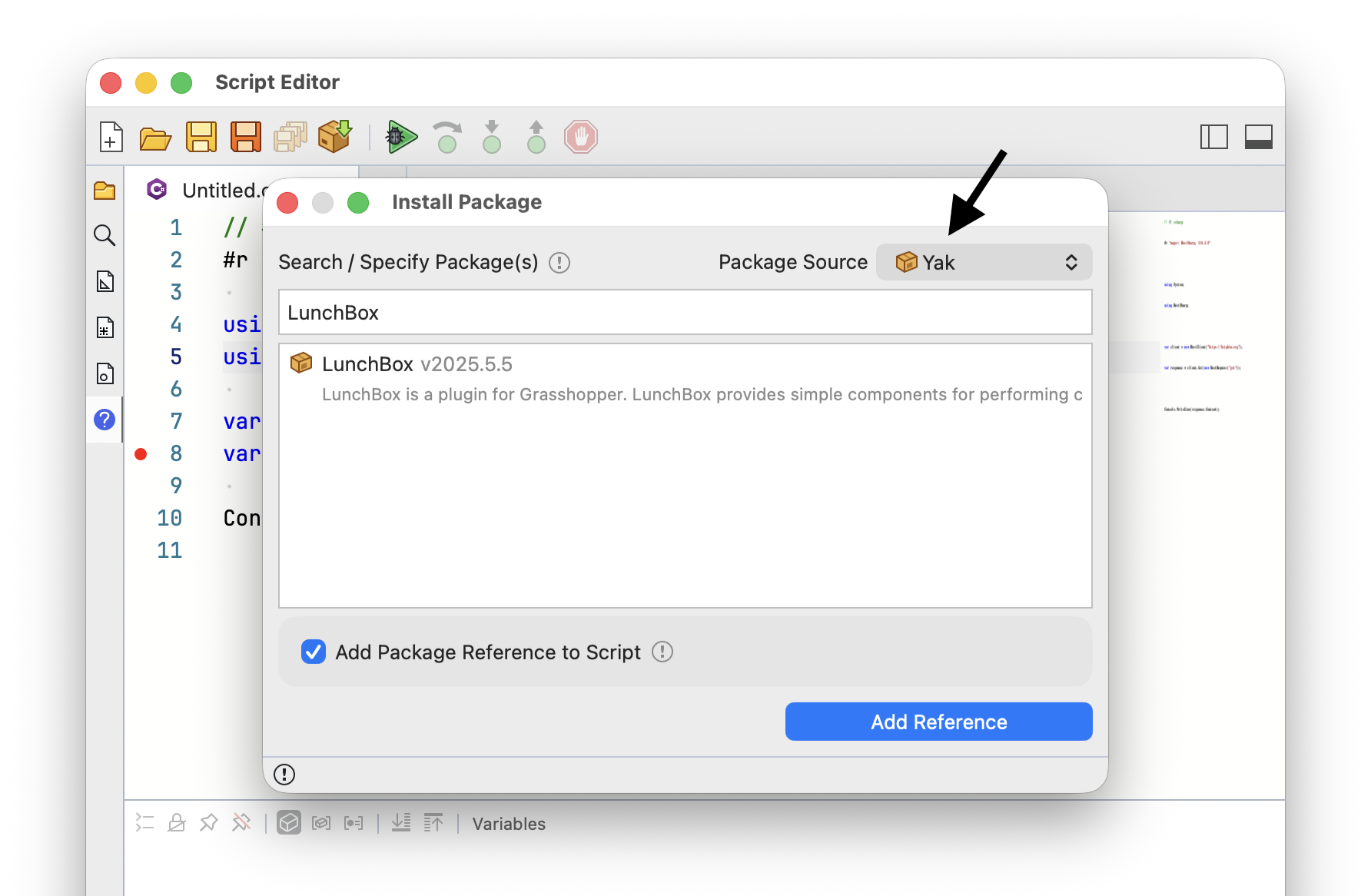
See Script Package References for the full set of package directives, including editable installs of your own libraries, git repositories, alternate package indexes, and PEP 723 blocks.
Assembly References
Scripts can also reference .NET assemblies directly. Change Package Source to DLL Reference in the Install Package dialog:
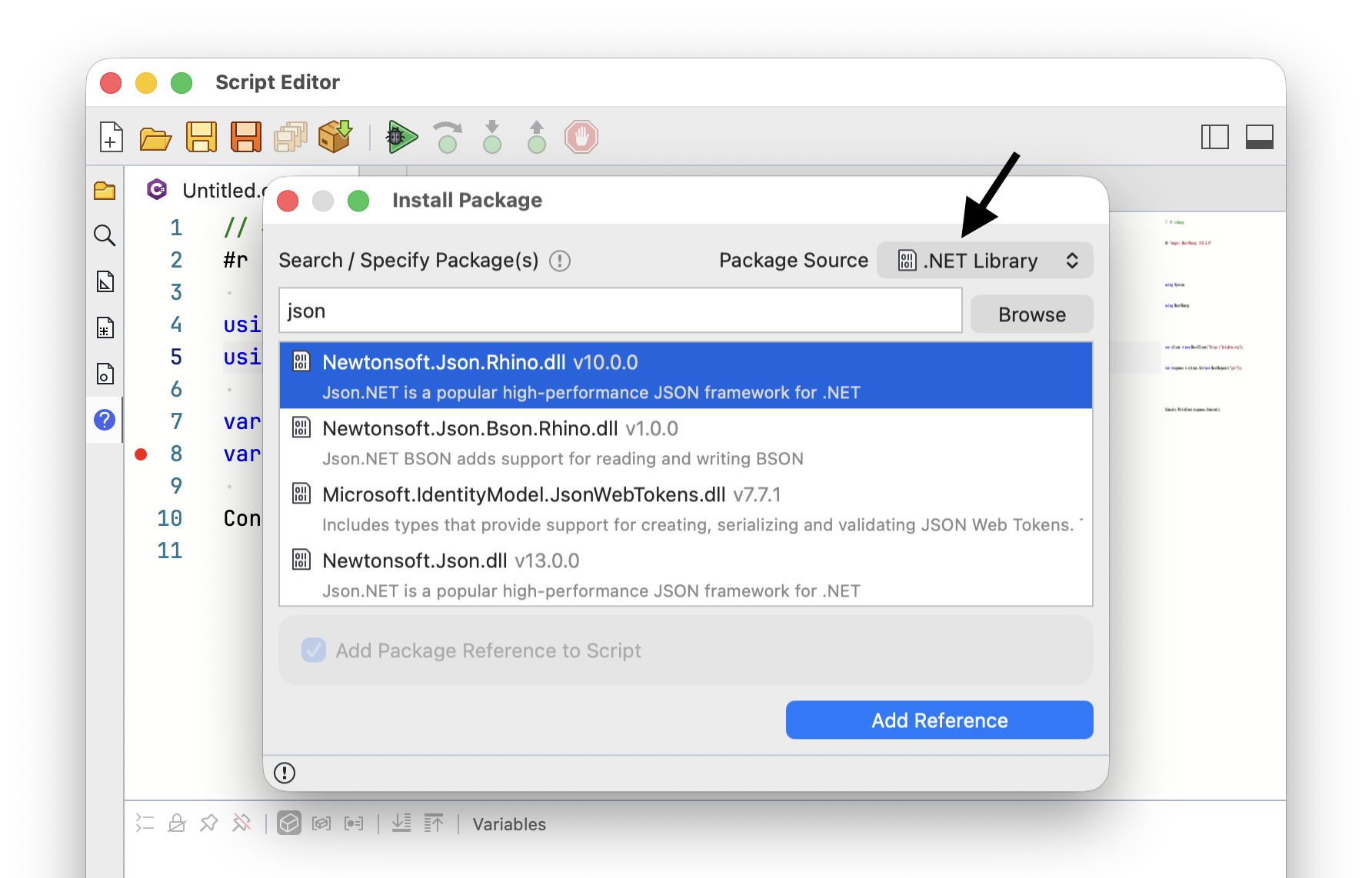
If the assembly is already loaded in Rhino, reference it by name. Include the extension:
#r "System.Text.Json.dll"
You can also give a relative or absolute path to the assembly file:
#r "/path/to/my/assemblies/MySharedAssembly.dll"
Sharing Code Between Scripts
Use #load to include another C# file in your script. This is handy for helper code you use in more than one script:
#load "helpers.cs"
Relative paths are resolved next to the script file.
Language Options
Editing features like line numbers, indentation guides, autocomplete, and tab size can be set for C# alone. Choose Tools > Language Options while editing a C# script, or right-click the script tab and choose Language Options:
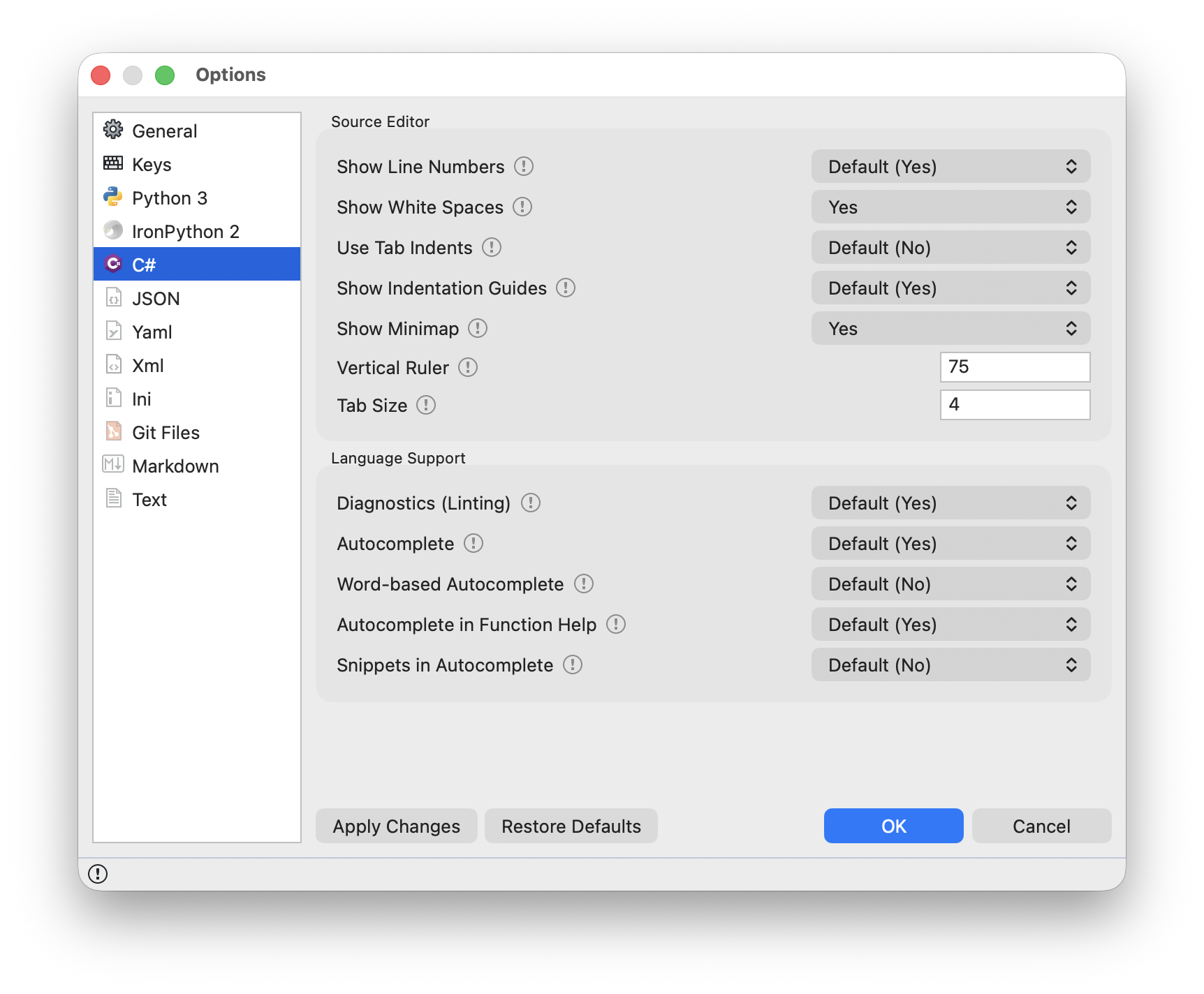
Each option can follow the editor-wide setting or be set for C# only. The editor-wide values are in Options.
Modern C# Features
Scripts are written in a modern flavor of C#, so most of the modern language features are available. The status bar shows the language version in use. A few features that are handy in scripts:
String interpolation mixes values into text:
int count = 42;

// each pair of {} holds a C# expression
Console.WriteLine($"Found {count} objects");
var and target-typed new() keep type names out of the way:
var points = new List<Point3d>();
Point3d origin = new(0, 0, 0);
Tuples return more than one value without declaring a class:
(double min, double max) GetRange(Curve c) => (c.Domain.T0, c.Domain.T1);

var (start, end) = GetRange(curve);
Switch expressions replace long if-else chains:
string kind = geometry switch
{
    Curve => "curve",
    Brep => "brep",
    Mesh => "mesh",
    _ => "other",
};
Records declare small data types in one line:
record Panel(string Name, double Area);

var panel = new Panel("P-01", 12.5);
Console.WriteLine(panel.Area);
Index and range operators pick items from the end or in slices:
var last = points[^1];
var middle = points[1..^1];