
C# Component
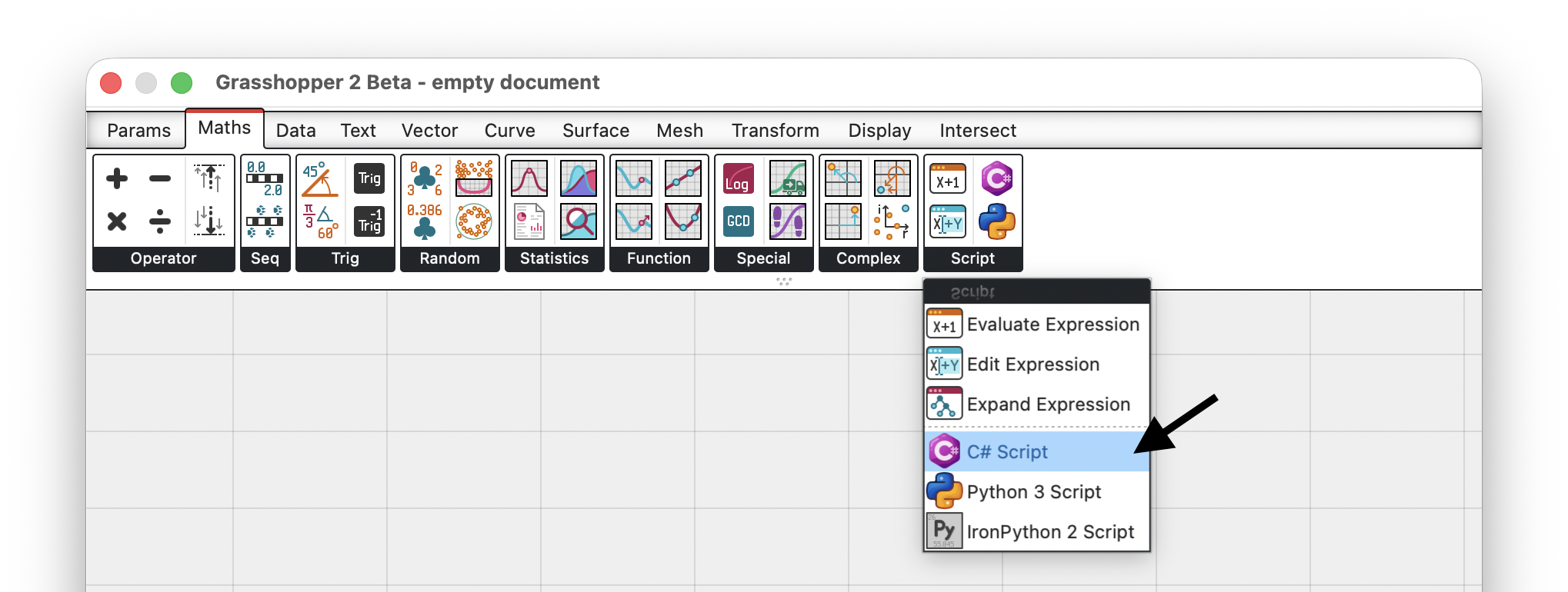
The C# script component is in the Maths tab, Script panel. Drop one onto the canvas:
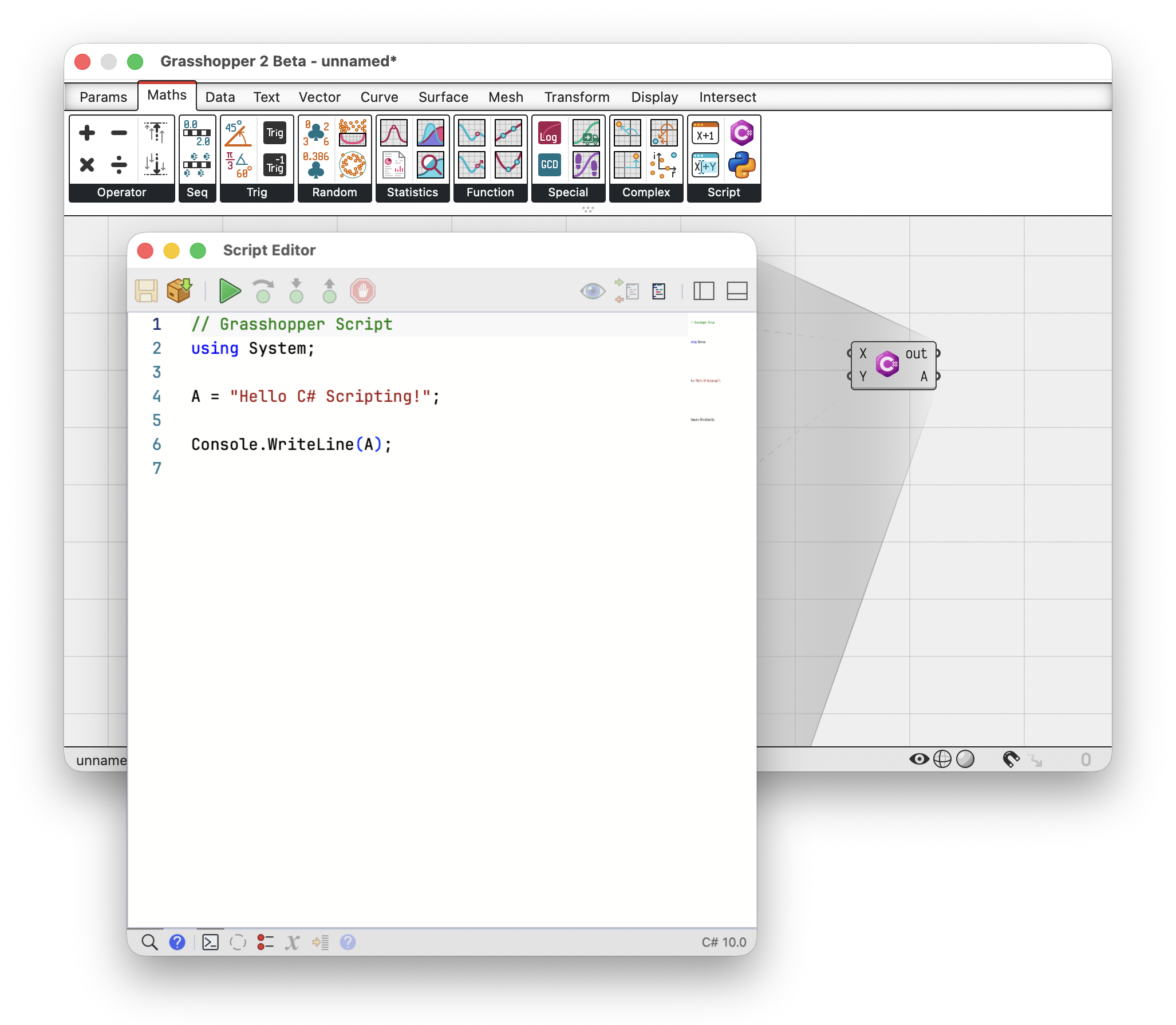
A new component starts with a small script that sets one output:
// Grasshopper Script
using System;

A = "Hello C# Scripting!";

Console.WriteLine(A);
Opening the Script Editor
Double-click the component to open a script editor. The component draws a cone pointing to the editor associated with it:
Component Options
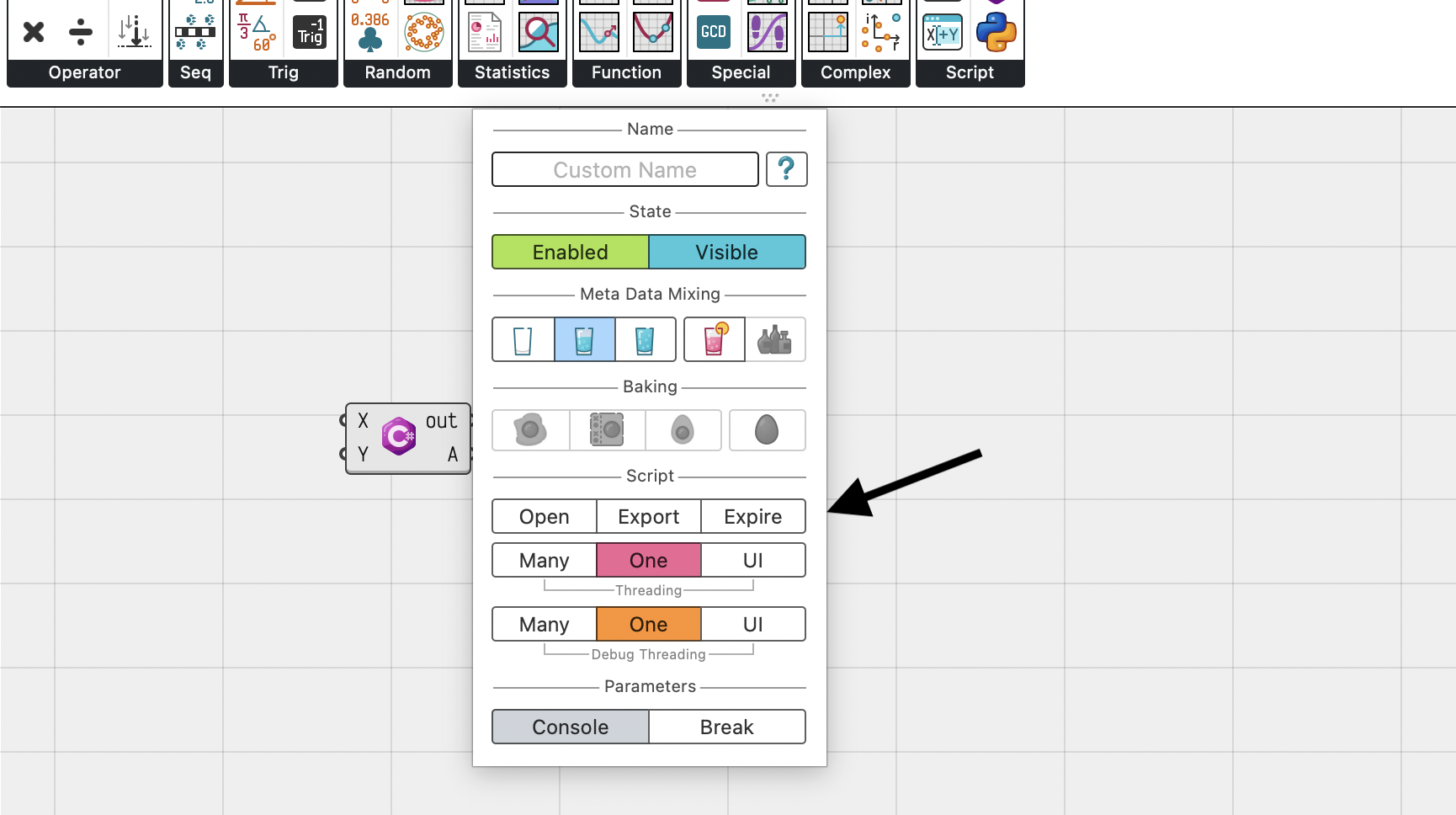
Component options are in the component panel. The Script category has:
- Open opens the script in the editor
- Export saves the script to a file
- Expire clears cached compiler results and recomputes
Threading
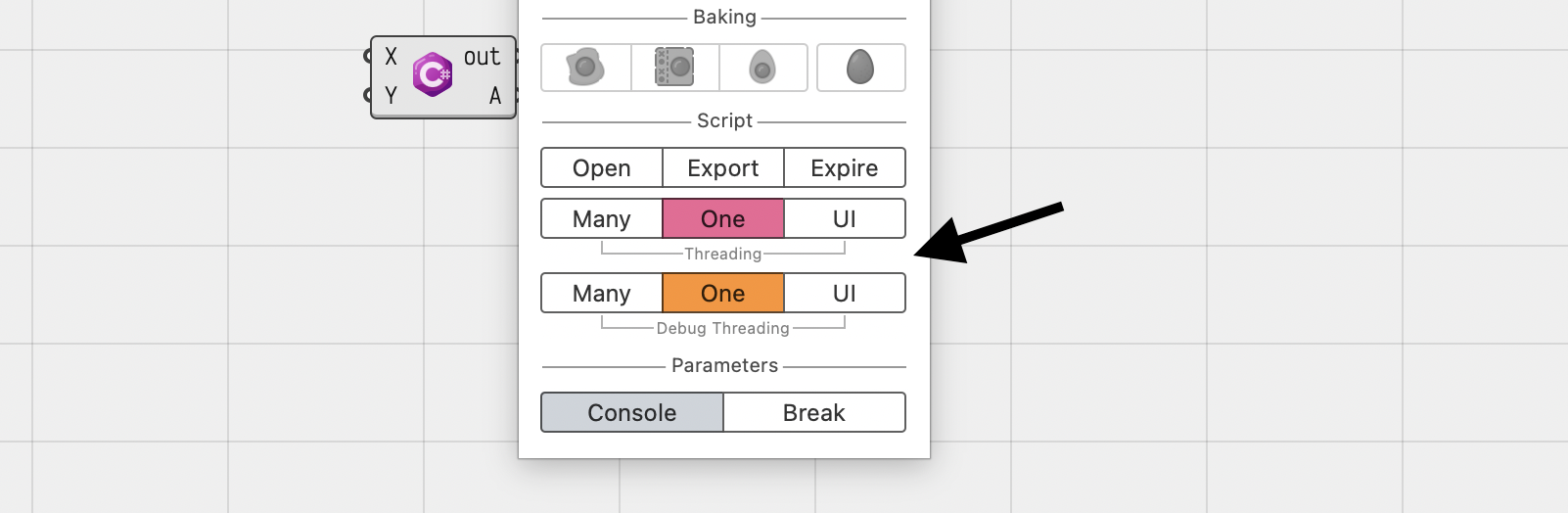
Threading sets how the iterations of your script are run:
- One runs iterations on a single thread, in order. This is the default
- Many runs iterations on different threads, which is faster for scripts that solve many iterations
- UI runs iterations on the application UI thread, in order
One is the default because scripts that run on many threads at once are harder to reason about. Iterations no longer run in order, and anything your script shares between them has to be written carefully.
Debug Threading sets the same choice for debug runs and defaults to One, to keep debugging simple. Switch it to Many only when you are sure that helps, since stepping through a script while several iterations run at once is confusing:
Inputs, Outputs
A new component has two inputs and one output, plus the Console output. Inputs may be left empty, so a script runs even when nothing is connected.
Add, remove, and rename parameters the same way as any other Grasshopper 2 component. Give them meaningful names, since the names are how your script reaches their values:
Pick Pears
Grasshopper 2 keeps metadata alongside every value, and the value together with its metadata is a pear. Turn on Pick Pears in the Variable category of an input’s panel to receive IPear instances instead of naked values. This is off by default, and is only offered on inputs. Turn it on when your script needs the metadata of an item, not just its value.
Standard Output (Console)
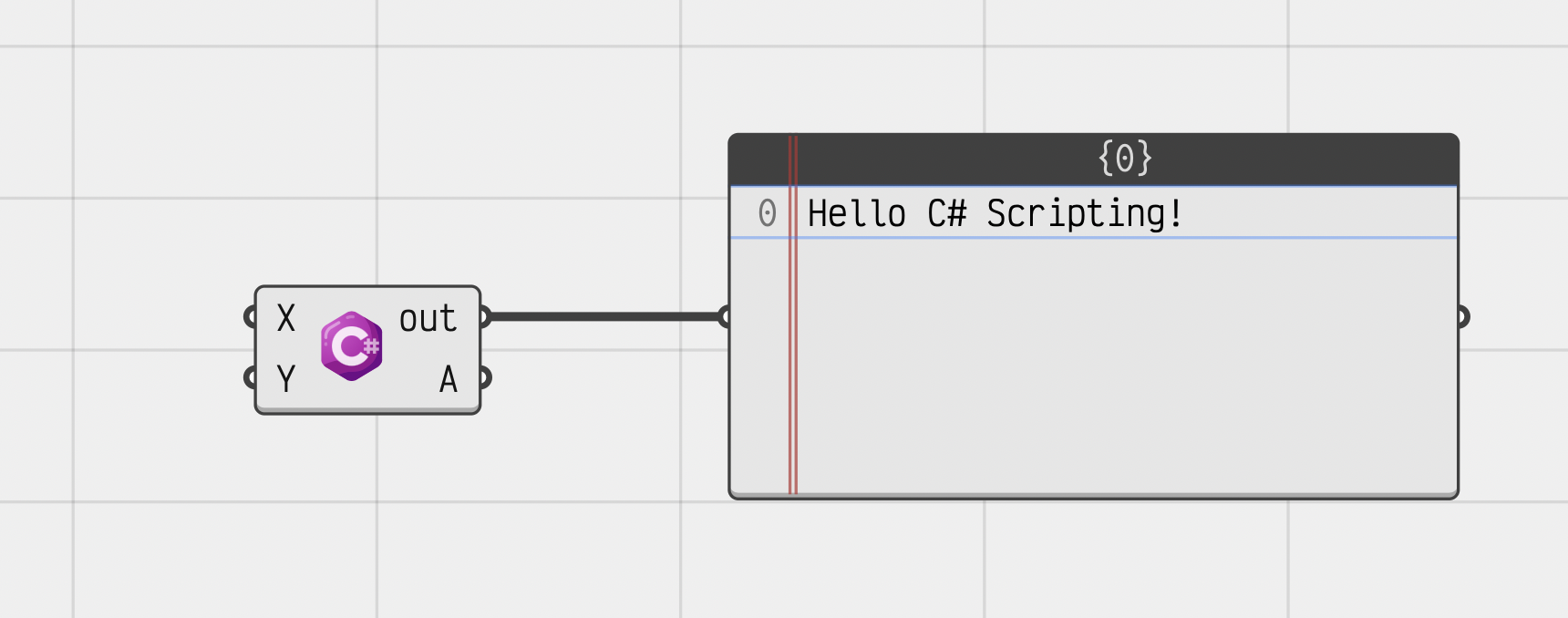
The Console output captures anything your script prints to the console. Each printed line becomes one item:
Toggling Output
Two toggles in the Parameters category of the component panel control it:
- Console shows or hides the output parameter
- Break splits the collected text into one item per line
Hiding the parameter when your script prints nothing saves the component from collecting and splitting output on every run.
Parameter Converters
Right-click a parameter to choose how its data reaches your script. The list is grouped by kind:
- System types like boolean, integer, string, number,
Guid,DateTime, color, and file path - Rhino data types like
Point3d,Vector3d,Plane,Interval,Box,Transform - Geometry types like
Line,Circle,Arc,Polyline,Rectangle3d - Geometry base types like
Curve,Mesh,Surface,Brep,SubD,PointCloud
No Conversion is the default, so values reach your script as Grasshopper stores them. Pick a converter and values are converted to that type first.
Converters replace the type hints of the Grasshopper 1 component.
Parameter Access
Each parameter takes Item, Twig, or Tree access, which sets whether your script is handed one value, a list, or a whole tree. Unwrap Data on an output turns collections your script sets into Grasshopper trees and twigs.
SDK-Mode
Choose Convert To Grasshopper2ScriptInstance (Component SDK Mode) on the editor dashboard to turn the script into a class. The component then calls RunScript for every iteration:
using System;

using Rhino;
using Rhino.Geometry;

using Grasshopper2.Components;

public class Script_Instance : GH_ScriptInstance
{
  private void RunScript(double X, double Y, ref double A)
  {
    A = X + Y;

    Print($"Iteration {Iteration} of {Iterations}");
  }
}
The instance also gives access to what is running the script:
Component |
The component running the script |
Document |
The Grasshopper document holding the component |
RhinoDocument |
The active Rhino document |
Access |
Data access for the iteration being computed |
Solution |
The solution being computed |
Callstack |
The call stack leading up to the component |
CustomData |
Data shared by all iterations of the solution |
Iteration |
Index of the iteration being computed |
Iterations |
Number of iterations in the solution |
RunScript Signature
Inputs are method parameters and outputs are ref parameters, so their names and types follow the component parameters. Use Print to write to the Console output.
Changing the component parameters changes the signature, so keep the method parameters in step with the component.
Before, After Solve Overrides
Choose Add Solve Overrides to add methods that run once per solution, before and after all the iterations:
public class Script_Instance : GH_ScriptInstance
{
  int _count;

  // runs once before the first iteration
  public override void BeforeRun()
  {
    _count = 0;
  }

  private void RunScript(double X, double Y, ref double A)
  {
    A = X + Y;
    System.Threading.Interlocked.Increment(ref _count);
  }

  // runs once after the last iteration
  public override void AfterRun()
  {
    Print($"Solved {_count} iterations");
  }
}
Preview Overrides
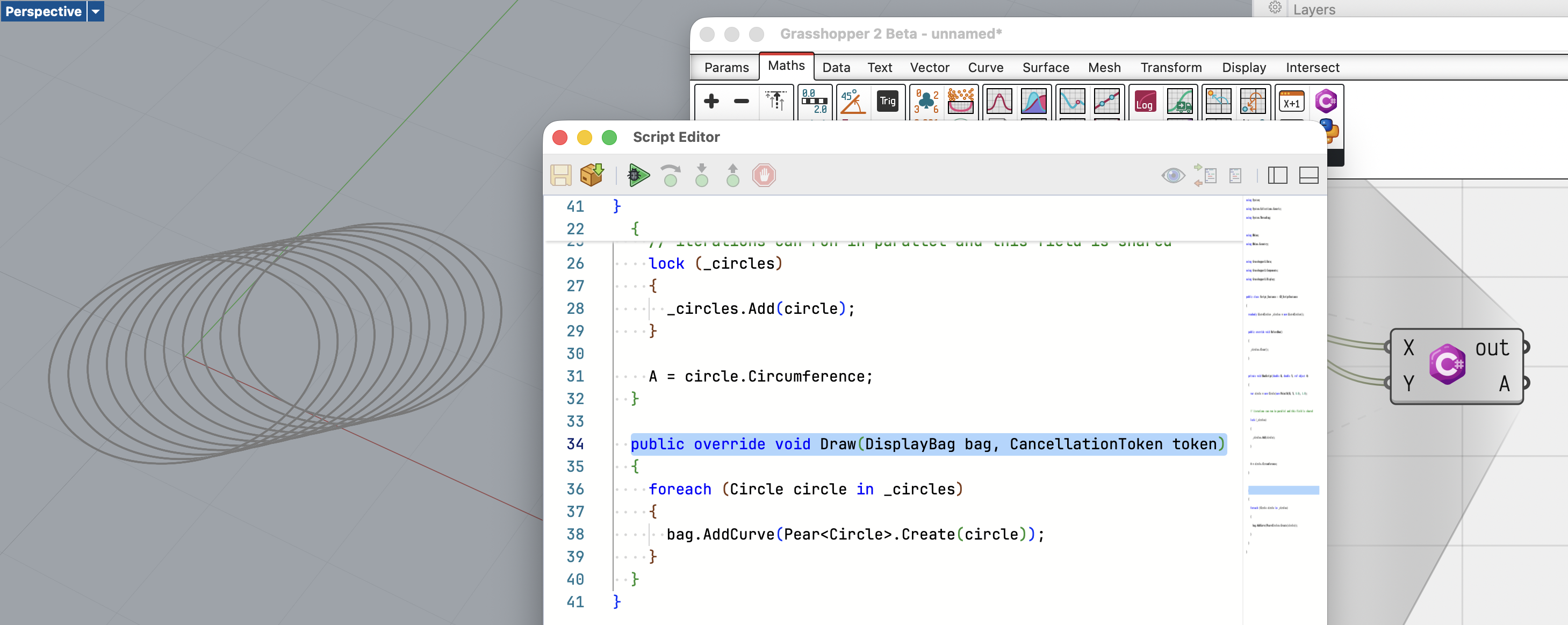
Choose Add Preview Overrides to add Draw, the single override where a script draws into the Rhino viewports. Keep whatever you draw on the instance, since Draw runs separately from RunScript:
public class Script_Instance : GH_ScriptInstance
{
  readonly List<Circle> _circles = new List<Circle>();

  public override void BeforeRun()
  {
    _circles.Clear();
  }

  private void RunScript(double X, double Y, ref double A)
  {
    var circle = new Circle(new Point3d(X, Y, 0.0), 1.0);

    // iterations can run in parallel and this field is shared
    lock (_circles)
    {
      _circles.Add(circle);
    }

    A = circle.Circumference;
  }

  public override void Draw(DisplayBag bag, CancellationToken token)
  {
    foreach (Circle circle in _circles)
    {
      bag.AddCurve(Pear<Circle>.Create(circle));
    }
  }
}
Input Panel
A script instance can add its own items to the component panel. Override AppendToInputPanel and the edits land on the instance:
public class Script_Instance : GH_ScriptInstance
{
  double _factor = 2.0;

  private void RunScript(double X, double Y, ref double A)
  {
    A = (X + Y) * _factor;
  }

  public override void AppendToInputPanel(InputPanel panel)
  {
    using (panel.BeginCategory("Options"))
    {
      panel.AddLabel($"Factor is {_factor}", italic: true);

      panel.AddText(_factor.ToString(), text =>
      {
        if (double.TryParse(text, out double factor))
        {
          _factor = factor;
        }
      }, "Multiplier applied to the sum.");
    }
  }
}
Edits apply on the next solve.
Script-Mode
A script does not have to be a class. A plain list of statements works too. Inputs arrive as variables named after the input parameters, and outputs are set by assigning to variables named after the output parameters:
using System;

// X and Y are inputs, A is an output
A = X + Y;

Console.WriteLine($"A is {A}");
Debugging Scripts
Debugging pauses your script mid-solution so you can look at your values and step through your code line by line.
Click the gutter to the left of a line to add a Breakpoint:
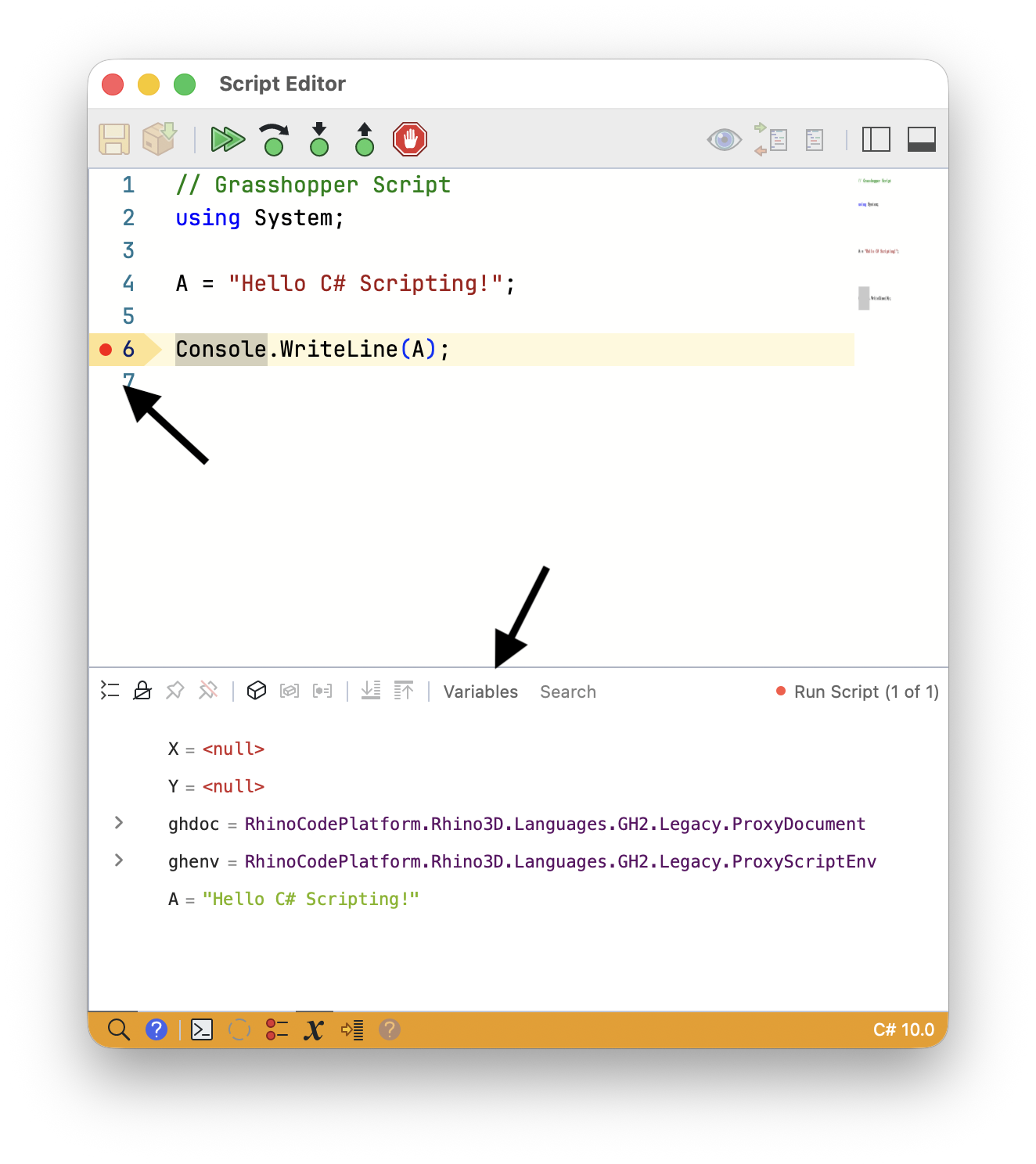
The Run button becomes Debug once the script has a breakpoint. Click it and the component solves until it reaches that line, then stops with the line marked and the debugging panels open:

Debug runs are single-threaded by default, so iterations stop in order even when the script itself is set to run on Many threads. See Debug Threading in Threading.
Debug Controls
The debug buttons on the editor dashboard control what happens next:
- Continue runs until the next breakpoint, which is often the next iteration of the same component
- Step Over runs the current line
- Step Into steps into the method called on the current line
- Step Out runs the rest of the current method and stops where it was called
- Stop ends the debug run
Variables Tray
The Variables tray lists the values your script is holding at the line it stopped on, including the component inputs. Expand a value to see its members, or the items of a collection:
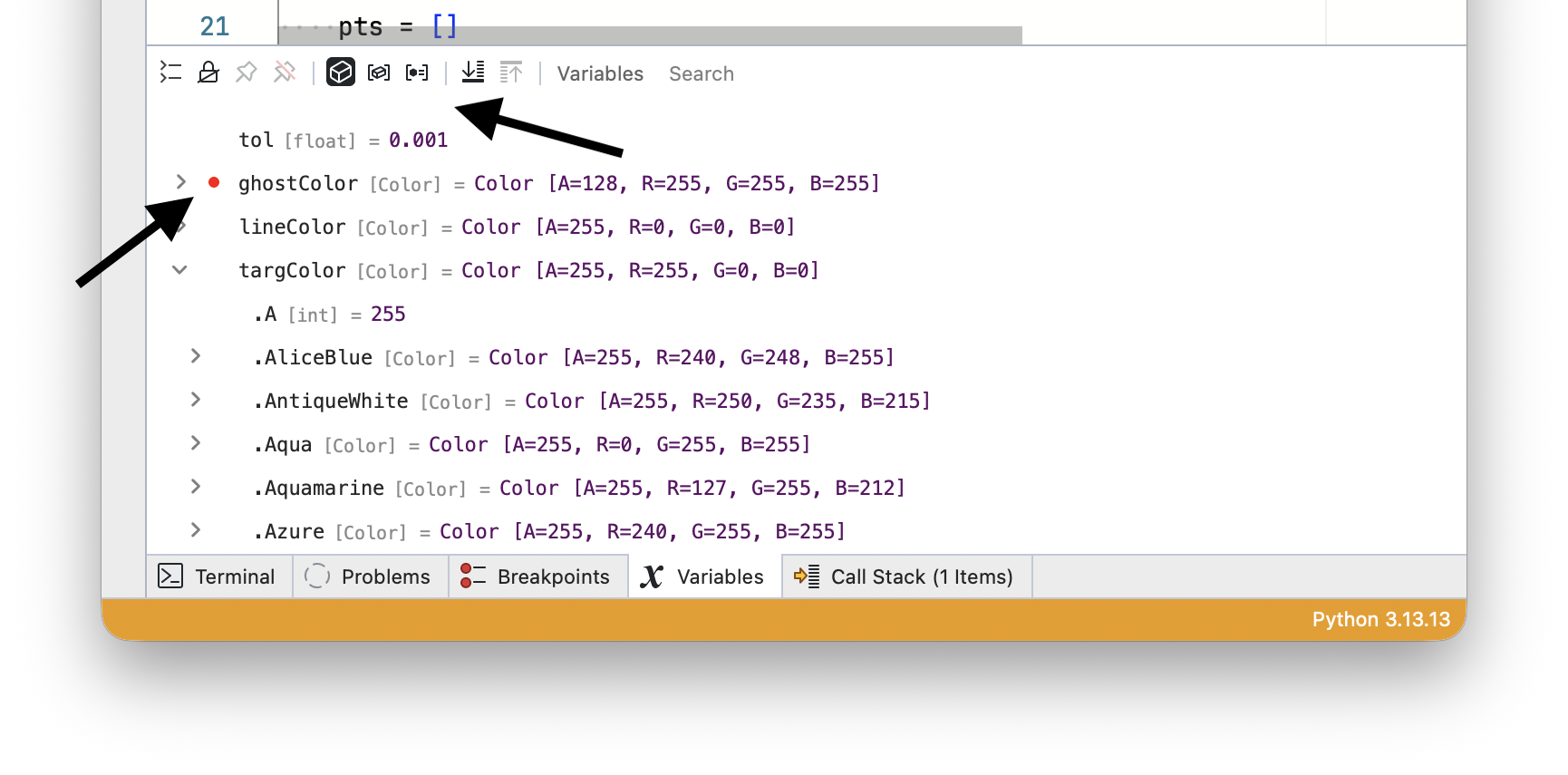
Pin a value to keep watching it as you step and as iterations go by.
Call Stack Tray
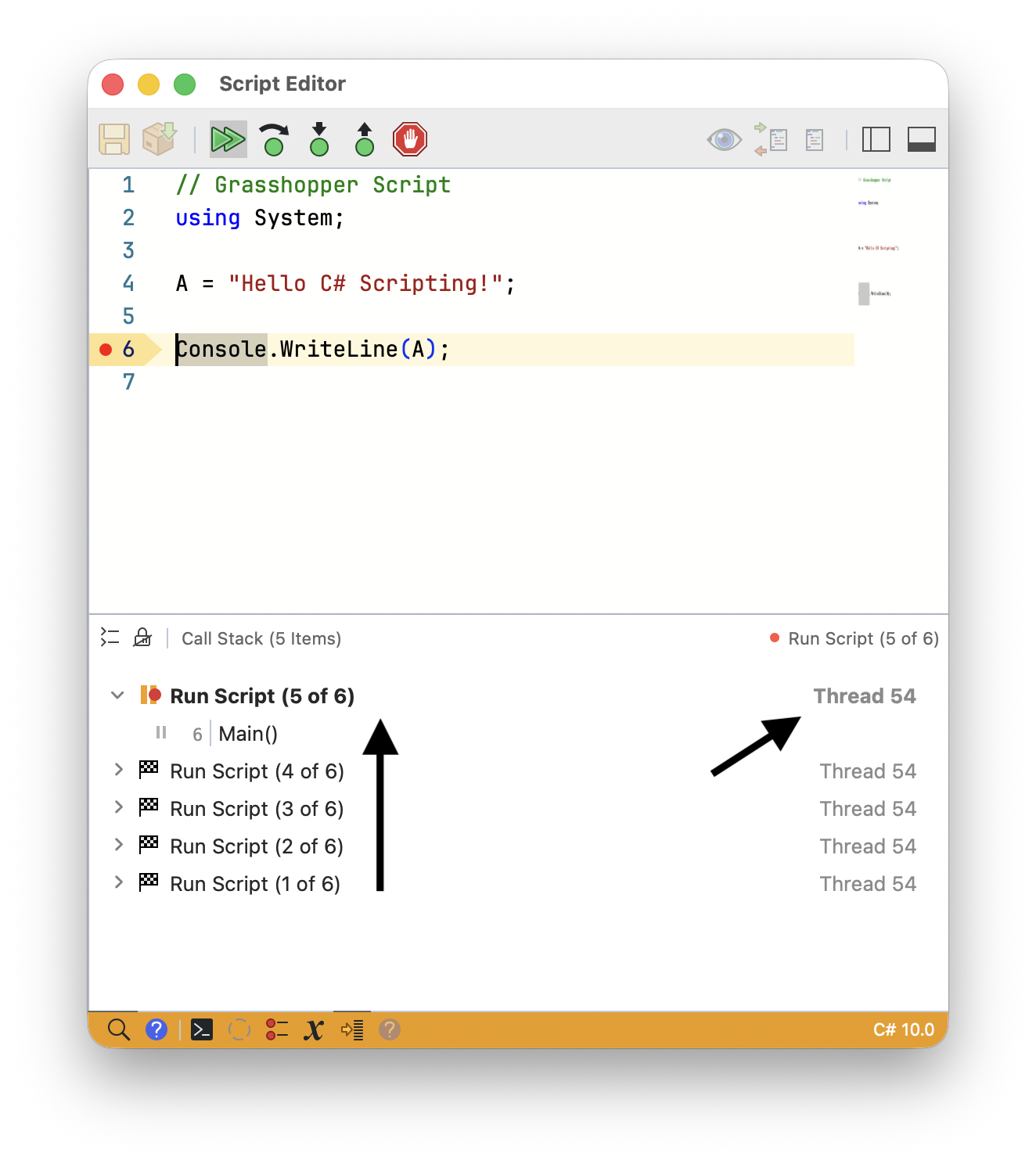
The Call Stack tray shows which methods the script is inside. RunScript sits at the bottom of a paused component, with any method it called above it. Select a frame to see its values in the Variables tray:
Call Stacks On Many Threads
With Debug Threading set to Many, more than one iteration of your script can be paused at the same time. The Call Stack tray keeps them apart. Each run is listed with the threads it is using, and each thread carries its own frames:
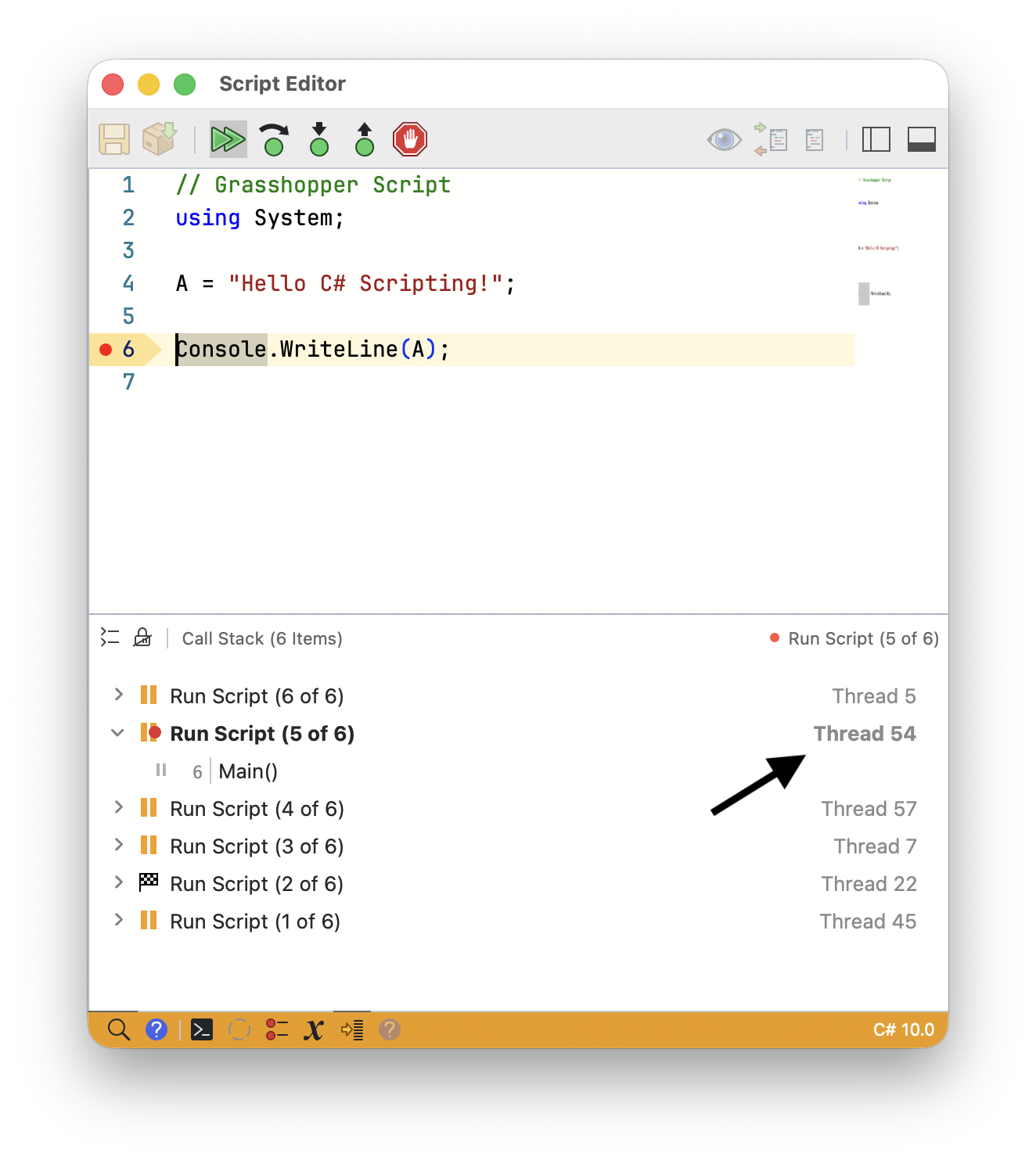
Every row shows its own state, so you can see which thread is paused on a breakpoint and which is still running, completed, or errored.
Select a frame to see that thread’s values in the Variables tray. The same variable can hold a different value on each thread, which is the point of looking at them separately.
Toggle Follow Locks on the panel header shows a lock on each run. Lock a run and the debugger stays with it instead of following whichever thread stops next.
Unless you are chasing a problem that only happens across threads, leave Debug Threading at One. Iterations then pause in order and there is a single call stack to read.
For the panels themselves, see Debugging Your Scripts.
NuGet Packages
Your script can use third-party packages published on NuGet. Choose Install Package on the editor dashboard, then search for the package or type its name and version:
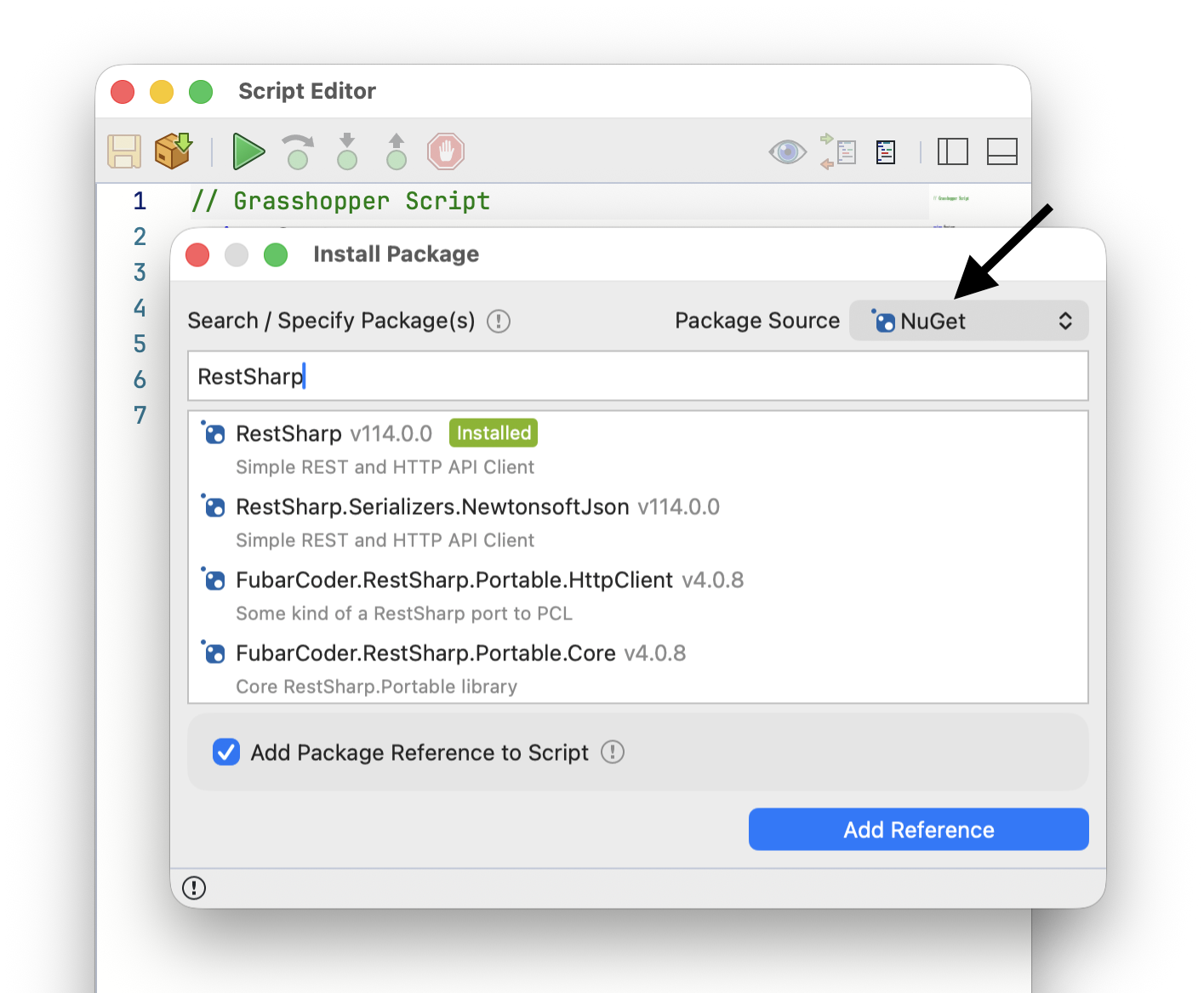
Leave Add Package Reference to Script checked. The package is then written into the script text as a #r line, so the script carries the list of packages it needs. Someone opening your definition gets the packages installed for them:
#r "nuget: RestSharp, 110.2.0"

using System;
using RestSharp;

var client = new RestClient("https://httpbin.org");
var response = client.Get(new RestRequest("get"));

A = response.Content;
The #r line follows the package reference format on the NuGet website, so you can also type it by hand.
Yak Packages
Scripts can reference .NET assemblies from Yak packages directly. Change Package Source to Yak in the Install Package dialog:
#r "yak: LunchBox, 2025.5.50"

using LunchBox;
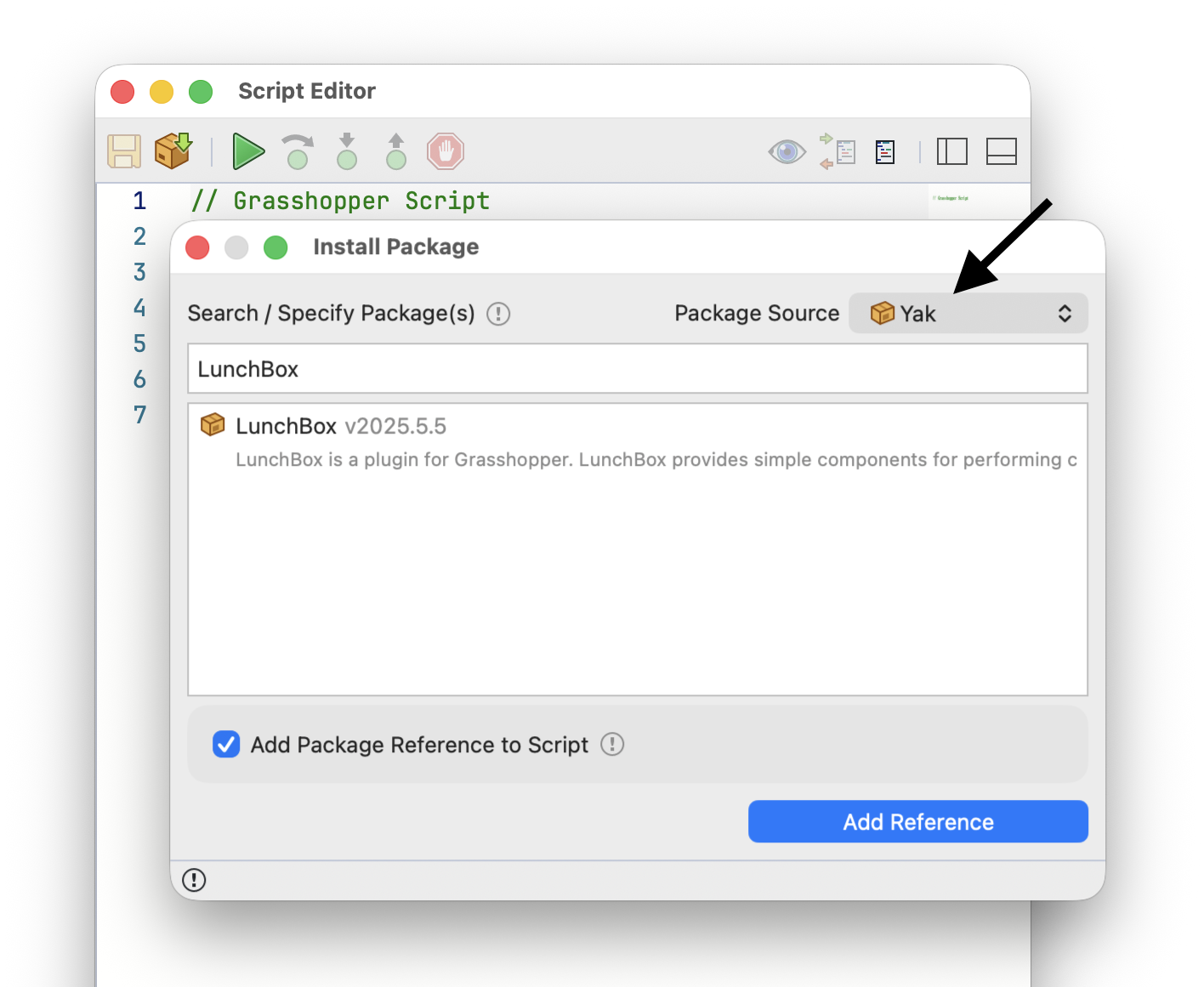
See Script Package References for the full set of package directives, including editable installs of your own libraries, git repositories, alternate package indexes, and PEP 723 blocks.
Assembly References
Scripts can reference .NET assemblies directly. Choose Install Package and change Package Source to DLL Reference:
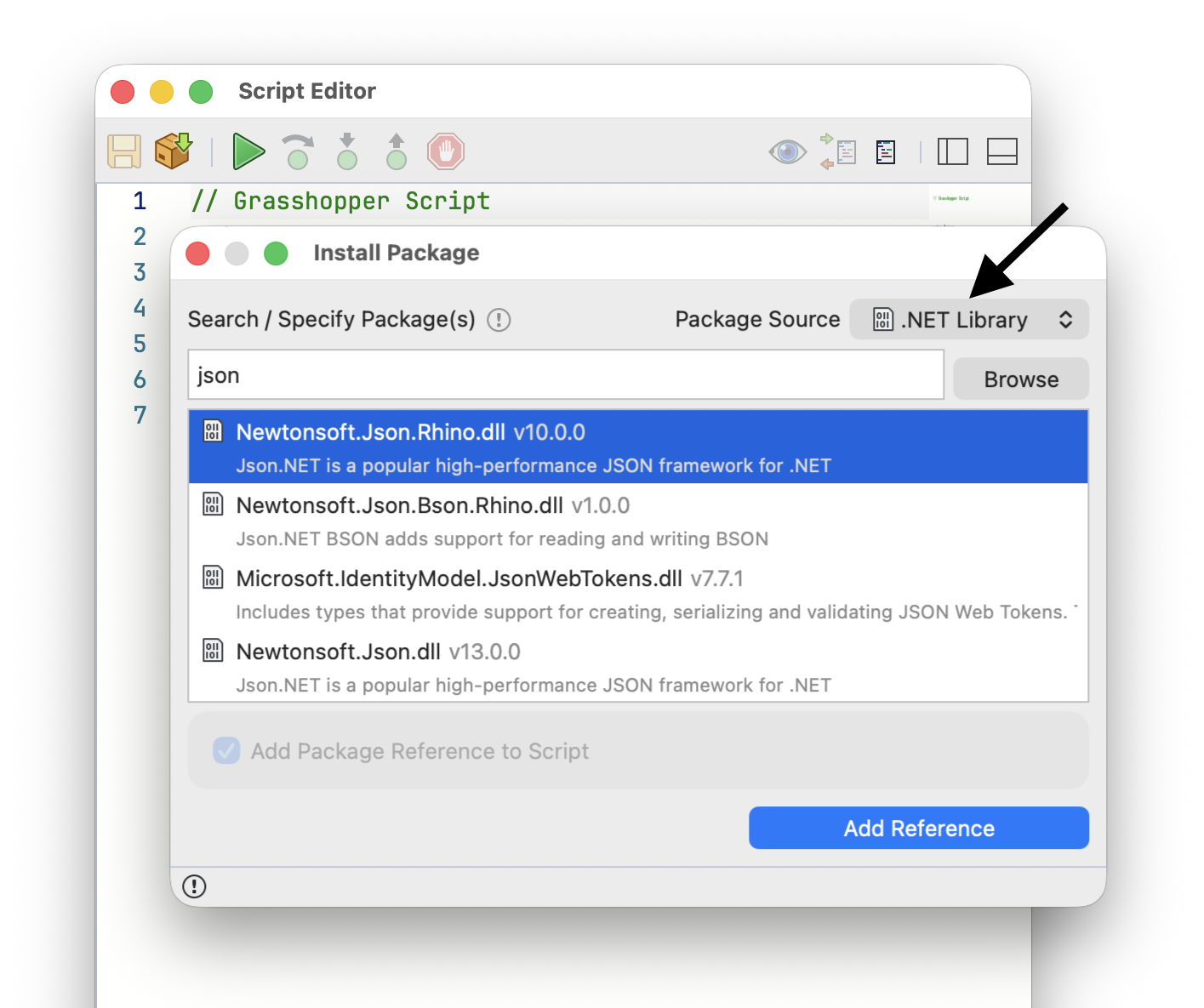
If the assembly is already loaded in Rhino, reference it by name. Include the extension:
#r "System.Text.Json.dll"
You can also give a relative or absolute path to the assembly file. Relative paths are resolved next to the definition:
#r "/path/to/my/assemblies/MySharedAssembly.dll"
Shared State Between Iterations
One script instance is shared by every iteration, so fields you declare on it are shared too.
With the default One threading, iterations run one after another and plain fields are safe. With Many, several iterations run at the same time and touch the same fields. Two things stop being true:
- Iterations no longer run in order
- Reading and writing a field is no longer safe on its own
This script looks correct and is not:
public class Script_Instance : GH_ScriptInstance
{
  int _count;
  readonly List<Circle> _circles = new List<Circle>();

  private void RunScript(double X, double Y, ref double A)
  {
    _count++;                                    // increments get lost
    _circles.Add(new Circle(Point3d.Origin, X)); // list can end up corrupt

    A = _count;
  }
}
_count++ reads the field, adds one, and writes it back. Two threads can read the same value and write back the same result, so one increment disappears. List<T> is worse: two threads adding at once can leave the list in a broken state or throw.
Atomic Operations
For counting, use the Interlocked methods. Each one reads and writes in one uninterruptible step, so no increment is lost:
using System.Threading;

int _count;

private void RunScript(double X, double Y, ref double A)
{
  // instead of _count++
  Interlocked.Increment(ref _count);

  A = X + Y;
}
Interlocked.Add adds a whole number in the same way. Adding up decimal numbers needs a lock instead.
Locking
For anything that takes more than one step, or for collections, guard the field with a lock. Every thread that reaches the lock waits its turn:
readonly object _sync = new object();
double _total;

private void RunScript(double X, double Y, ref double A)
{
  lock (_sync)
  {
    _total = _total + X;
    A = _total;
  }
}
Keep the work inside a lock small. While one iteration holds the lock, the others wait, and a large locked block cancels out the speed you switched to Many for.
Thread-Safe Collections
The collections in System.Collections.Concurrent handle the locking for you. A ConcurrentBag<T> takes items from any thread, so iterations can collect into it without a lock of your own:
using System.Collections.Concurrent;

readonly ConcurrentBag<Circle> _circles = new ConcurrentBag<Circle>();

// empty the bag before the iterations fill it again
public override void BeforeRun()
{
  _circles.Clear();
}

private void RunScript(double X, double Y, ref double A)
{
  var circle = new Circle(new Point3d(X, Y, 0.0), 1.0);

  _circles.Add(circle);

  A = circle.Circumference;
}

public override void AfterRun()
{
  Print($"Collected {_circles.Count} circles");
}
A bag does not keep the order items were added in. When order matters, use a ConcurrentDictionary keyed by Iteration:
readonly ConcurrentDictionary<int, Circle> _circles = new ConcurrentDictionary<int, Circle>();

private void RunScript(double X, double Y, ref double A)
{
  var circle = new Circle(new Point3d(X, Y, 0.0), 1.0);

  _circles[Iteration] = circle;

  A = circle.Circumference;
}
Avoiding Shared State
The simplest fix is often to not share anything. Values you only need for one iteration belong in local variables, which every iteration gets its own copy of:
private void RunScript(double X, double Y, ref double A)
{
  // local, so no other iteration can see it
  var circle = new Circle(new Point3d(X, Y, 0.0), 1.0);

  A = circle.Circumference;
}
BeforeRun and AfterRun run once per solution, not once per iteration, so setting up and summarizing there needs no lock. Iteration and Iterations are also safe to read, since each iteration sees its own values.
When a script is hard to make thread-safe, set Threading to One and leave it there.